
Worktree management
A linked worktree is another checkout of the same repository, on a different branch, in its own folder — useful for working on two things at once without stashing or switching. Git Manager lists, adds and removes them from the sidebar, without you ever leaving the app for a terminal.
Adding a new worktree
Worktrees you've linked to this repository are listed in their own sidebar section, so you can see every branch checked out elsewhere at a glance. Adding one is a small dialog: pick the branch and a folder, and Git Manager creates the linked worktree and lists it right away. Removing one works the same way in reverse — and if it still has uncommitted changes, the dialog warns you and requires an explicit force before it lets you continue.
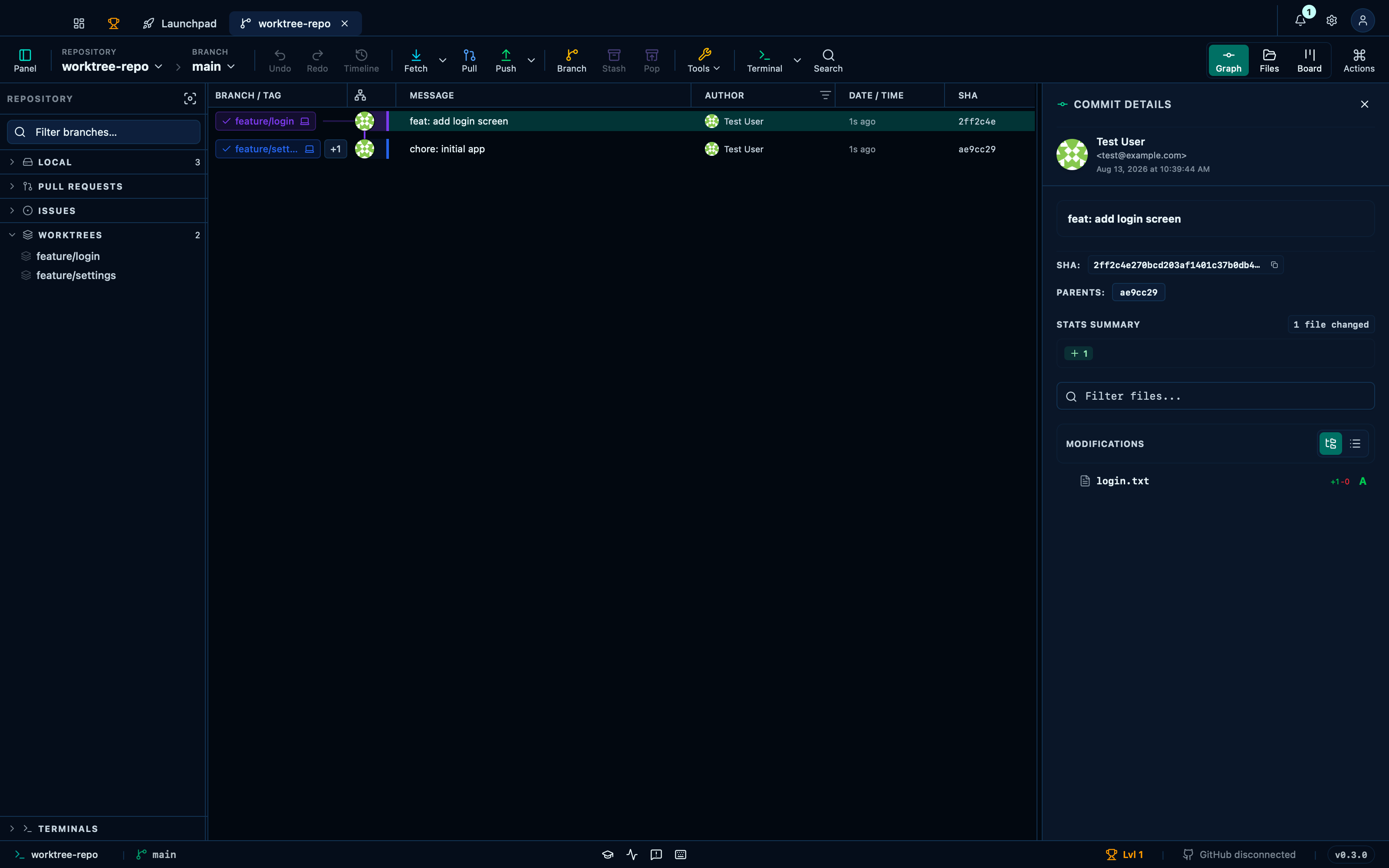
Captured from the running app by this scenario.
Do this
- Expand the
worktreessidebar section - Click the add-worktree button
- Set the worktree branch to
feature/settings - Set the worktree path to a fresh temporary directory
- Confirm the add-worktree dialog
You should see
- The sidebar lists a worktree for branch
feature/settings - The fixture repo has a worktree at that path on disk
Removing an existing worktree
Removing a worktree works the same way in reverse from adding one: a click on its row in the sidebar opens a confirmation, since removing a worktree removes the folder it checked out — nothing happens until you confirm it.
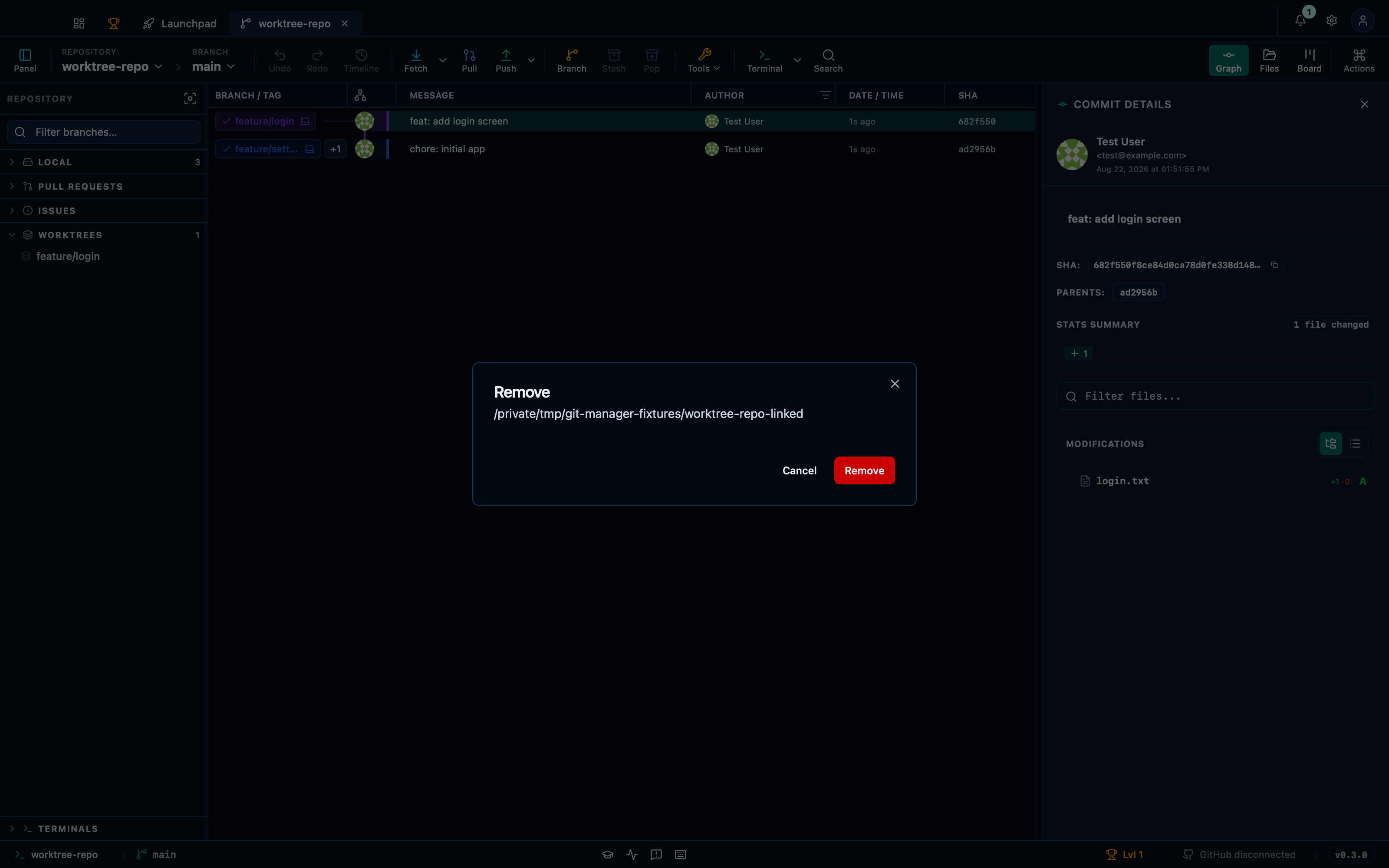
Captured from the running app by this scenario.
Do this
- Expand the
worktreessidebar section - Click the remove button for the linked worktree
- Confirm the remove-worktree dialog
You should see
- The sidebar no longer lists a worktree for branch
feature/login - The fixture repo no longer has the linked worktree on disk
Seeing which worktree an AI coding agent is working in
Worktrees are how you keep several things going at once, and an AI coding agent is one of the things that can be going on in one. When a Claude Code session is running in a worktree, that worktree's uncommitted-changes row in the graph says so: the dashed ring picks up the agent's colour and carries its mark instead of an avatar, with a tag beside it reading either working — output is being produced right now, and the ring pulses — or idle, meaning the session is open but waiting on you.
Nothing is asked of the agent for this. Git Manager reads the session logs the agent already writes to disk, which is also why the reading is a reasonable guess rather than a fact: a long tool run or a long think can leave a gap wide enough to show as idle for a moment mid-turn, and a session you walked away from stops being reported after a quarter of an hour.
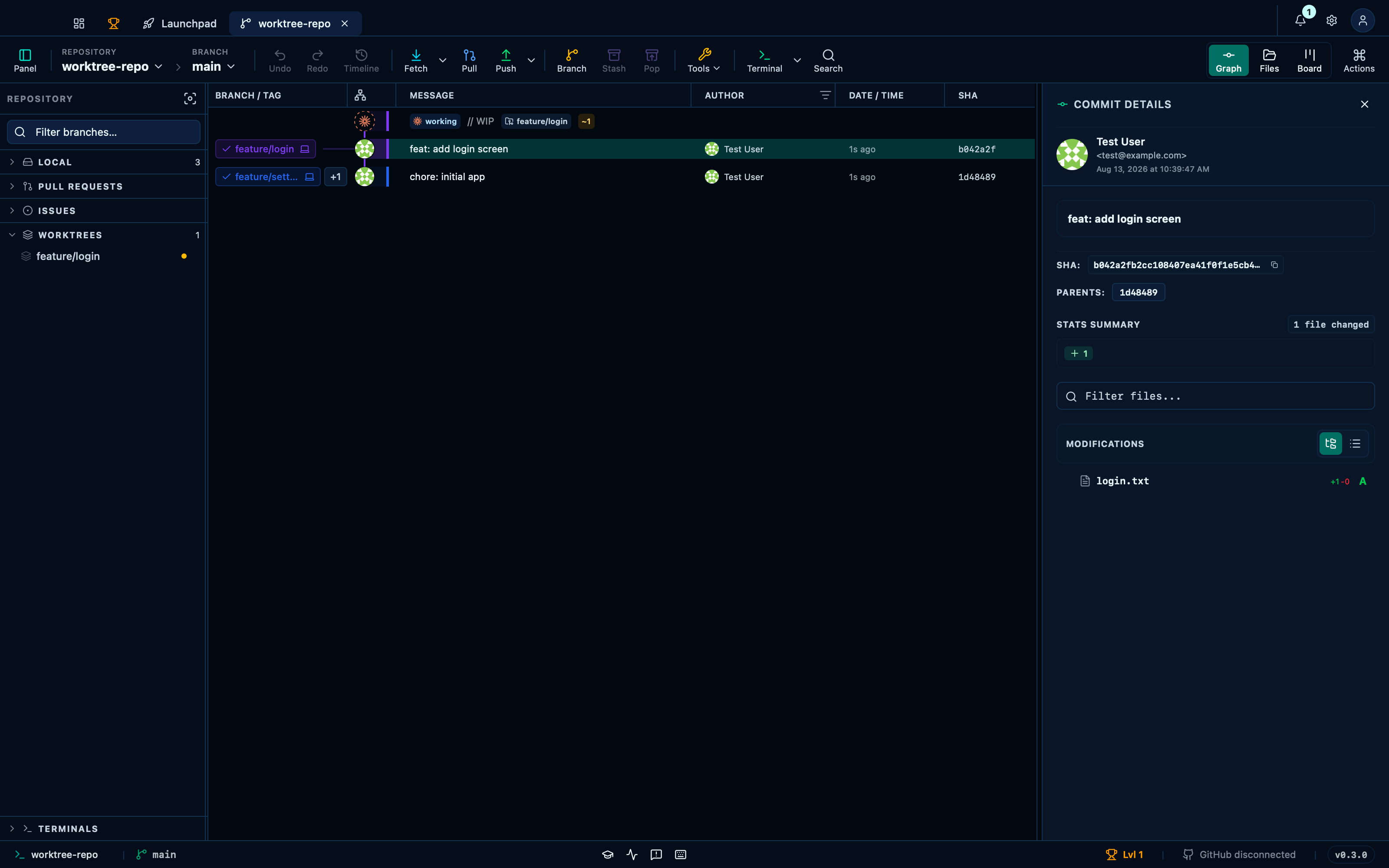
Captured from the running app by this scenario.
Do this
- Expand the
worktreessidebar section
You should see
- The graph marks the linked worktree as having an agent at work
Removing a dirty worktree requires forcing
A worktree with uncommitted changes doesn't remove quietly: the dialog warns you first, and the force checkbox has to be ticked before confirming does anything — one extra, deliberate step for the same reason a hard reset asks for one.
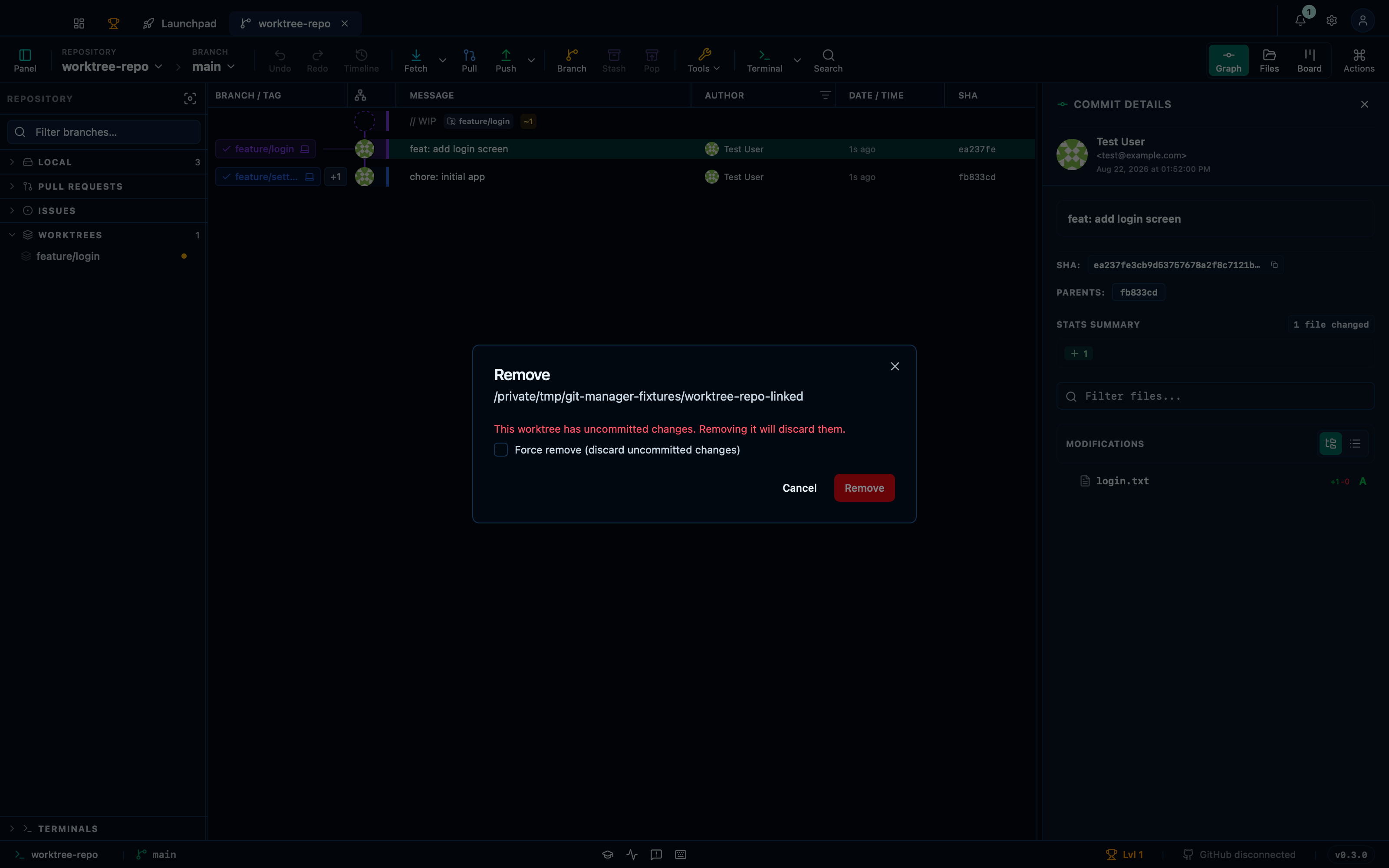
Captured from the running app by this scenario.
Do this
- Reload the application
- Expand the
worktreessidebar section - Click the remove button for the linked worktree
- Check the force-remove checkbox
- Confirm the remove-worktree dialog
You should see
- The remove-worktree dialog warns about uncommitted changes
- The fixture repo no longer has the linked worktree on disk
This page is generated from apps/e2e/features/worktree.feature, the end-to-end test that drives the feature it describes.