
AI provider
The AI provider tab is where a model gets configured: which one, at what URL, and how large a context window it's trusted to hold — the one setting nothing in the protocol lets the app verify on its own, unlike the connection itself.
Testing the AI provider connection reports a definitive status
"Test Connection" is a real, one-shot check against the URL above it — not a shortcut that just assumes the provider is reachable because a model id is filled in. It reports one of two definite outcomes, connected or not, rather than leaving the field in limbo while you wait to find out the hard way, the next time a feature tries to call the model and fails.
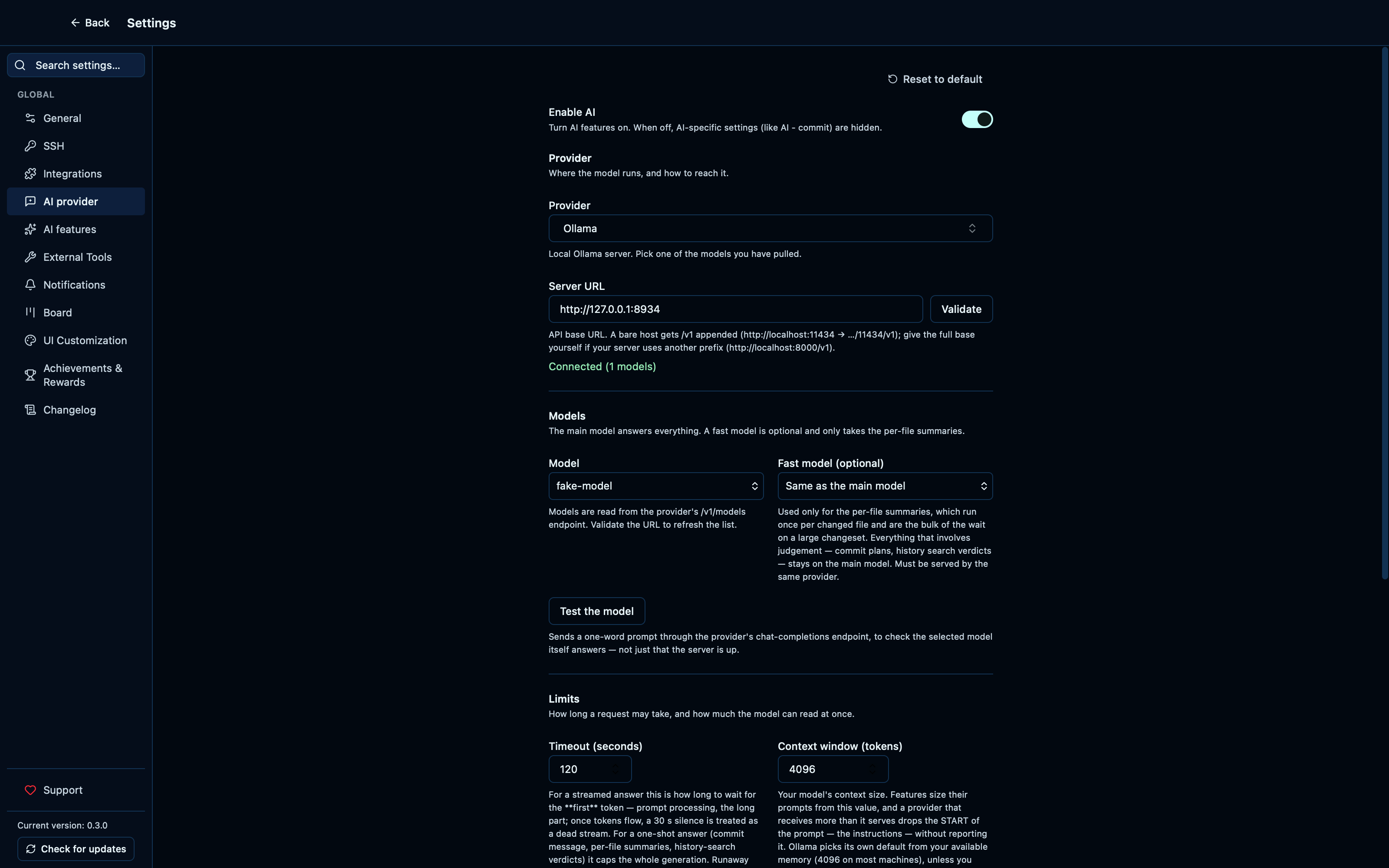
Captured from the running app by this scenario.
Do this
- Open the settings
- Open the
local_aisettings tab - Click the AI provider test connection button
You should see
- The AI provider connection status is reported
Checking a declared context window against what the model actually serves
The context-window field is the one AI setting taken purely on faith — nothing in the protocol lets the app ask a provider directly what it will serve. "Check against the model" asks anyway, when the provider is willing to answer, and offers to raise the declared value in one click when the server serves far more than what's set — the default 4096 in front of a 128,000-token model being exactly the case this exists for.
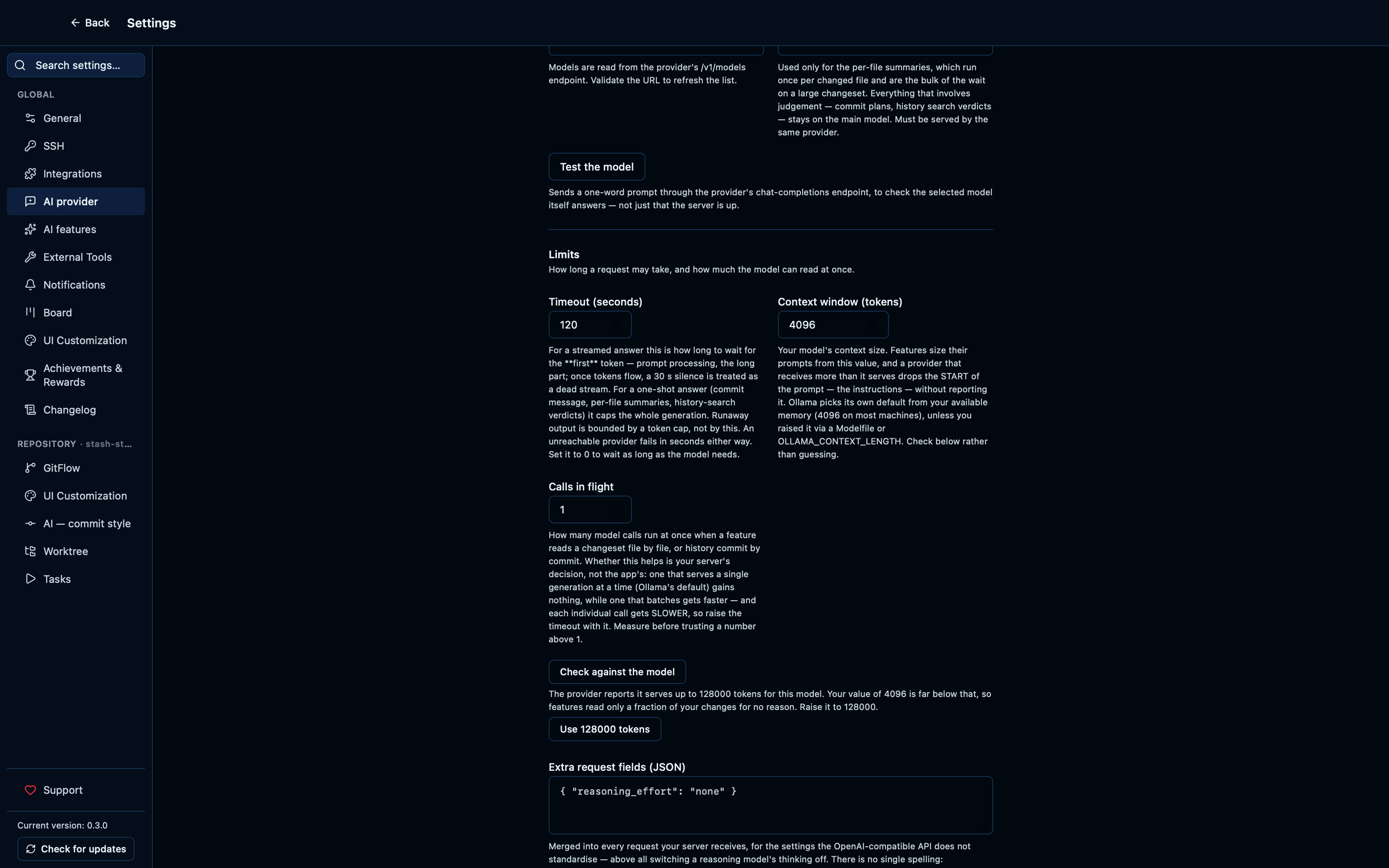
Captured from the running app by this scenario.
Do this
- Open the settings
- Open the
local_aisettings tab - Click the AI context window check button
- Apply the suggested context window
You should see
- The context window check reports that the model serves 128000 tokens
- The context window setting is
128000
The AI provider dropdown offers Ollama and the generic OpenAI-compatible entry
Every AI feature runs against whichever provider is picked here — Ollama, for a fully local model with nothing leaving the machine, or the generic OpenAI-compatible entry for any other server that speaks the same protocol, self-hosted or not. Neither is a named cloud vendor: what each one talks to is the URL typed in below it, not a fixed address the app already knows.
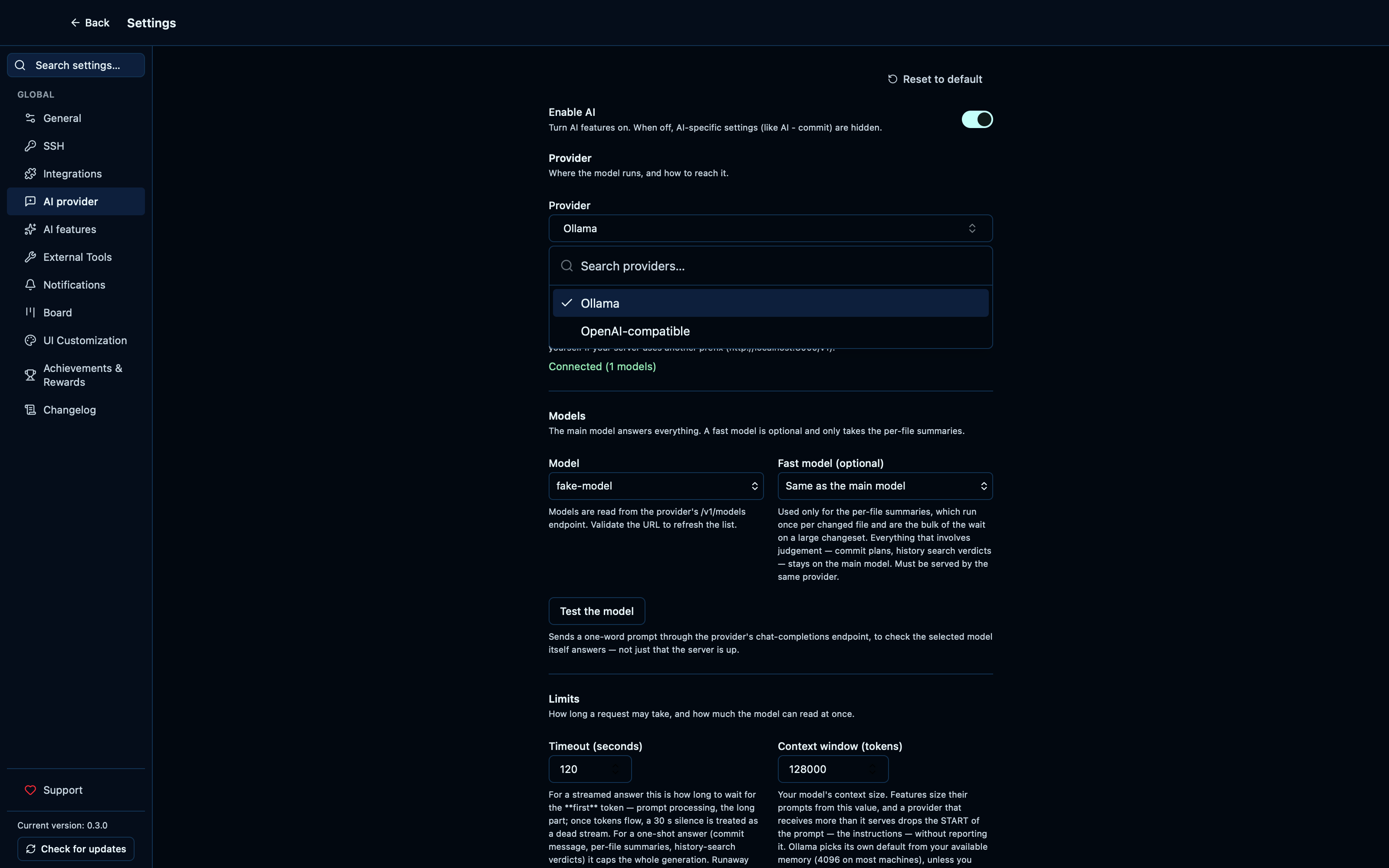
Captured from the running app by this scenario.
Do this
- Open the settings
- Open the
local_aisettings tab
You should see
- The
ollamaAI provider option is enabled - The
openai-compatibleAI provider option is enabled
Setting commit instructions and a commit pattern persists across a reload
The AI Features tab, not the provider tab, is where a commit message's style is shaped: free- text instructions the model is told to follow, and a regex the generated subject line must match. Both feed the same commit-message-generation feature the provider tab only configures the connection for, and both are saved and restored like every other setting.
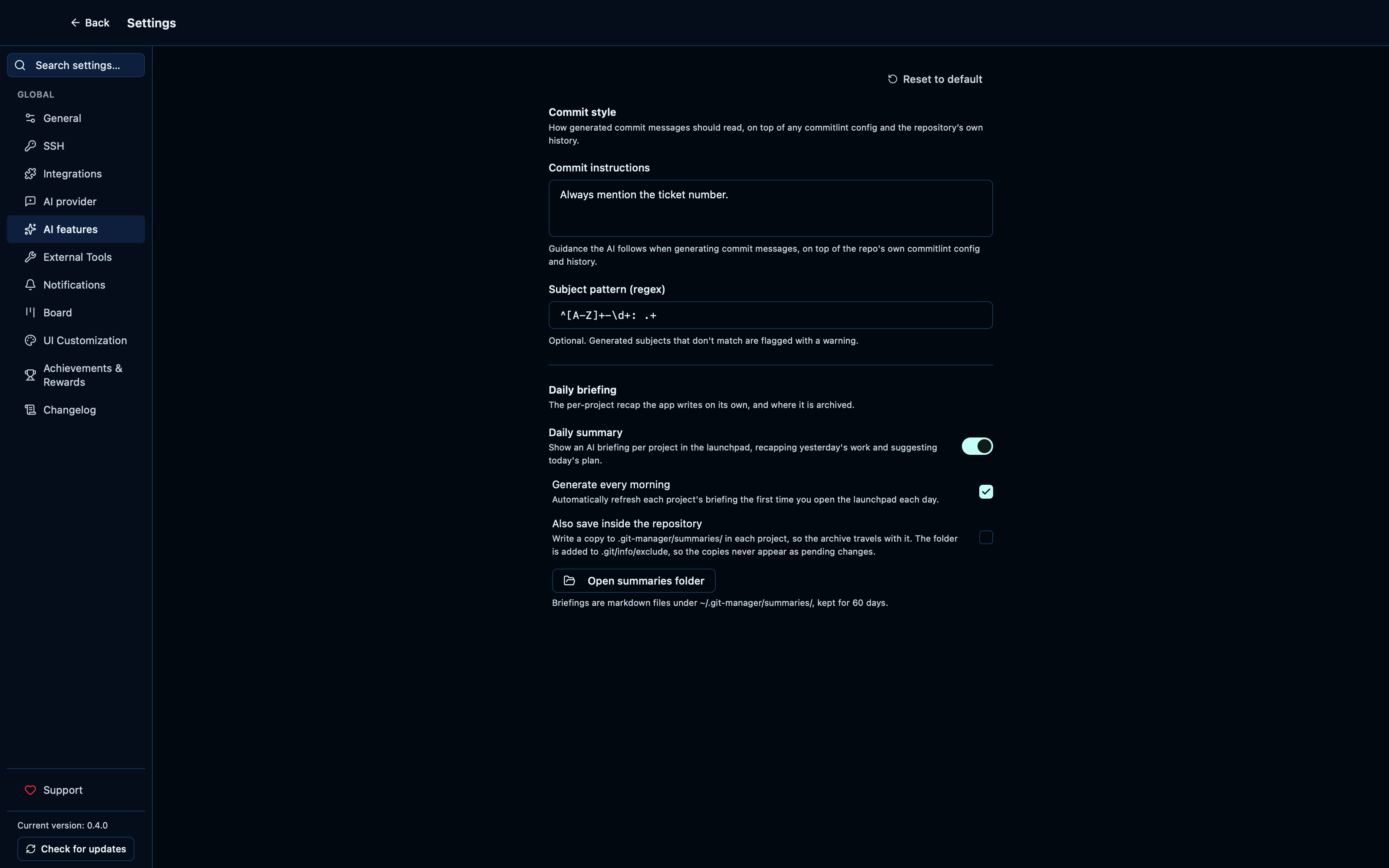
Captured from the running app by this scenario.
Do this
- Open the settings
- Open the
ai_featuressettings tab - Set the commit instructions to
Always mention the ticket number. - Set the commit pattern to
^[A-Z]+-\d+: .+ - Reload the application
- Open the settings
- Open the
ai_featuressettings tab
You should see
- The commit instructions are
Always mention the ticket number. - The commit pattern is
^[A-Z]+-\d+: .+
Configuring the daily summary settings persists across a reload
The daily briefing on the Launchpad — a "yesterday / today" summary the app can generate on its own — has its own on/off switch, separate from AI as a whole: turning it off hides the two finer controls underneath, whether it generates automatically and whether it also saves a copy into the repository, rather than merely disabling them. Each setting stays as set across a reload like the rest of Settings.
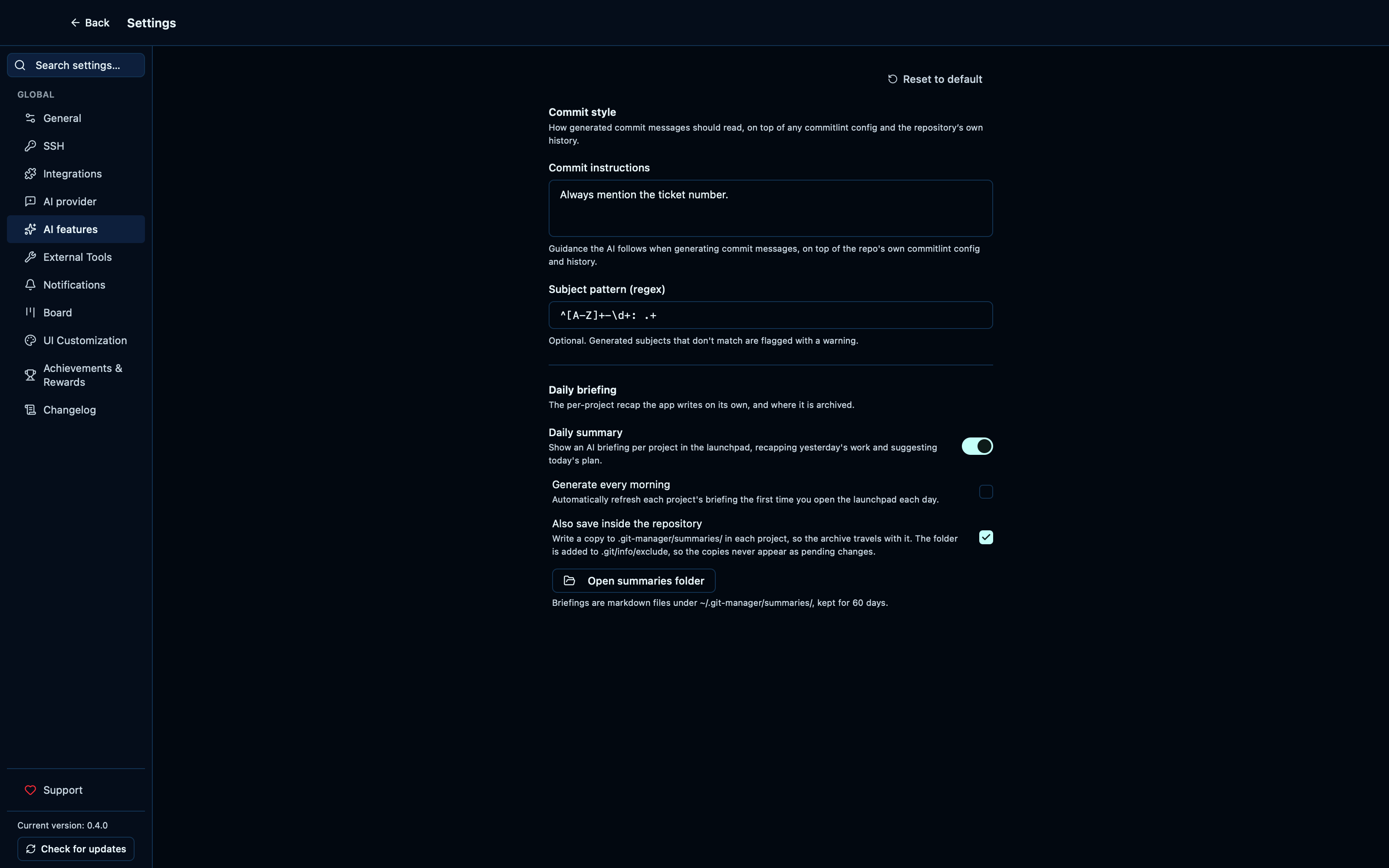
Captured from the running app by this scenario.
Do this
- Open the settings
- Open the
ai_featuressettings tab - Turn off the daily summary feature
- Turn on the daily summary feature
- Turn off automatic daily summary generation
- Turn on saving the daily summary to the repository
- Reload the application
- Open the settings
- Open the
ai_featuressettings tab
You should see
- Automatic daily summary generation is not shown
- The daily summary feature is on
- Automatic daily summary generation is off
- Saving the daily summary to the repository is on
- The daily summary folder button is shown
This page is generated from apps/e2e/features/settings-ai.feature, the end-to-end test that drives the feature it describes.