
Patch workflows
Creating a patch from the working tree
Tools → Patch → Create opens a right panel with the same two-zone staged/unstaged list the WIP staging panel uses — only what's in the Patch (staged) zone ends up in the file, and the hover +/- (or the bulk button) moves files between the two. Confirming asks where to save the result as a plain .patch file, shareable with anyone even if they don't have push access to your remote.
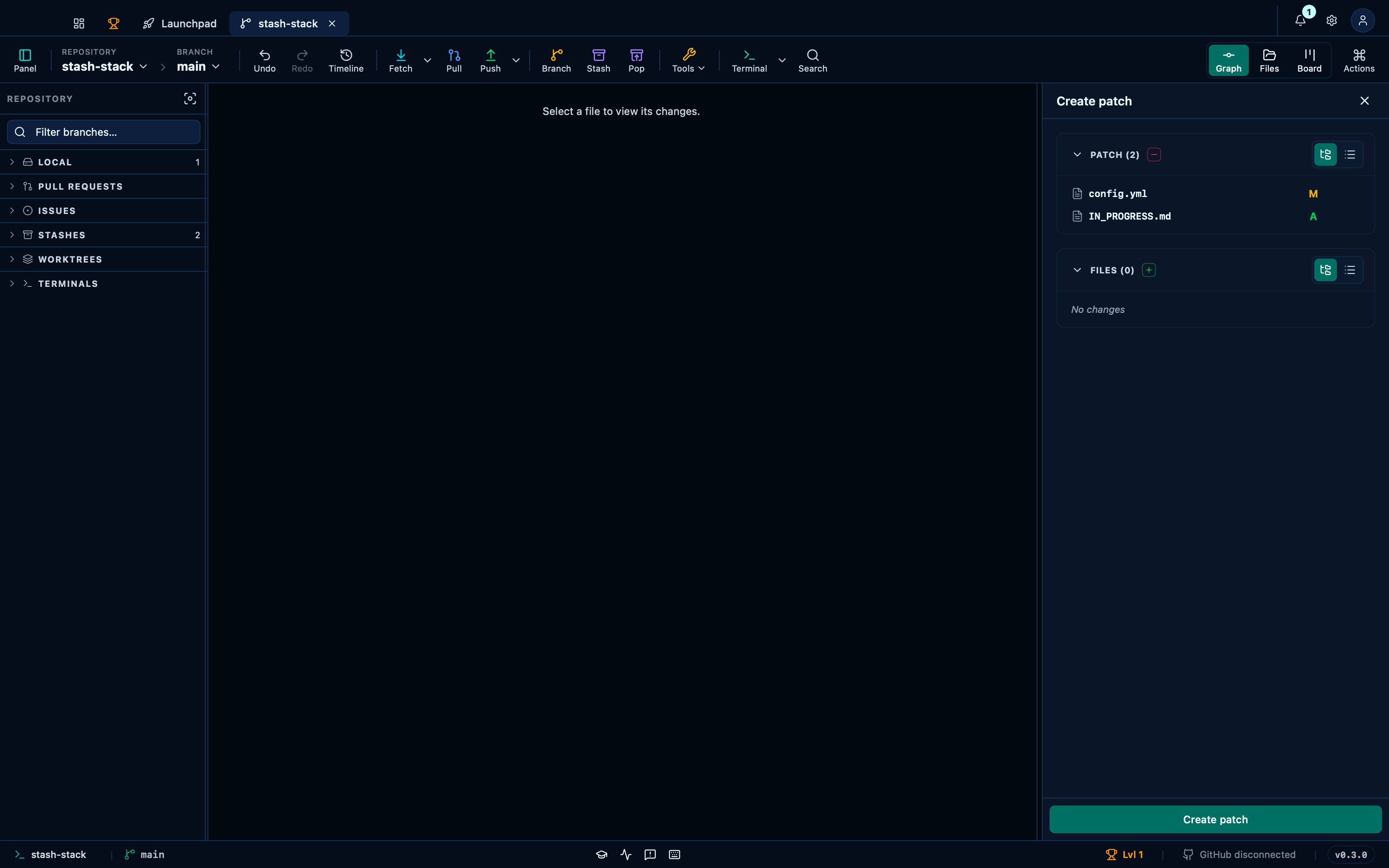
Captured from the running app by this scenario.
Do this
- Open the tools menu
- Click the Patch
Createmenu item - Stage all files in the patch workspace
- Click the patch create confirm button
- Choose
/tmp/git-manager-fixtures/patch-create-test.patchin the folder picker
You should see
- The patch workspace closes
- A real patch file exists at
/tmp/git-manager-fixtures/patch-create-test.patch
Applying an external patch file
Tools → Patch → Apply takes any .patch/.diff file — not necessarily one this app made — runs a dry-run check first, and lists the files it touches so you can review each diff before committing to it.
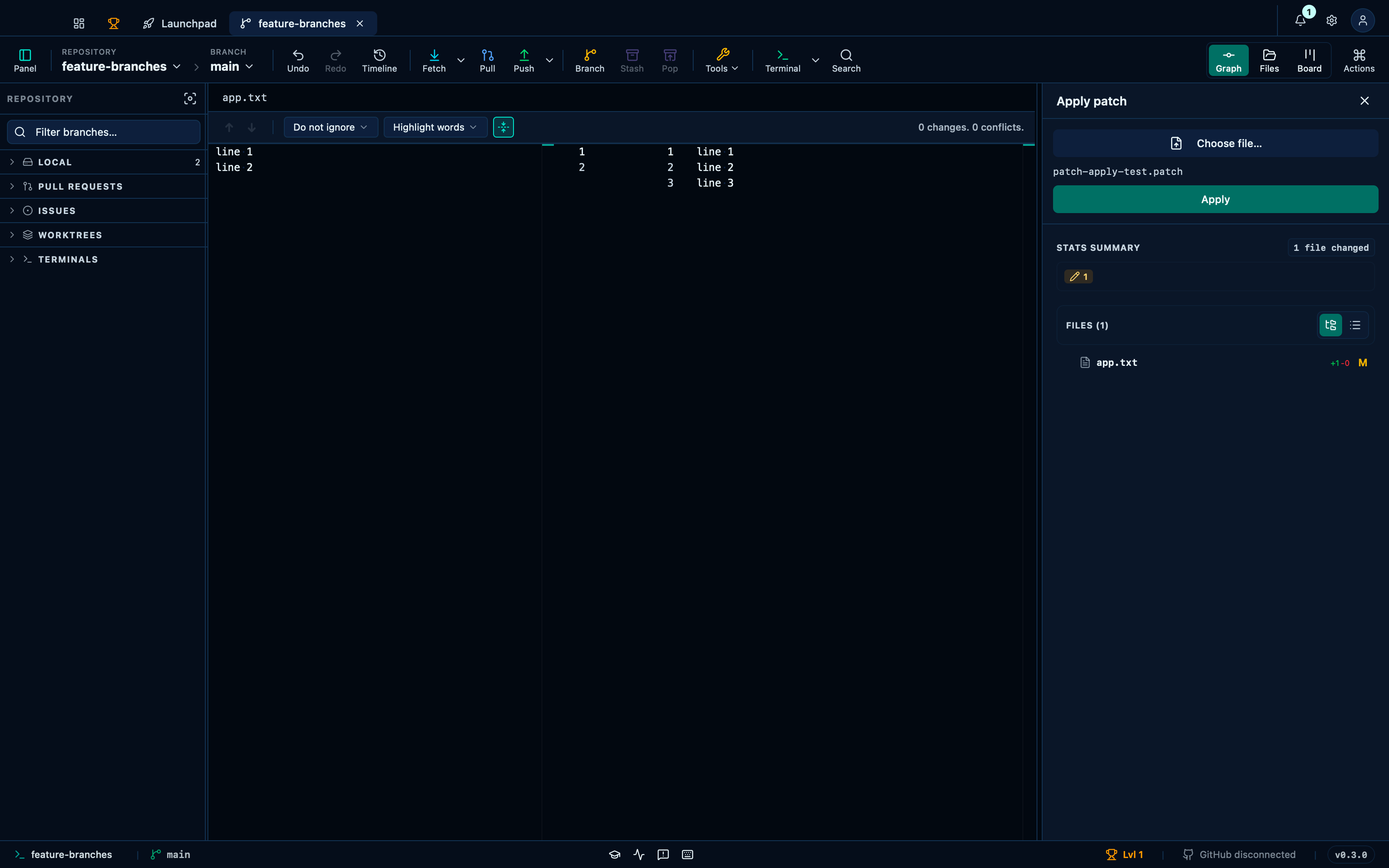
Captured from the running app by this scenario.
Do this
- Open the tools menu
- Click the Patch
Applymenu item - Click the patch choose-file button
- Choose
/tmp/git-manager-fixtures/patch-apply-test.patchin the folder picker - Click the patch apply confirm button
You should see
- The patch apply confirm button is enabled
- The patch workspace closes
- The working tree file
app.txtcontains the lineline 3
Capturing an edit to an installed dependency as a patch
Tools → Patch → Dependency captures a change already made straight in node_modules — pnpm can't see an in-place edit there itself, so this walks it through pnpm's own patch workflow: picking the dependency diffs it against a pristine copy, and confirming writes a .patch file under patches/ and wires it into patchedDependencies, so the edit survives a reinstall exactly as if pnpm patch/patch-commit had been run by hand.
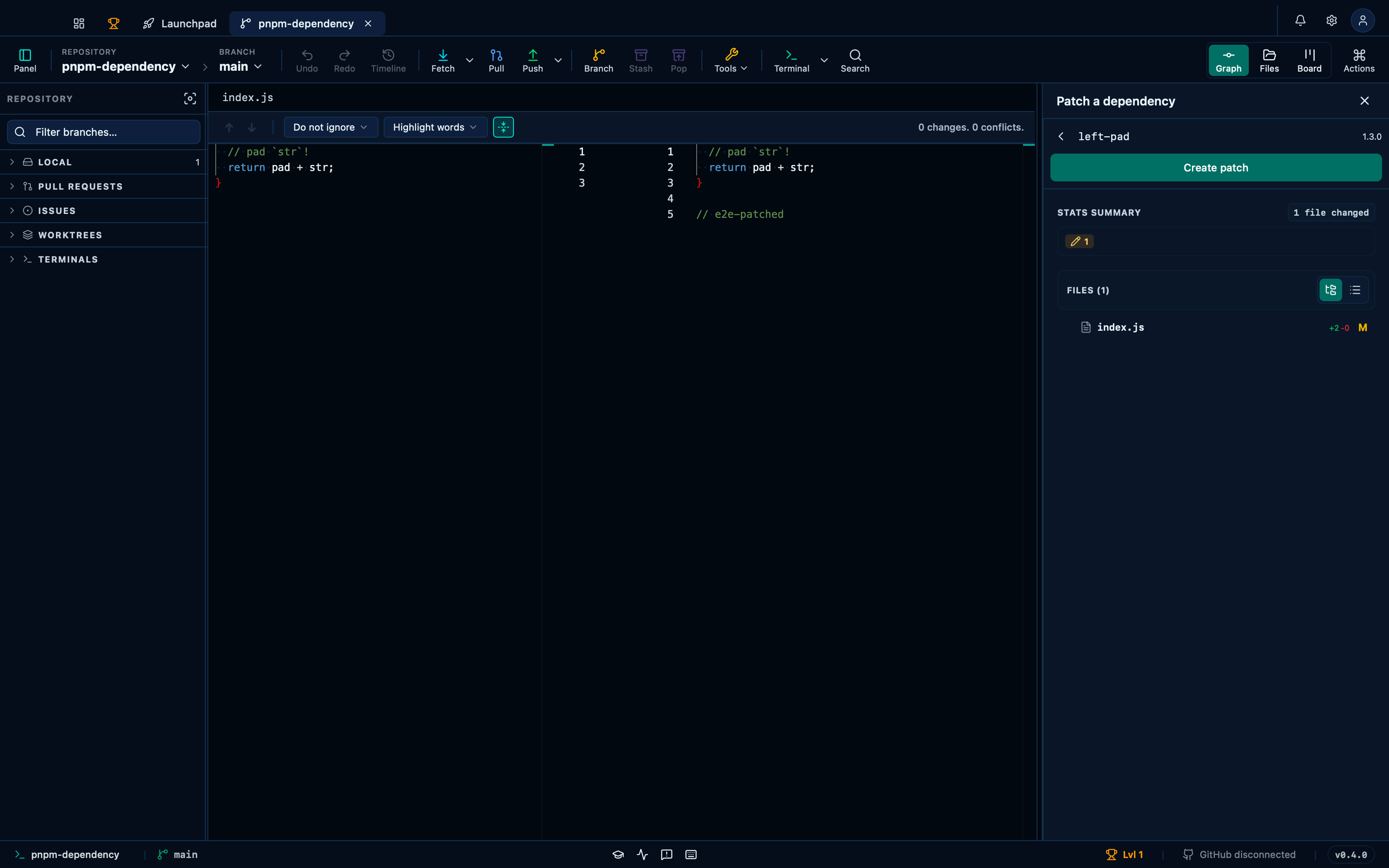
Captured from the running app by this scenario.
Do this
- Open the tools menu
- Click the Patch
Dependencymenu item - Select the
left-paddependency to patch - Click the dependency patch confirm button
You should see
- The dependency patch confirm button is enabled
- The patch workspace closes
- A real dependency patch file exists for
left-pad@1.3.0
This page is generated from apps/e2e/features/patch-workspace.feature, the end-to-end test that drives the feature it describes.