
The interface at a glance
Around whatever repository you are working on, the window keeps three fixed landmarks: the tab bar along the top, the action toolbar under it, and the status footer along the bottom. Everything else — graph, staging, panels — lives in the space between them and changes with what you are doing; these three do not.
The tab bar keeps every repository one click away
The top strip works like a browser's tab bar: the Dashboard keeps a pinned tab on the far left, and every repository you open gets a tab of its own, so switching projects is one click and no repository is ever closed just because you looked at another one. Open a fresh tab with ⌘T, close the current one with ⌥W.

Captured from the running app by this scenario.
You should see
- The tab bar shows a tab for the
feature-branchesrepository
The toolbar carries the day-to-day Git actions
Under the tabs, the toolbar is where the everyday Git verbs live: the repository and branch selectors on the left tell you where you are, and Fetch, Pull and Push sit right next to them — with badges counting what is waiting in each direction, so you know there is something to pull before you ask.

Captured from the running app by this scenario.
You should see
- The toolbar offers the fetch, pull and push actions
The footer keeps an eye on the background
The bottom strip is the app's quiet status line: it names the branch you are on, opens the activity logs — every Git operation the app ran on your behalf, with its result — and reports whether your AI provider is reachable, checking, or busy generating something for a panel you may have scrolled away from.

Captured from the running app by this scenario.
You should see
- The footer reports the AI provider status
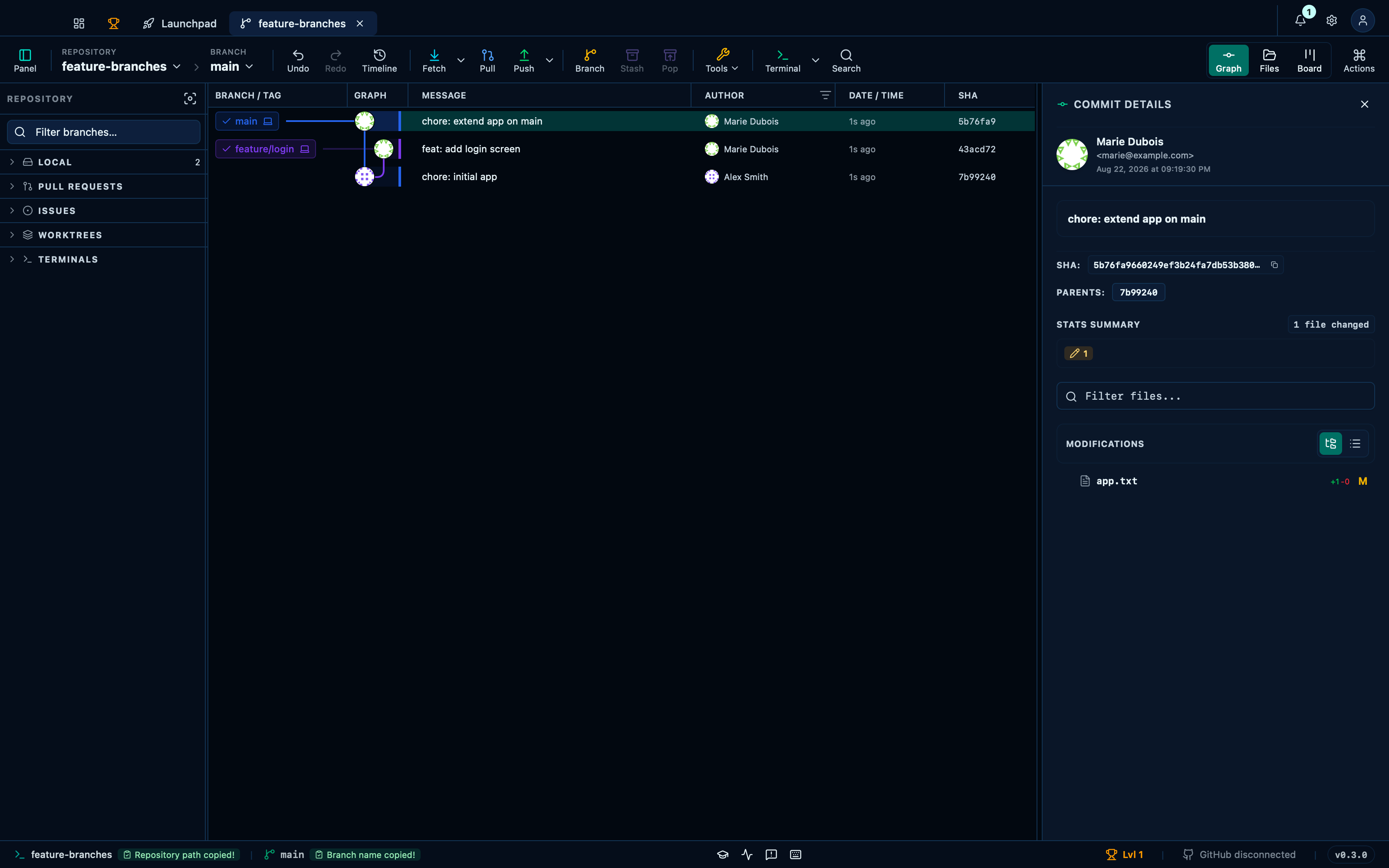
Copying the repository path and branch, and jumping to the changelog, from the footer
The repository name and the branch name each copy themselves in one click, without opening anything — useful for pasting a path into another app or a branch name into a commit message by hand. The version pill on the right is a shortcut into the same Changelog tab the sidebar reaches, not a separate page.
Captured from the running app by this scenario.
Do this
- Click the footer's copy-path button
- Click the footer's copy-branch button
- Click the footer's version button
You should see
- The footer's copy-path button confirms the copy
- The footer's copy-branch button confirms the copy
- The changelog shows at least one release entry
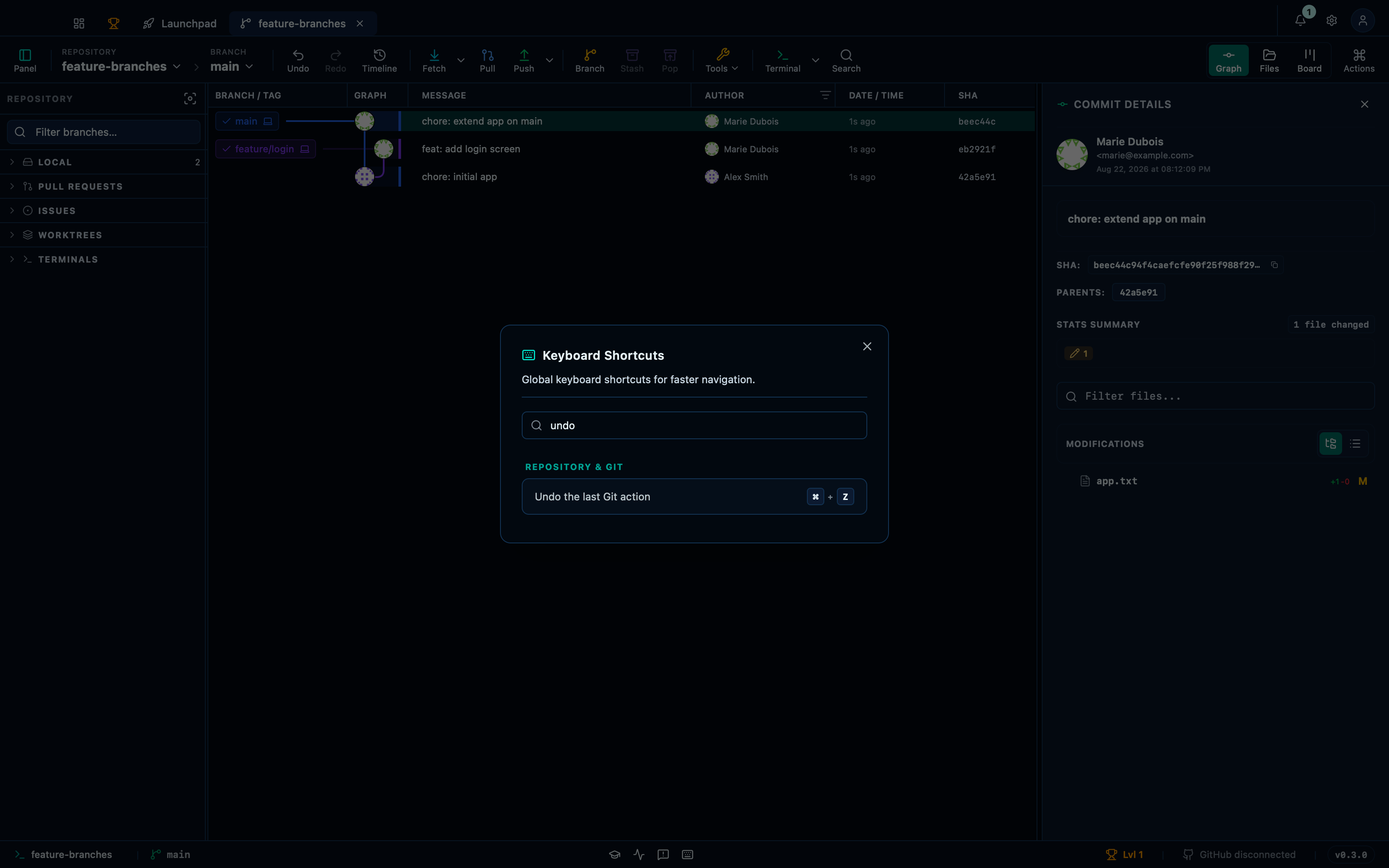
Searching the in-app keyboard shortcuts reference
The footer's keyboard icon opens the same shortcuts this page lists, searchable by what they do or by the keys themselves — so "undo" finds ⌘Z without having to already know which category it's filed under.
Captured from the running app by this scenario.
Do this
- Open the keyboard shortcuts panel
- Search the shortcuts panel for
undo
You should see
- The shortcuts panel shows the shortcut
Undo the last Git action - The shortcuts panel does not show the shortcut
Open Settings
This page is generated from apps/e2e/features/interface-overview.feature, the end-to-end test that drives the feature it describes.