
Integrations
The Integrations tab is where a GitHub account gets connected — the device flow or a pasted personal access token — so the rest of the app (Launchpad, drafting a PR, a GitHub-backed board) has an account to act as.
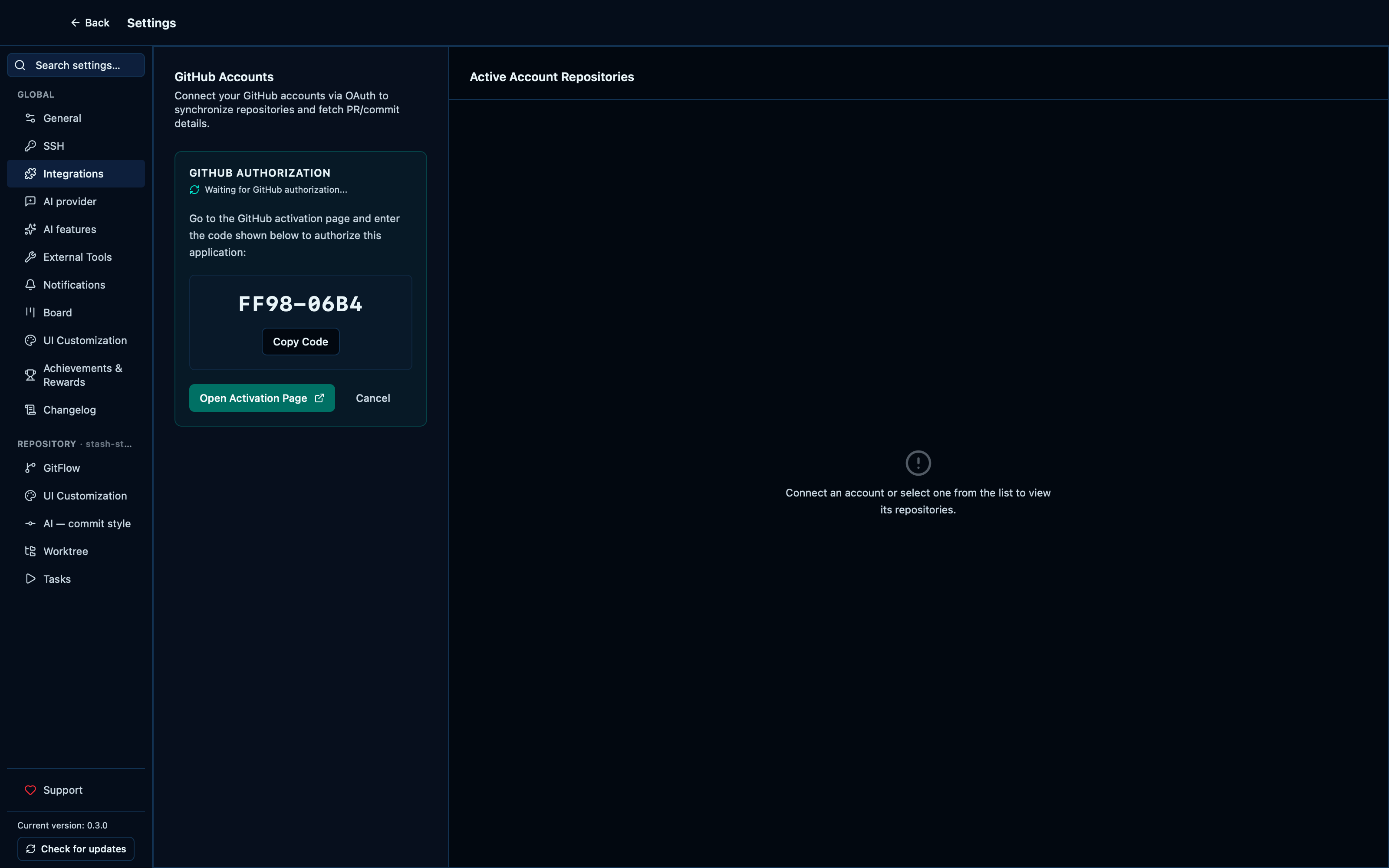
Starting the GitHub OAuth device flow shows a real device code, and it can be cancelled
Connecting GitHub uses the same device flow GitHub's own CLI does: click Connect, get a short code and a link to enter it at github.com, and the app polls in the background until you do — no browser popup, no pasted token. Changing your mind mid-flow is one click back to the start.
Captured from the running app by this scenario.
Do this
- Reload the application
- Open the settings
- Open the
integrationssettings tab - Click the GitHub OAuth login button
- Cancel the GitHub OAuth login
You should see
- The GitHub device code and activation link are shown
- The GitHub login options are shown again
Connecting GitHub with a personal access token instead
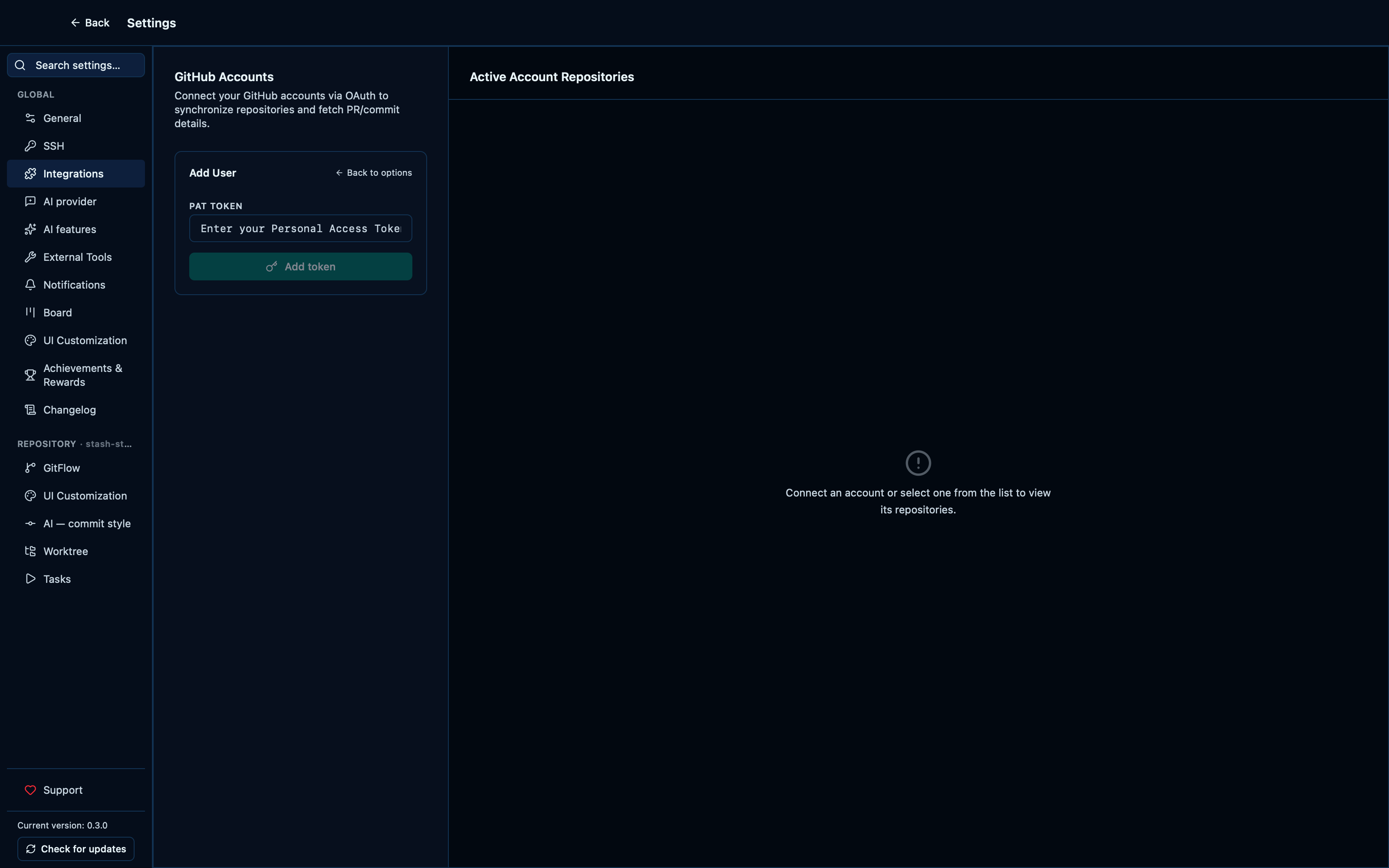
"Login with a PAT token" is the other way in: paste a token instead of going through the device flow, useful on a machine where opening a browser isn't convenient. An invalid token is rejected with the reason GitHub gave rather than a generic failure, and "Back to options" returns to the choice without losing anything else on the page.
Captured from the running app by this scenario.
Do this
- Reload the application
- Open the settings
- Open the
integrationssettings tab - Click the login-with-PAT button
- Enter the PAT
not-a-real-token - Submit the PAT
- Go back to the GitHub login options
You should see
- A GitHub connection error is shown
- The GitHub login options are shown again
Connecting GitHub with a valid personal access token
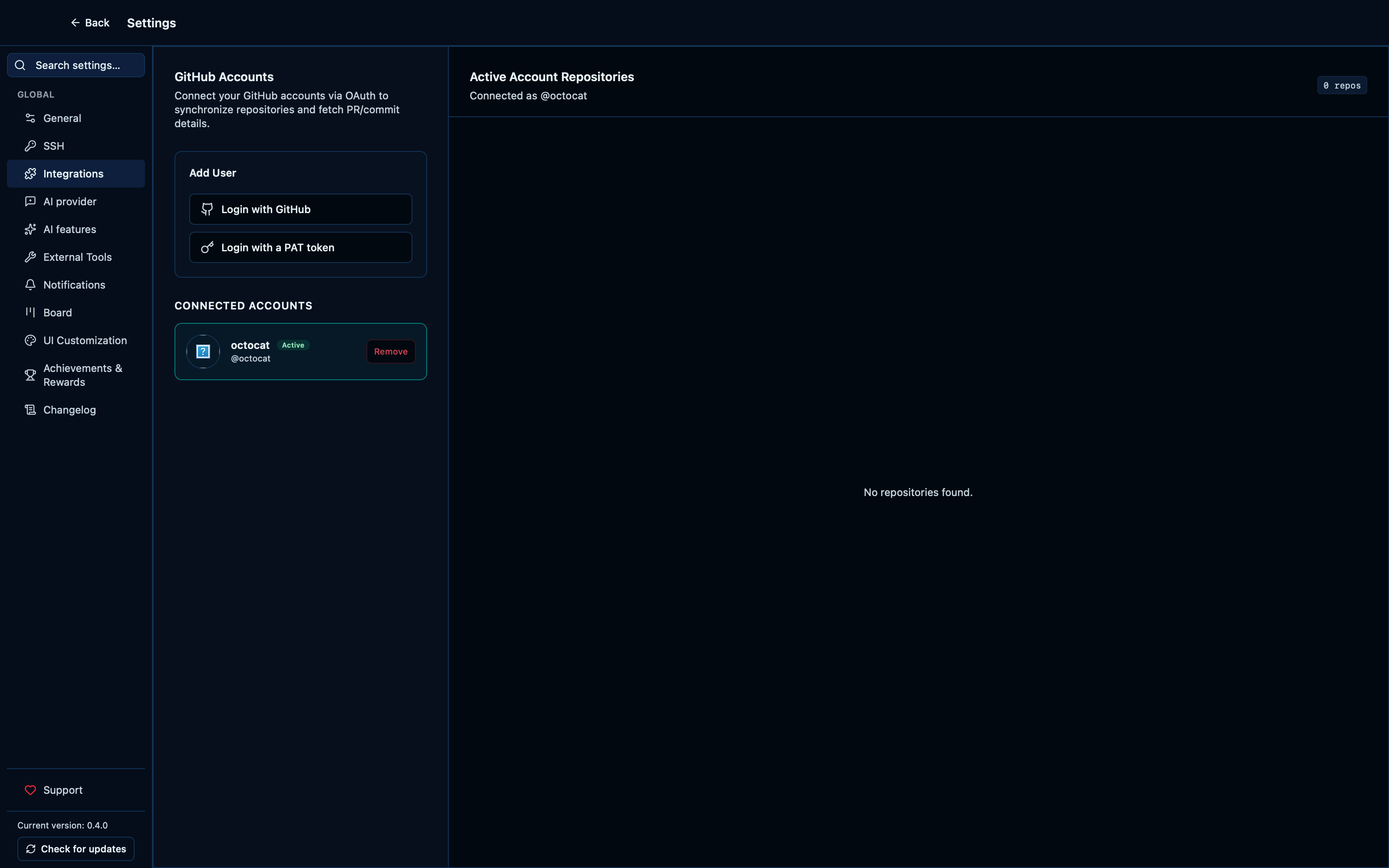
A token GitHub actually recognizes succeeds immediately — the account appears in the list the moment its login is known, the same list Disconnect and every account-scoped feature (the Launchpad, drafting a PR, a GitHub-backed board) read from.
Captured from the running app by this scenario.
Do this
- Reload the application
- Open the settings
- Open the
integrationssettings tab - Click the login-with-PAT button
- Enter the PAT
fake-e2e-valid-token - Submit the PAT
You should see
- The GitHub account
octocatis shown
Disconnecting a GitHub account
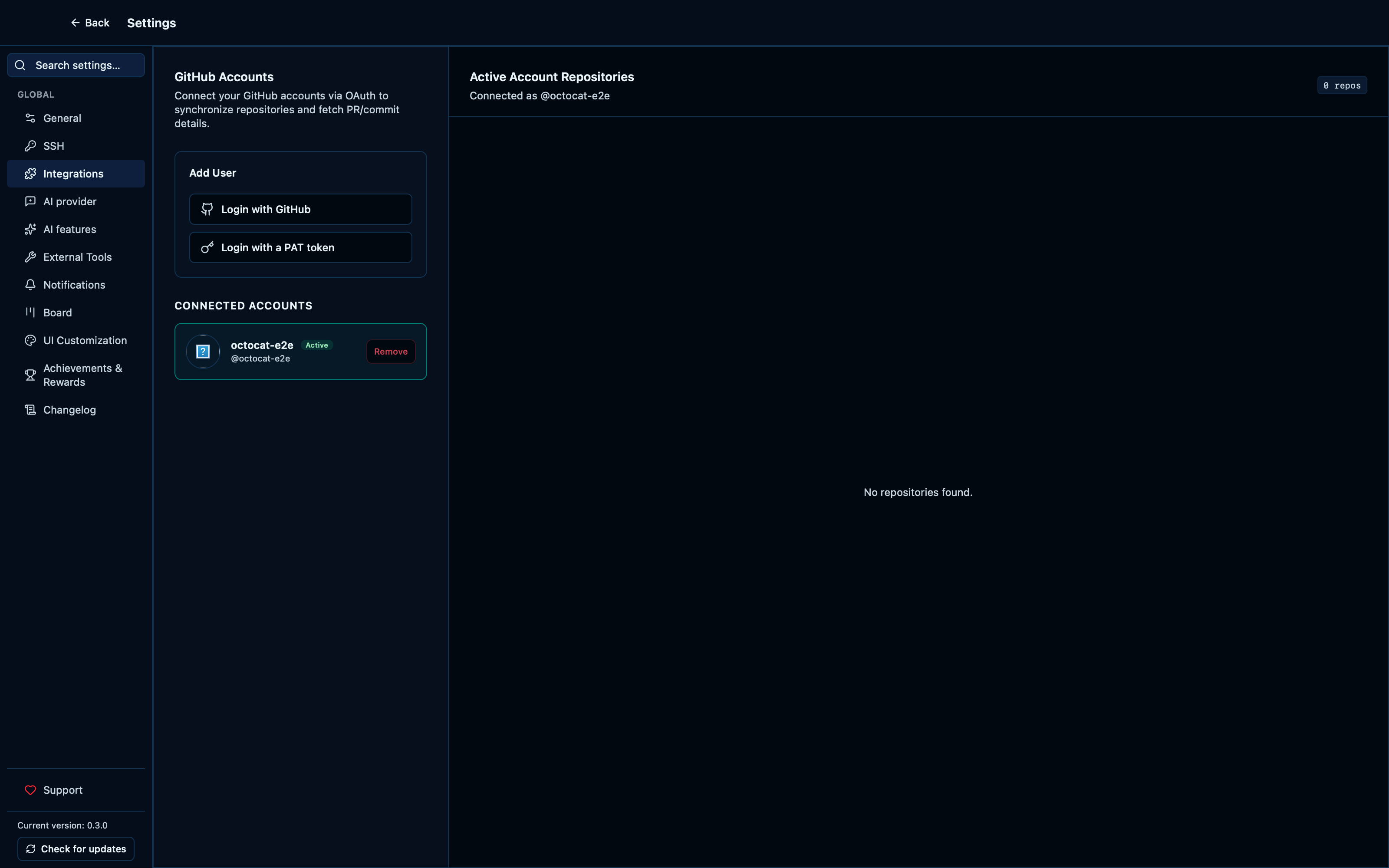
Removing an account here forgets it everywhere: the entry disappears from this list and its token is deleted from the keychain in the same click, rather than just hiding a name the app still remembers. Launchpad, drafting a PR and a GitHub-backed board all lose whatever that account gave them access to the moment it goes.
Captured from the running app by this scenario.
Do this
- Reload the application
- Open the settings
- Open the
integrationssettings tab - Disconnect the GitHub account
octocat-e2e
You should see
- The GitHub account
octocat-e2eis shown - The GitHub account
octocat-e2eis no longer connected - No error notification is displayed
This page is generated from apps/e2e/features/settings-integrations.feature, the end-to-end test that drives the feature it describes.