
Backed by GitHub Issues
A repository with a connected GitHub account can create a board whose cards are real GitHub issues, shared with the team, instead of commits in this clone's own .git — see the local board for the one that needs nothing set up. Every card field GitHub has a home for uses it: the assignee is the issue's own assignee, tags and priority are real labels, and a column is a label of its own — so the board and github.com stay in agreement rather than the app hiding state in a private encoding.
Creating a board backed by GitHub issues
Choosing "GitHub" instead of "Local" when creating a board is the whole of the choice: the same dialog, the same fields afterwards — a card is added, assigned and prioritised exactly the way a local one is. The sidebar's only difference is the subtitle under the board's name, marking it shared with the team rather than private to this clone.
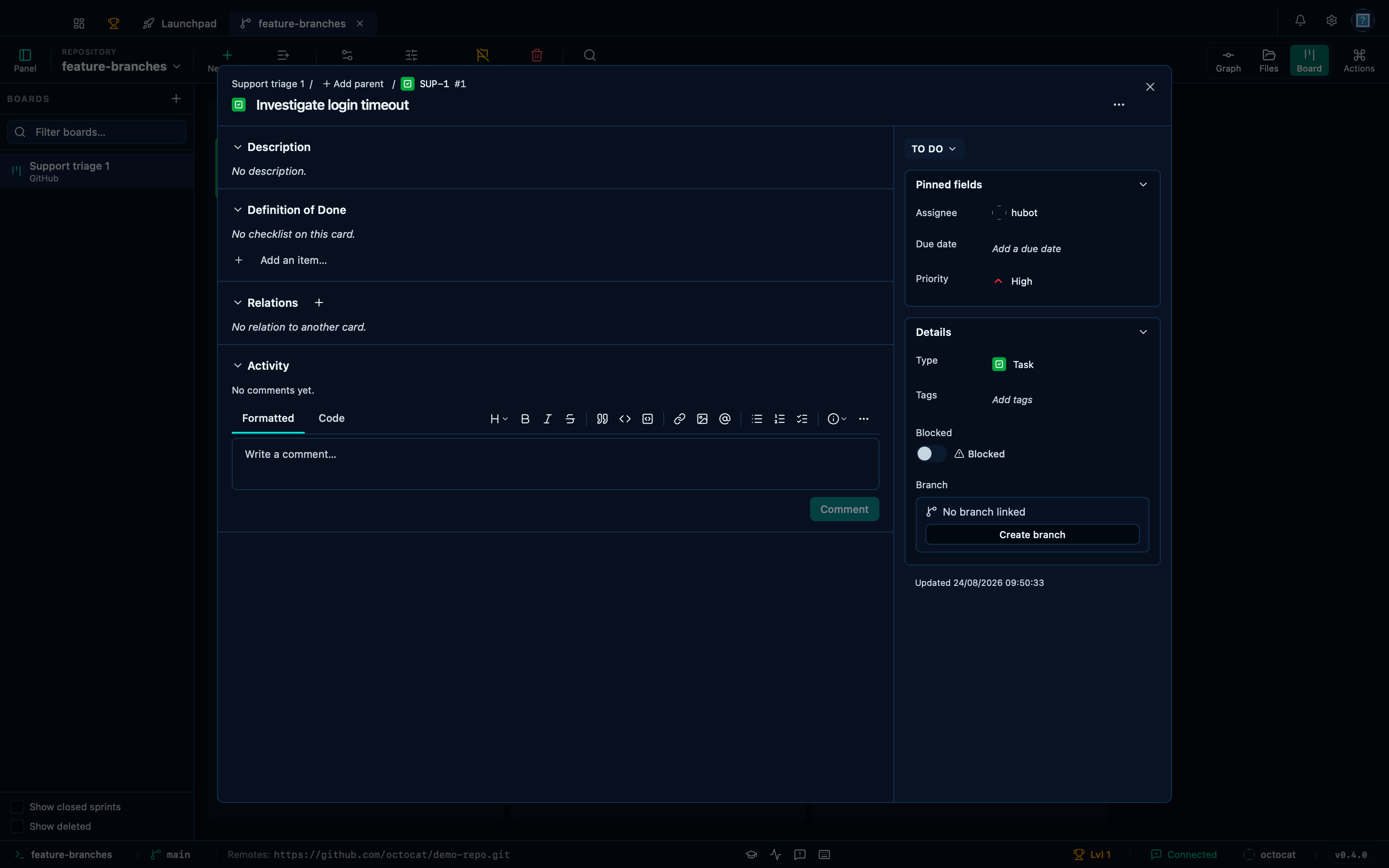
Captured from the running app by this scenario.
Do this
- Open the board
- Create a GitHub board named
Support triagewith the card prefixSUP - Add a card titled
Investigate login timeoutto theTo docolumn - Open the card
Investigate login timeout - Assign the card to
hubot - Set the card priority to
High
You should see
- The board
Support triageis a GitHub board - The card
Investigate login timeoutis identified asSUP-1 - No error notification is displayed
Opening the dialog to add an existing GitHub issue to the board
"Add issue", next to New Card on a GitHub board's toolbar, searches the repository's open issues — or accepts a pasted issue number or URL for one you already know, including a closed one the search wouldn't otherwise offer — and tracks whichever you pick as a card instead of creating a new one.
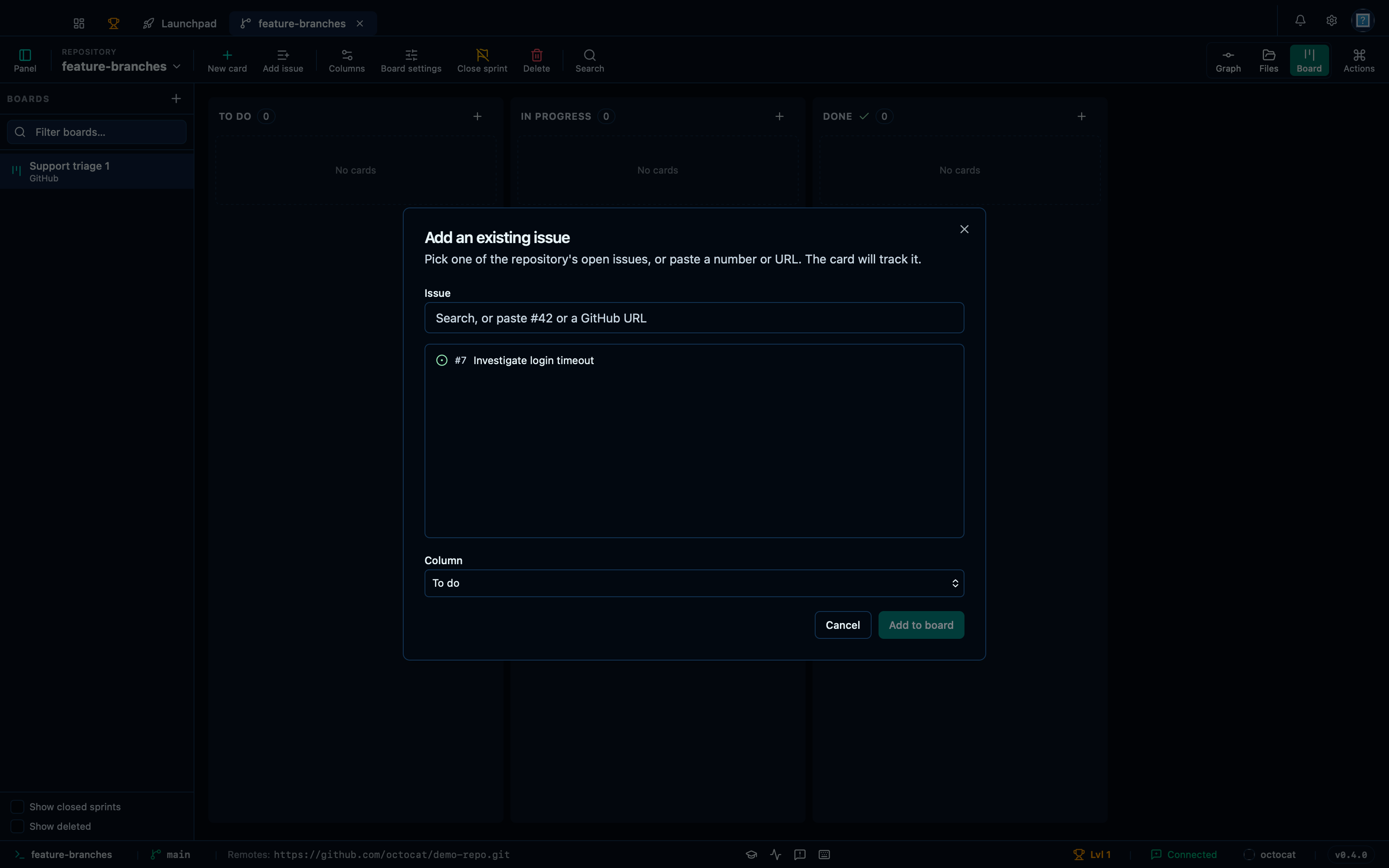
Captured from the running app by this scenario.
Do this
- Open the board
- Create a GitHub board named
Support triagewith the card prefixSUP - Click the add-issue button
- Select the add-issue result
7 - Confirm the add-issue selection
You should see
- The add-issue dialog is shown
- The card
Investigate login timeoutis shown on the board - No error notification is displayed
This page is generated from apps/e2e/features/board-github.feature, the end-to-end test that drives the feature it describes.