
Stash list
Stashes aren't tucked away in a separate panel — they're just another entry in the sidebar, listed alongside your branches and tags, with their own actions (apply, pop, drop) available through the command palette.
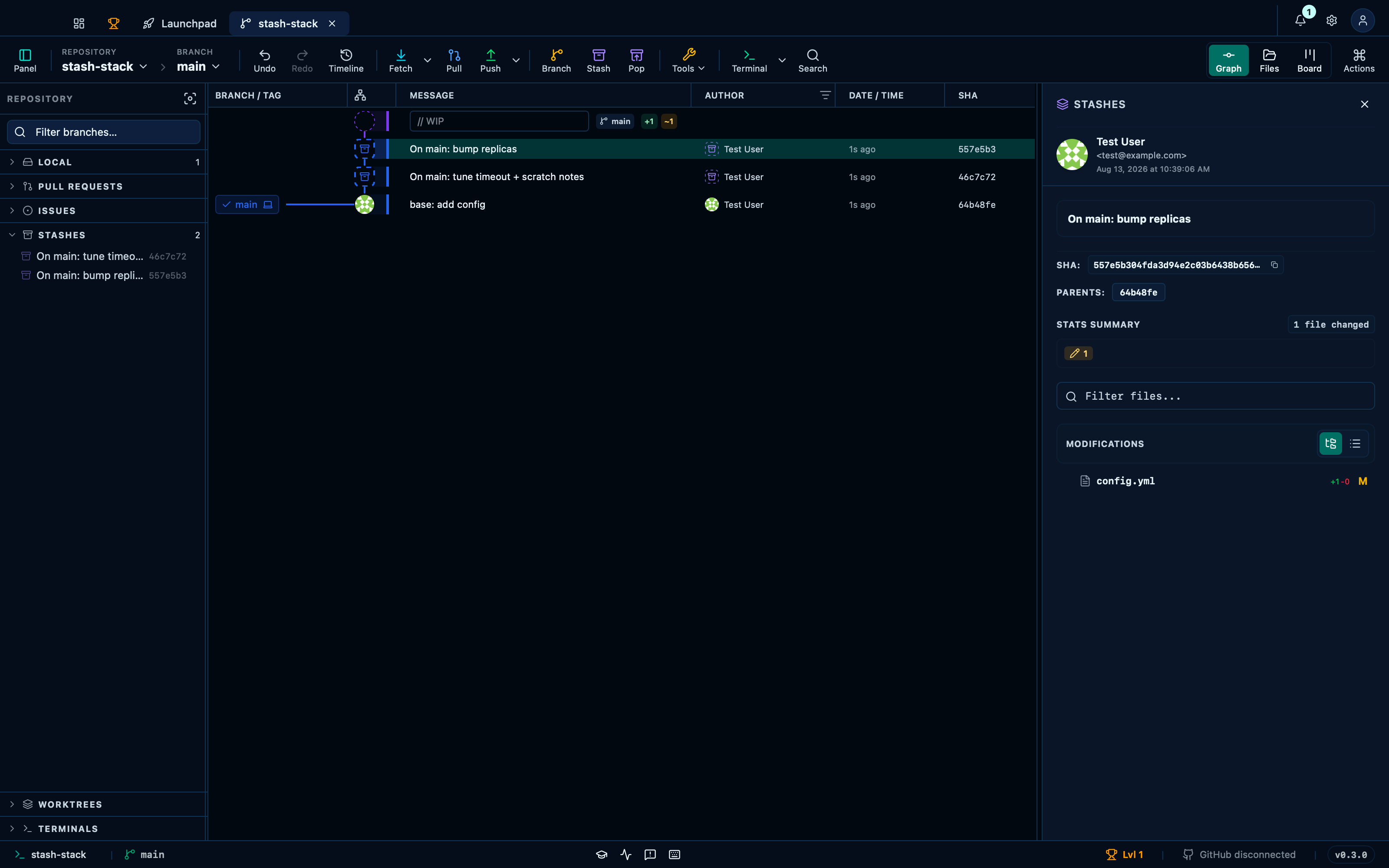
The sidebar lists the stashed changes
Every stash you've pushed shows up in its own sidebar section, most recent first — no separate "stash panel" to open, no memorising indices. Selecting one lets you run its actions from the command palette.
Captured from the running app by this scenario.
Do this
- Expand the
stashessidebar section
You should see
- The sidebar lists 2 stashes
Stashing puts your work aside and clears the tree
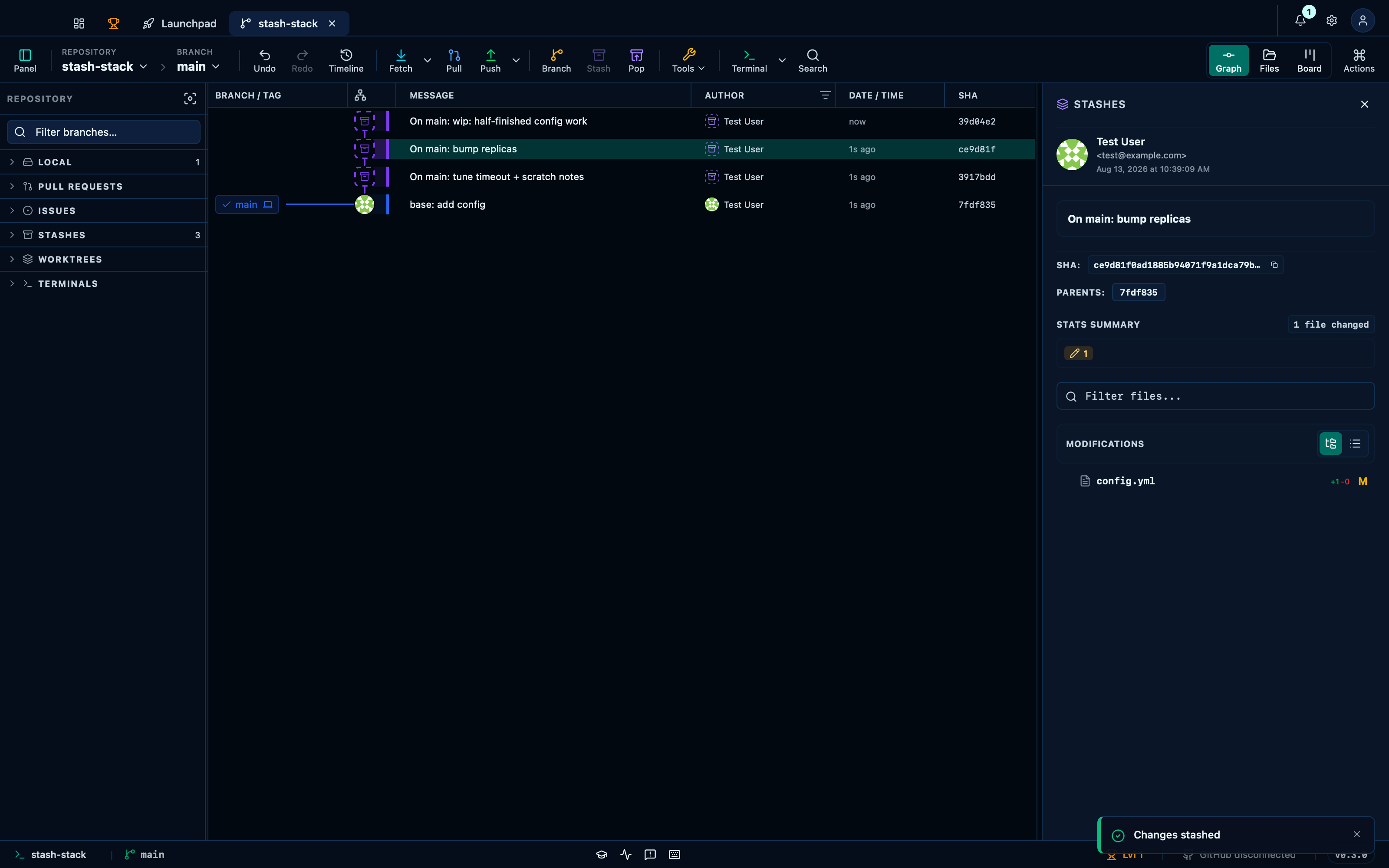
The toolbar's Stash button takes everything you have in progress — including untracked files — and parks it, leaving a clean working tree to switch branches or pull. Whatever you typed in the graph's work-in-progress row becomes the stash's own message, so the pile stays readable; leave it empty and it is named after the branch you were on.
Captured from the running app by this scenario.
Do this
- Name the work in progress
wip: half-finished config work - Stash the working changes
You should see
- The repository has 3 stashes
- The newest stash is named
wip: half-finished config work - The working tree is clean
- No error notification is displayed
Naming a stash and choosing whether to include untracked files
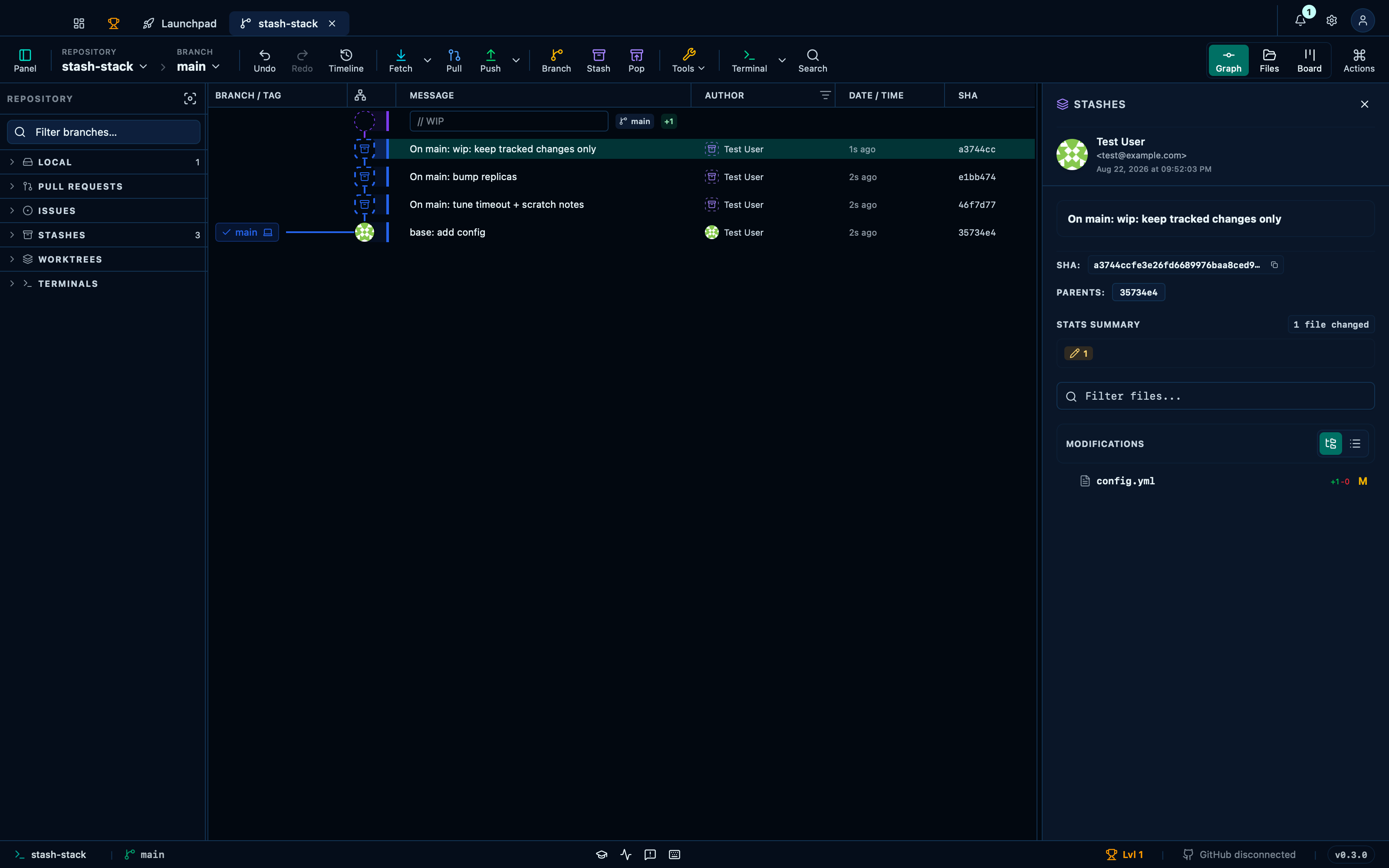
Selecting the working tree opens the same panel a commit would, with a Stash tab next to it: an optional message, and a checkbox for whether untracked files come along — checked by default, since that's what the toolbar's own Stash button always does, but visible and yours to turn off here rather than a silent default you never see.
Captured from the running app by this scenario.
Do this
- Select the working-tree changes in the graph
- Switch the staging panel to the stash tab
- Type
wip: keep tracked changes onlyinto the stash message field - Uncheck the include-untracked-files option
- Submit the stash form
You should see
- The repository has 3 stashes
- The newest stash is named
wip: keep tracked changes only - The file
IN_PROGRESS.mdis untracked in the working tree
Renaming a stash rewrites its message
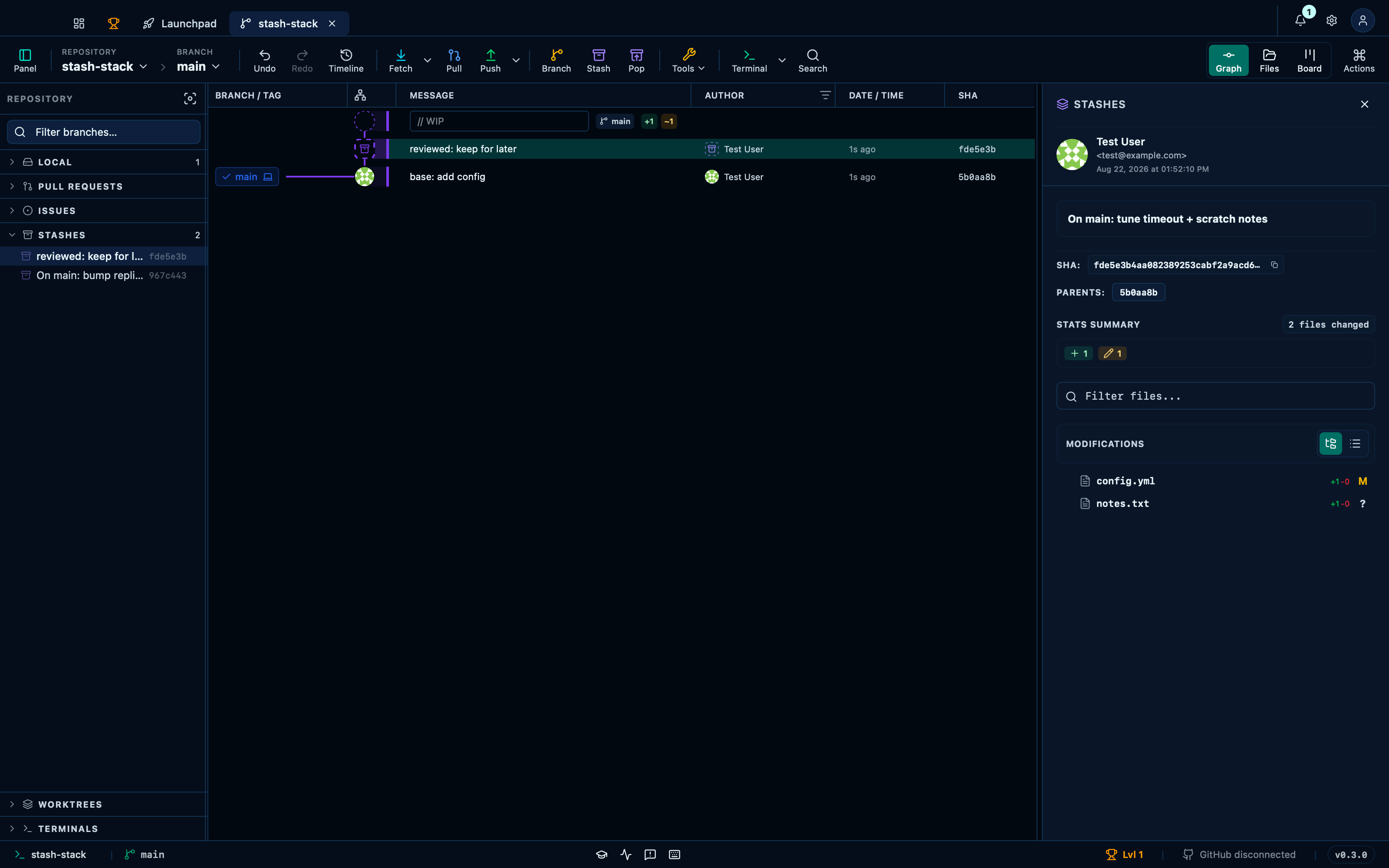
A stash's message is editable the same way a commit's own is: select it, click the message to turn it into an input, and confirm. Nothing else about the stash changes — it stays the same entry at the same position in the stack, just under a name that says why you kept it.
Captured from the running app by this scenario.
Do this
- Expand the
stashessidebar section - Rename the newest stash to
reviewed: keep for later
You should see
- The newest stash is named
reviewed: keep for later - The repository has 2 stashes
Undoing a stash pop restores the stash
Popping a stash from the command palette goes through the same undo history as any other action: ⌘Z brings the stash right back, at the same message and the same changes it had before it was applied and removed.
Do this
- Select the working-tree changes in the graph
- Discard the changes to
config.yml - Select the
stash@{0}commit in the graph - Open the command palette
- Run the command palette action
stash-pop - Undo the last action
You should see
- The repository has 2 stashes
- The repository has 1 stash
- The repository has 2 stashes
Undoing a stash drop restores the stash
Dropping a stash is undoable too — the deleted stash comes back exactly as it was, without needing a reflog to find it.
Do this
- Select the
stash@{0}commit in the graph - Open the command palette
- Run the command palette action
stash-drop - Undo the last action
You should see
- The repository has 2 stashes
- The repository has 1 stash
- The repository has 2 stashes
This page is generated from apps/e2e/features/stash-stack.feature, the end-to-end test that drives the feature it describes.