
Command palette (⌘K)
⌘K opens the command palette from anywhere in the app — a single, keyboard-driven list of every action you could run: global commands like jumping to a settings section, and, once a commit is selected in the graph, that commit's own scoped actions (reset, revert, branch, tag, cherry-pick, stash apply/pop/drop) filtered to just what makes sense for it. The same dialog also finds things: ⌘P opens it narrowed to the repository's tracked files, and pasting a commit's SHA into either mode offers to jump straight to it in the graph.
Jumping to a file from anywhere via the palette
⌘P opens the same dialog narrowed to the repository's tracked files — no commit or settings commands, just file names. Typing narrows the list live, and picking one opens its latest committed version in the diff viewer with the file's own history alongside, whichever view you were on when you pressed it.
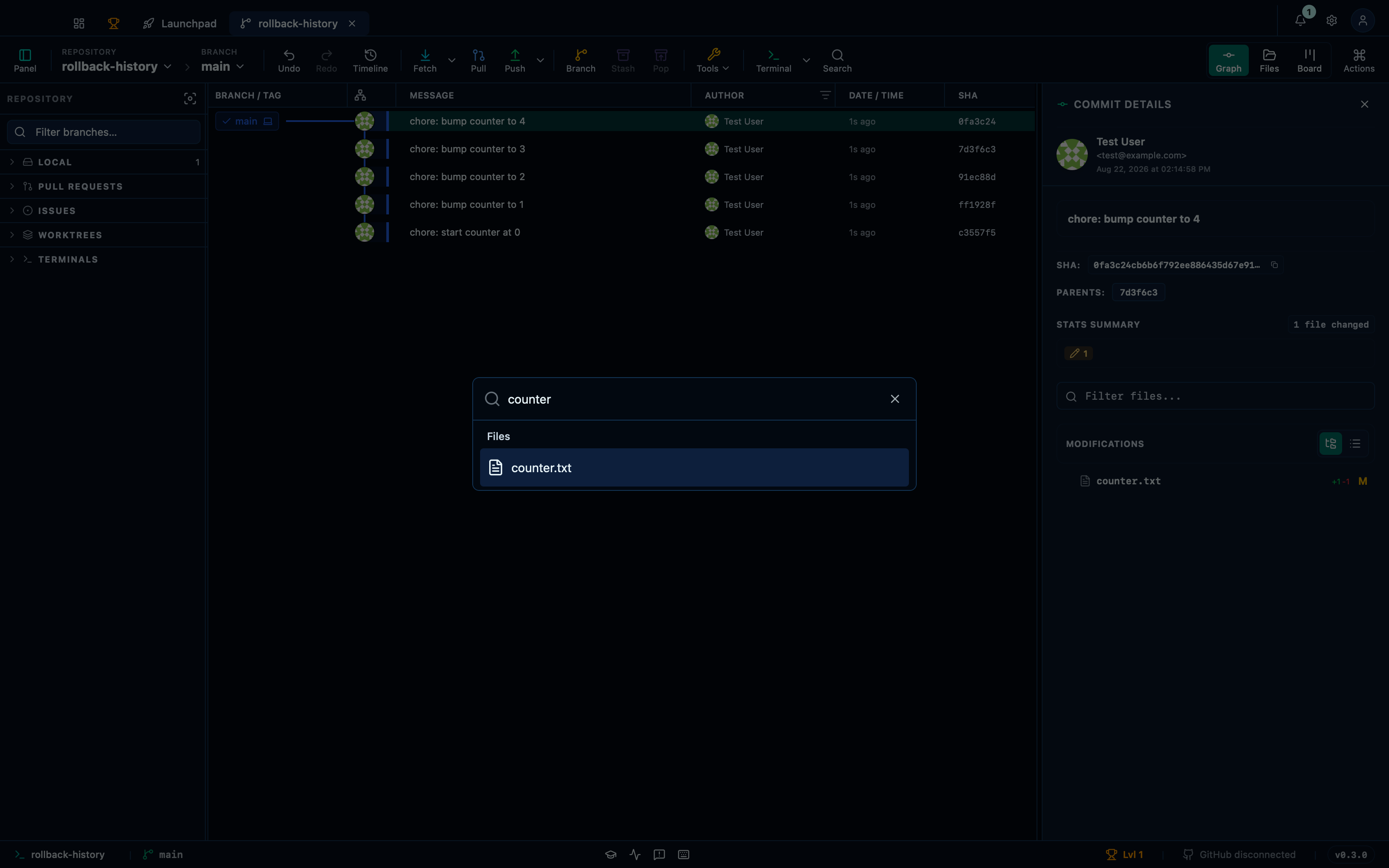
Captured from the running app by this scenario.
Do this
- Open the file search palette
- Type
counterinto the command palette - Pick
counter.txtfrom the palette
You should see
- The command palette offers the file
counter.txt - The file
counter.txtis open in the diff viewer
Jumping to a commit by pasting its SHA
Typing or pasting a commit's SHA — full or abbreviated, seven characters or more — into either mode of the palette offers to focus it in the graph directly, without hunting for the row by eye first. Picking that entry closes the palette, scrolls the row into view and selects it exactly as a click would, so the commit's own scoped actions are one more ⌘K away.
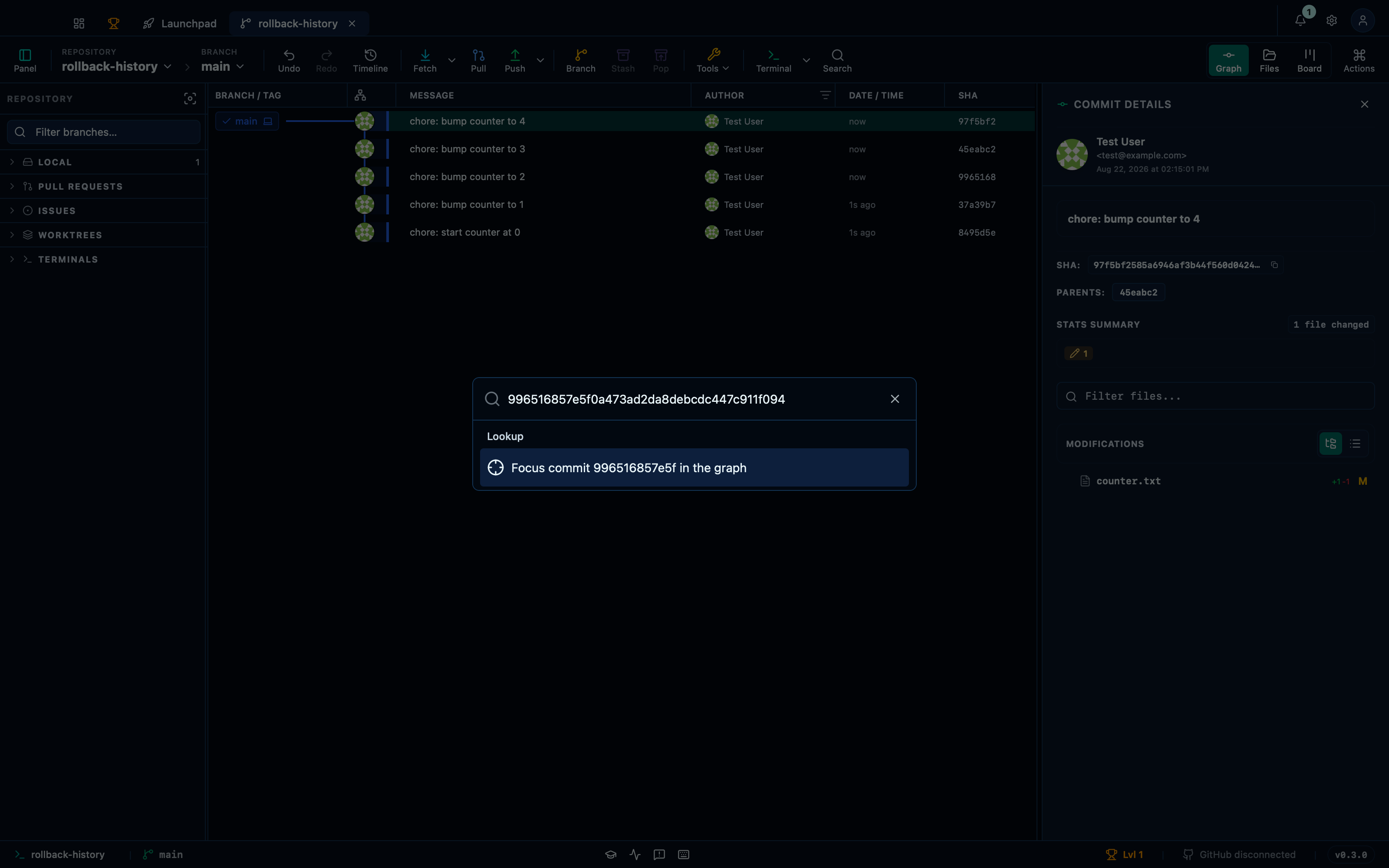
Captured from the running app by this scenario.
Do this
- Open the command palette
- Type the SHA of
HEAD~2into the command palette - Pick the SHA lookup result from the palette
- Open the command palette
You should see
- The command palette offers to focus that commit
- The command palette shows commit actions for
HEAD~2
Resetting to an earlier commit from the palette
Selecting a commit in the graph, then opening the palette, offers that commit's own actions — reset, revert, branch, tag, cherry-pick — scoped to exactly that commit rather than a generic list. Running reset from here opens the same confirmation dialog the toolbar's Reset button would, so picking the mixed, soft or hard mode isn't skipped just because you got there by keyboard.
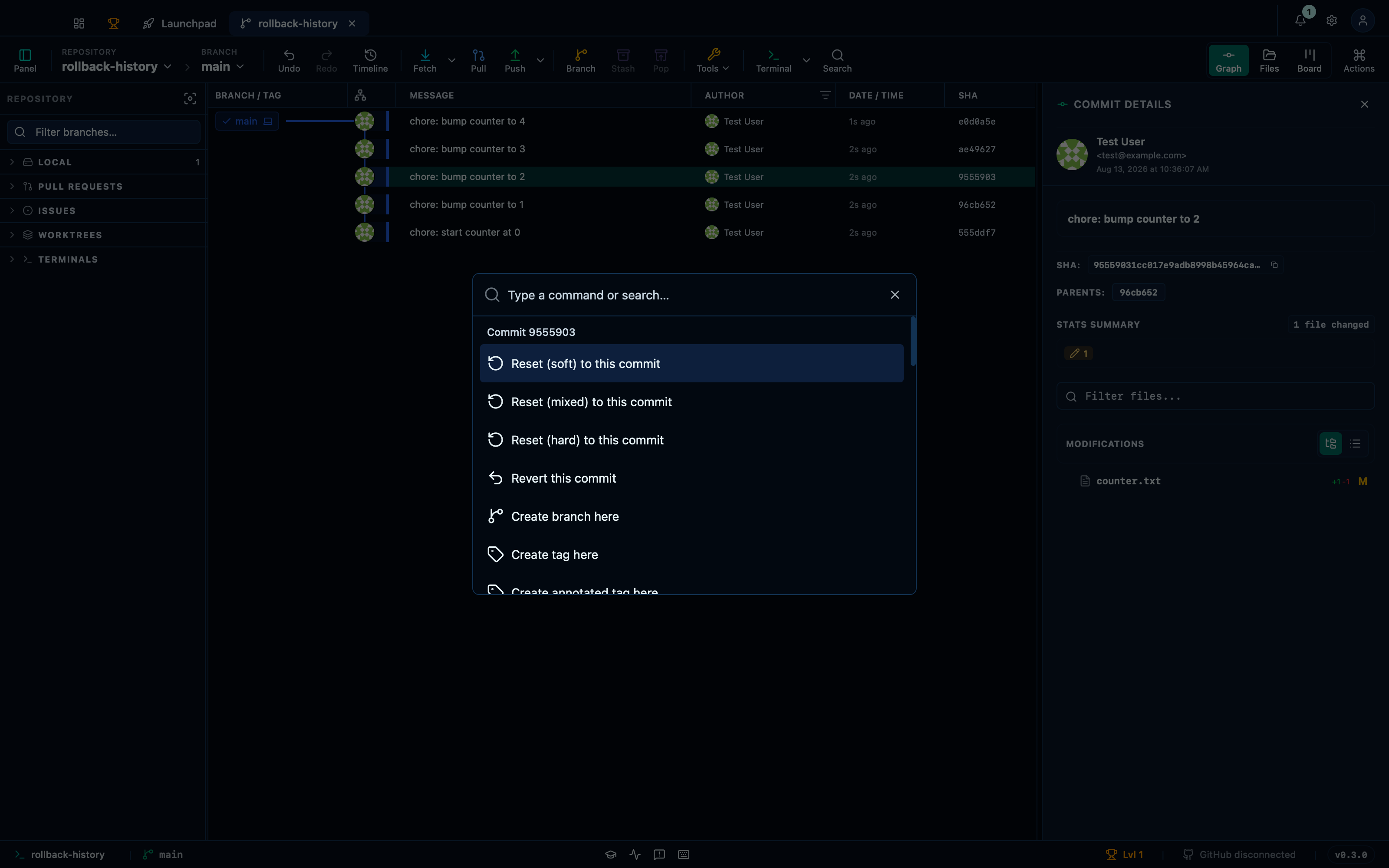
Captured from the running app by this scenario.
Do this
- Select the
HEAD~2commit in the graph - Open the command palette
- Pick
Reset (mixed) to this commitfrom the palette - Confirm the reset
You should see
- The command palette shows commit actions for
HEAD~2 - The reset dialog is shown
- The repository HEAD commit subject is
chore: bump counter to 2
Soft-resetting to an earlier commit keeps the change staged
Mixed is only one of the three modes reset offers. Soft moves the branch pointer back without touching the working tree or the index at all, so everything the commits after the target point changed comes back as a staged change — ready to re-commit differently, rather than lost.
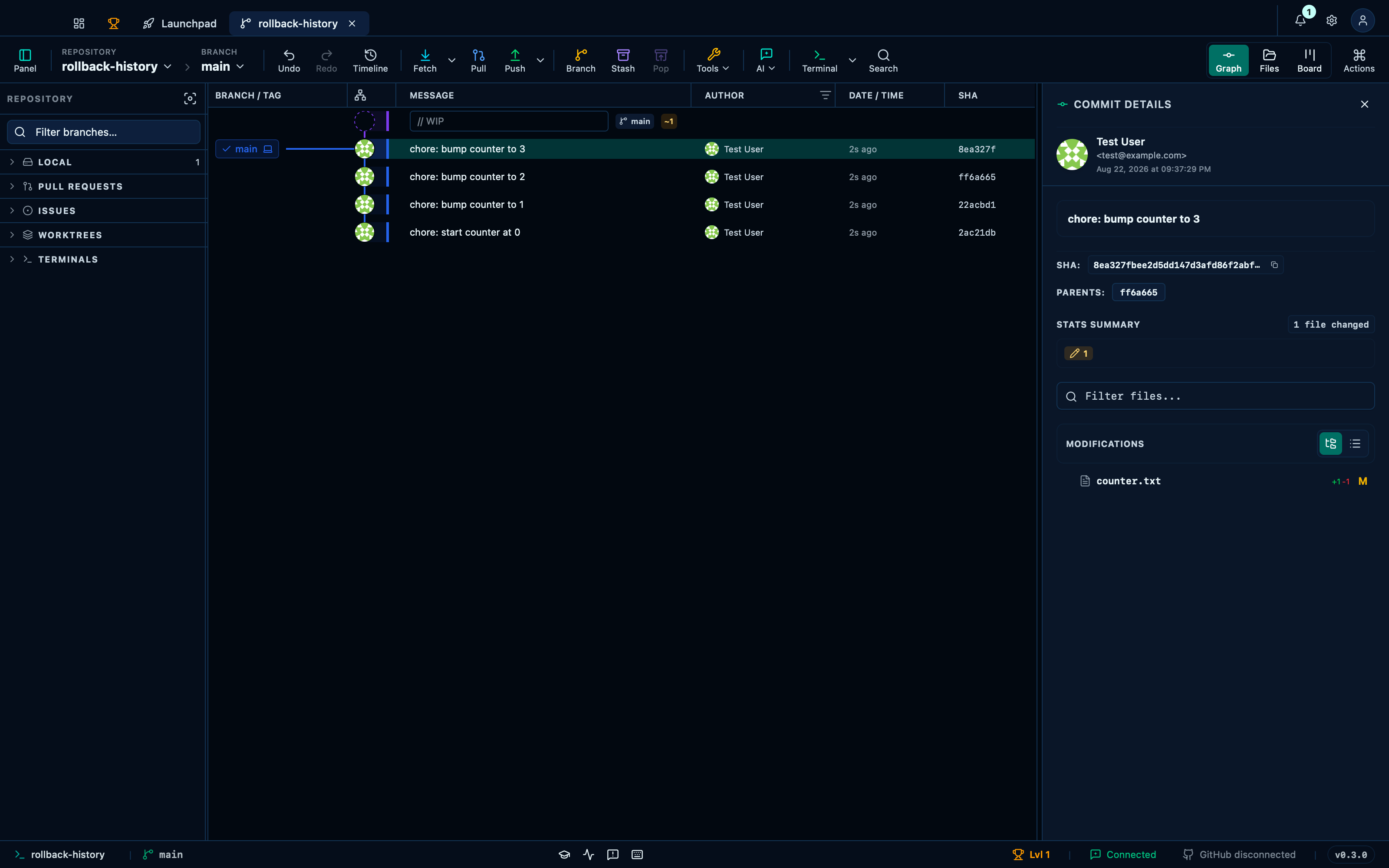
Captured from the running app by this scenario.
Do this
- Select the
HEAD~1commit in the graph - Open the command palette
- Run the command palette action
commit-reset-soft - Confirm the reset
You should see
- The command palette shows commit actions for
HEAD~1 - The reset dialog is shown
- The repository HEAD commit subject is
chore: bump counter to 3 - The working tree has staged changes
Hard-resetting requires typing RESET to confirm
Hard is the mode that throws work away — it moves the branch pointer back and overwrites both the index and the working tree to match, discarding every change the commits after the target point made. Because there is no undo for that, the confirm button stays disabled until you type the word "RESET" into the dialog, the same friction the toolbar's own Reset button requires.
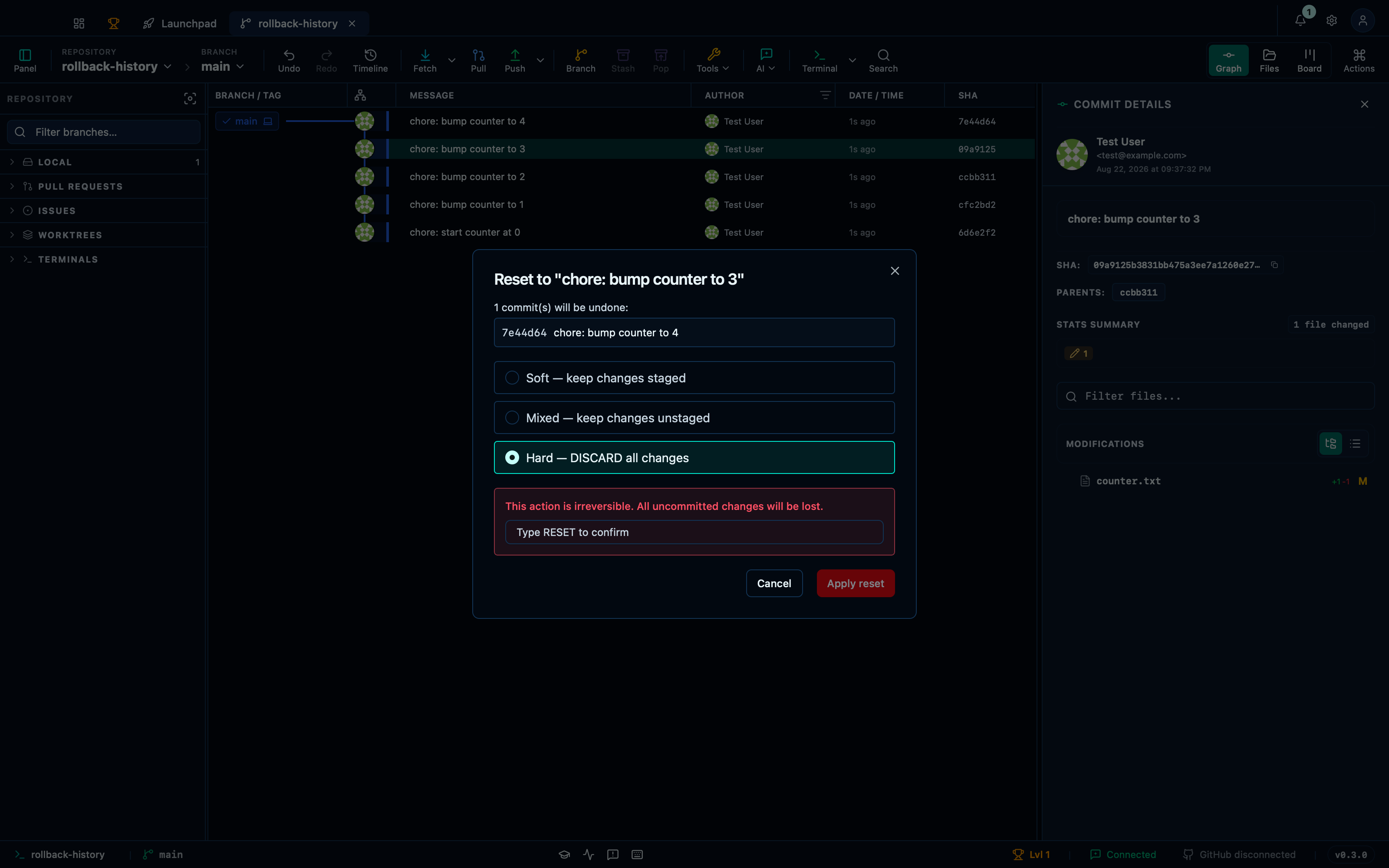
Captured from the running app by this scenario.
Do this
- Select the
HEAD~1commit in the graph - Open the command palette
- Run the command palette action
commit-reset-hard - Type
RESETinto the reset confirmation input - Confirm the reset
You should see
- The command palette shows commit actions for
HEAD~1 - The reset dialog is shown
- The reset confirm button is disabled
- The reset confirm button is enabled
- The repository HEAD commit subject is
chore: bump counter to 3 - The working tree is clean
Reverting the last commit from the palette
Revert is the safe way to undo a commit that's already shared: instead of rewriting history like a reset, it writes a new commit that applies the old one in reverse, so the branch keeps its past and anyone who pulled it stays in sync. Running Revert on the selected commit opens a confirmation dialog first — nothing is written until you confirm. For reverting a merge commit, which needs to pick a side, see Merge commit actions.
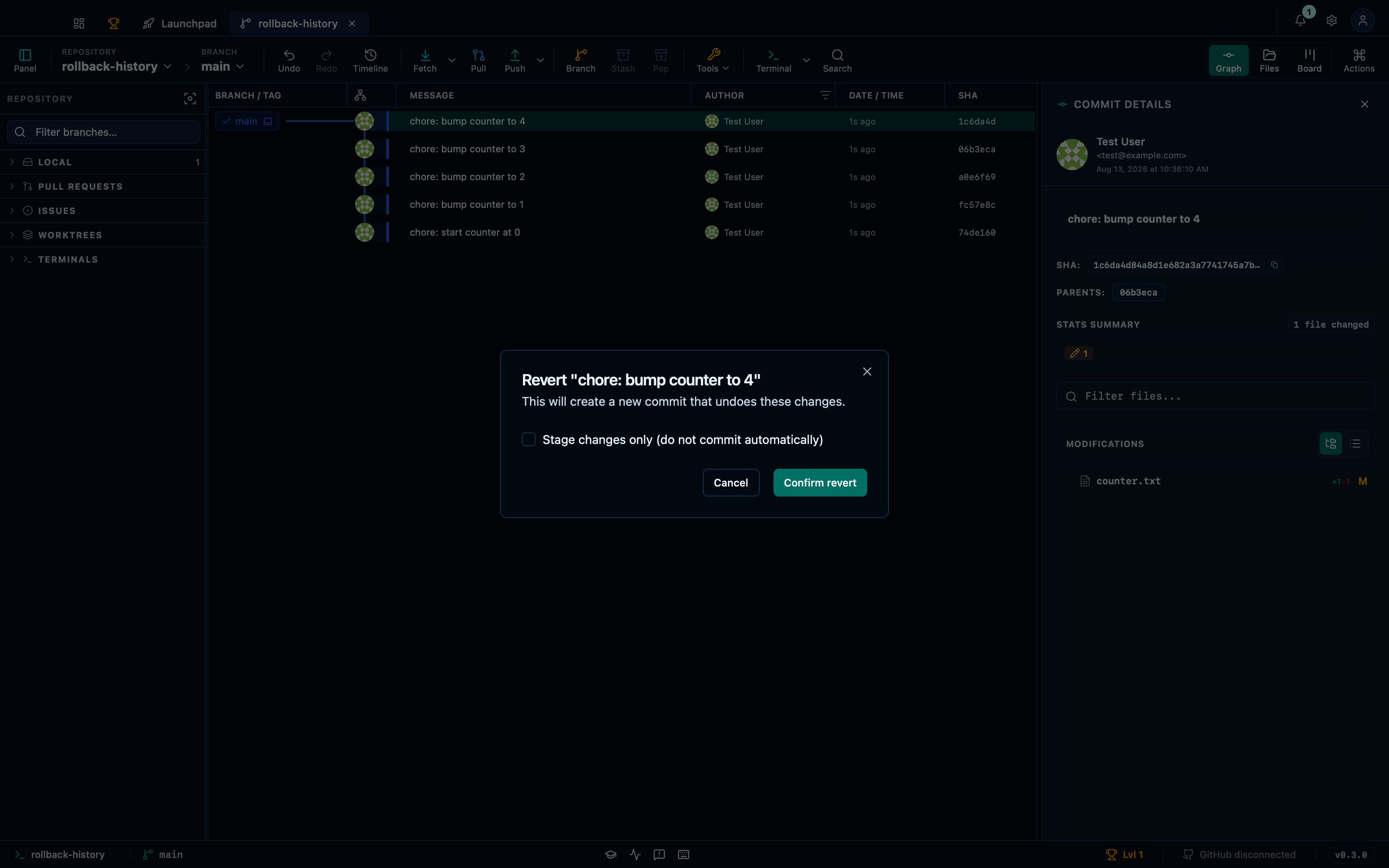
Captured from the running app by this scenario.
Do this
- Open the command palette
- Pick
Revert this commitfrom the palette - Confirm the revert
You should see
- The command palette shows commit actions for
HEAD - The revert dialog is shown
- The repository HEAD commit subject contains
chore: bump counter to 4
Creating a branch from an earlier commit via the palette
Branching doesn't require checking out the commit first: select any commit in the graph, open the palette, and "Create branch" starts a new one pointed at exactly that commit, wherever it sits in history, leaving the branch you're actually on untouched.
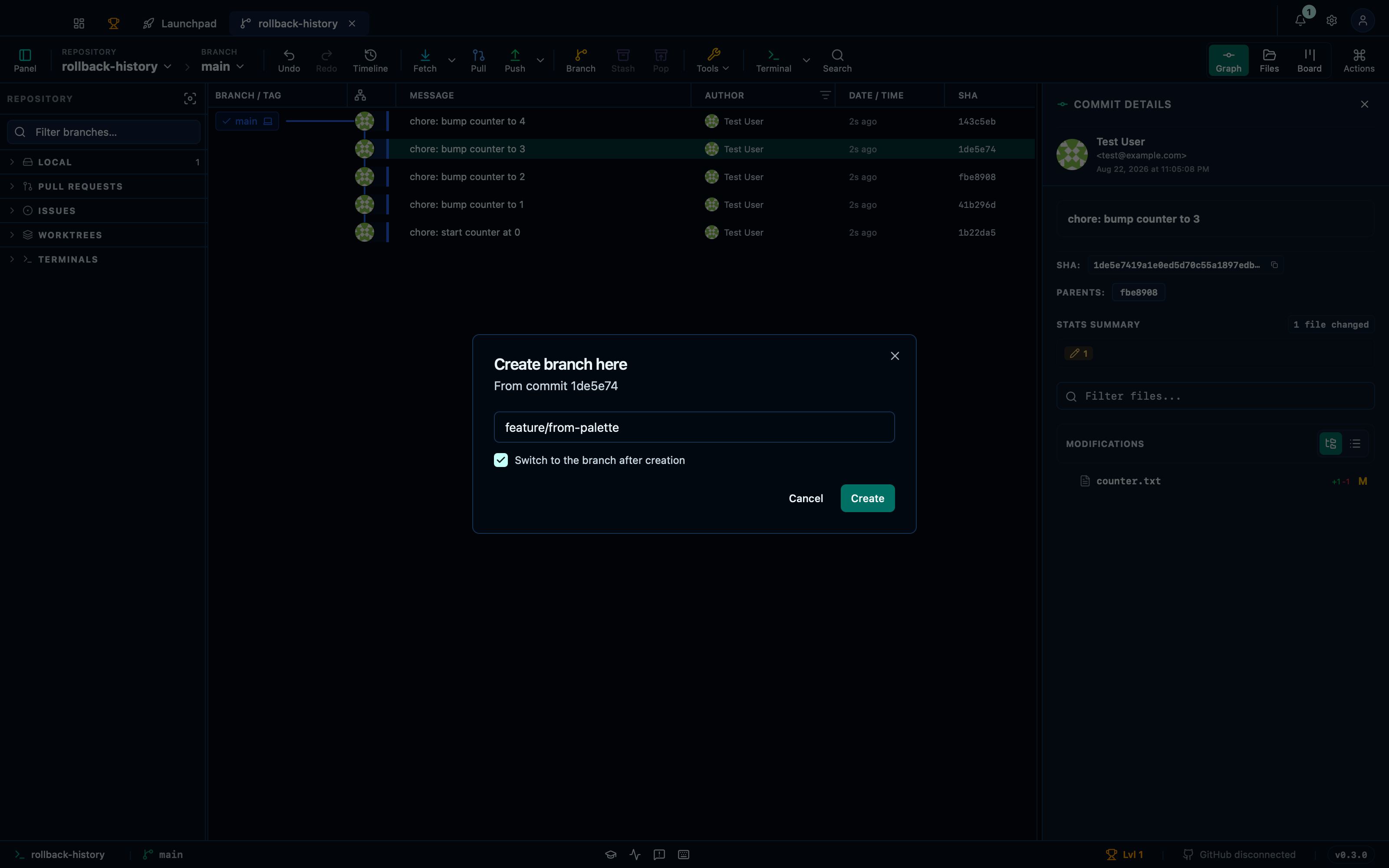
Captured from the running app by this scenario.
Do this
- Select the
HEAD~1commit in the graph - Open the command palette
- Run the command palette action
commit-branch - Enter the branch name
feature/from-palette - Confirm the branch creation
You should see
- The command palette shows commit actions for
HEAD~1 - The create branch dialog is shown
- The branch
feature/from-palettepoints at the commitchore: bump counter to 3
Cherry-picking a commit from another branch via the palette
Cherry-pick copies a single commit from another branch onto the one you have checked out — the fix you need now, without merging everything around it. Select the commit anywhere in the graph, even on a branch you're not on, open the palette, and its scoped actions include Cherry-pick; running it replays that commit onto your current branch as a new commit of its own.
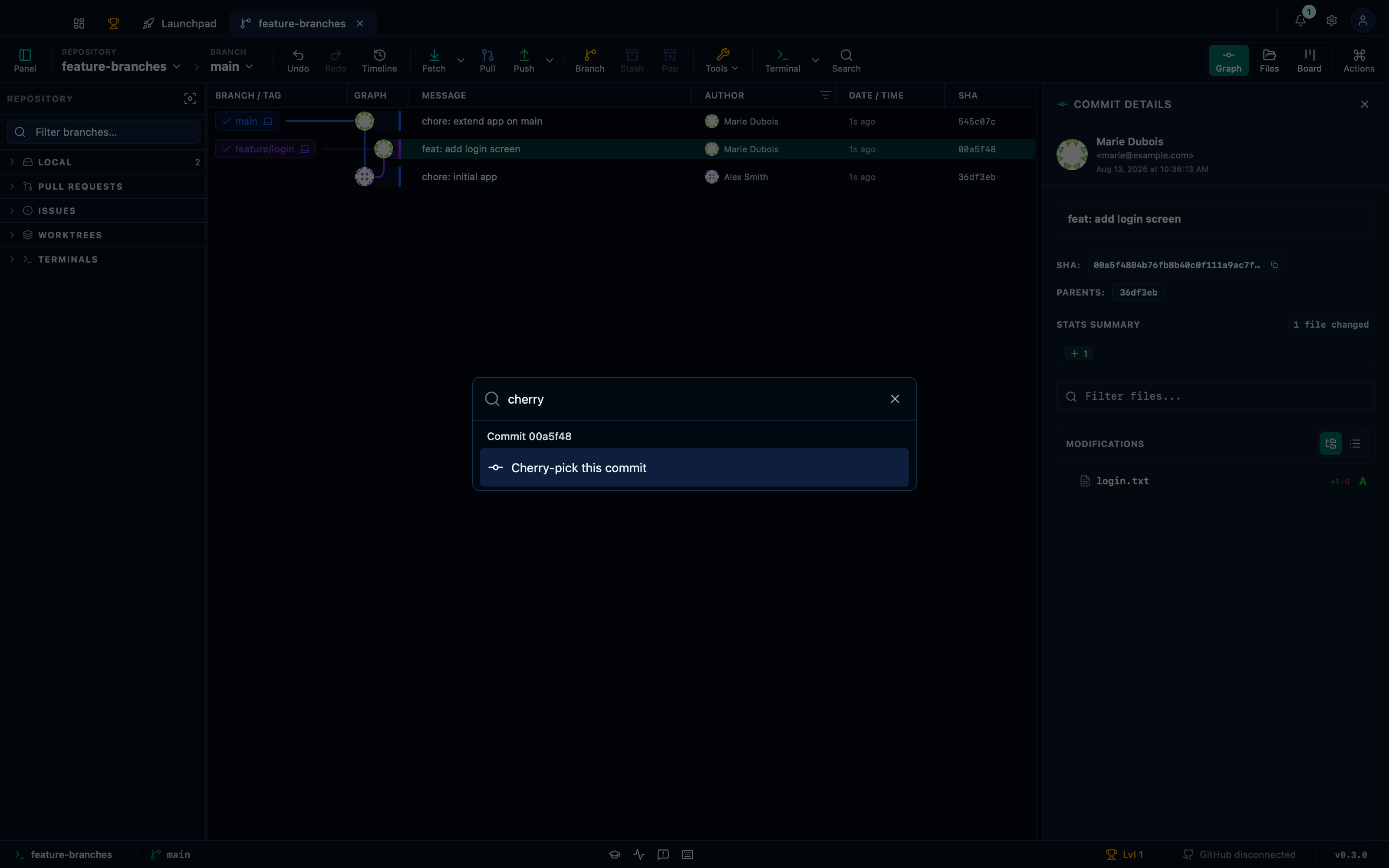
Captured from the running app by this scenario.
Do this
- Select the
feature/logincommit in the graph - Open the command palette
- Type
cherryinto the command palette - Pick
Cherry-pick this commitfrom the palette
You should see
- The command palette shows commit actions for
feature/login - The commit
feat: add login screenis reachable frommain
Dropping a stash via the palette
Drop is the one of the three that doesn't restore anything — it discards the stash outright, for the times a saved pile of changes turned out not to be worth keeping.
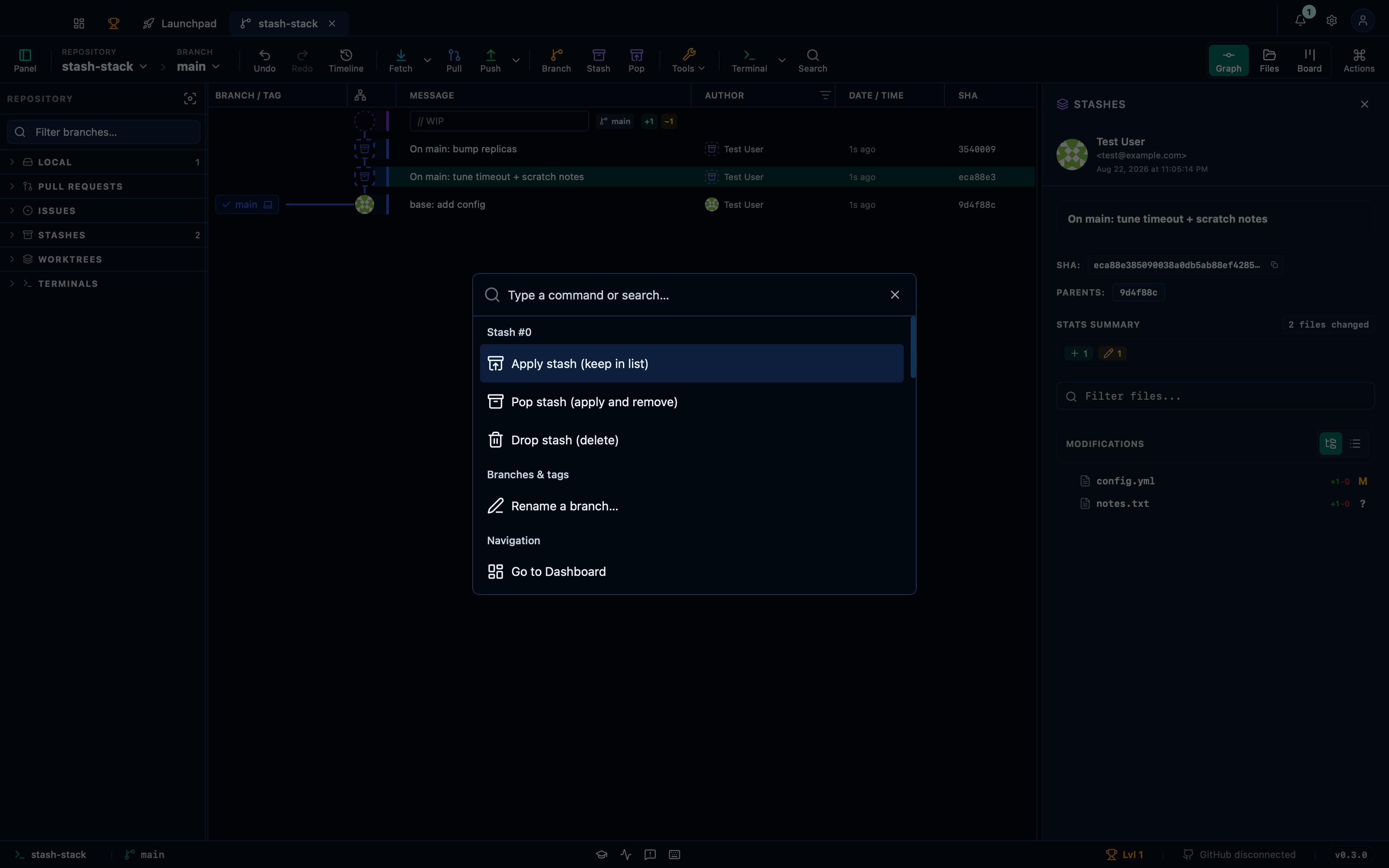
Captured from the running app by this scenario.
Do this
- Select the
stash@{0}commit in the graph - Open the command palette
- Run the command palette action
stash-drop
You should see
- The repository has 1 stash
Applying a stash via the palette keeps it but restores its changes
There's no separate "stash panel" — every stash action runs through the command palette, on whichever stash you've selected in the graph. Selecting a stash and opening the palette offers Apply, Pop and Drop together: Apply restores its changes to your working tree without removing the stash itself, so you can reuse it later; Pop does the same but removes it once applied, and Drop discards it outright.
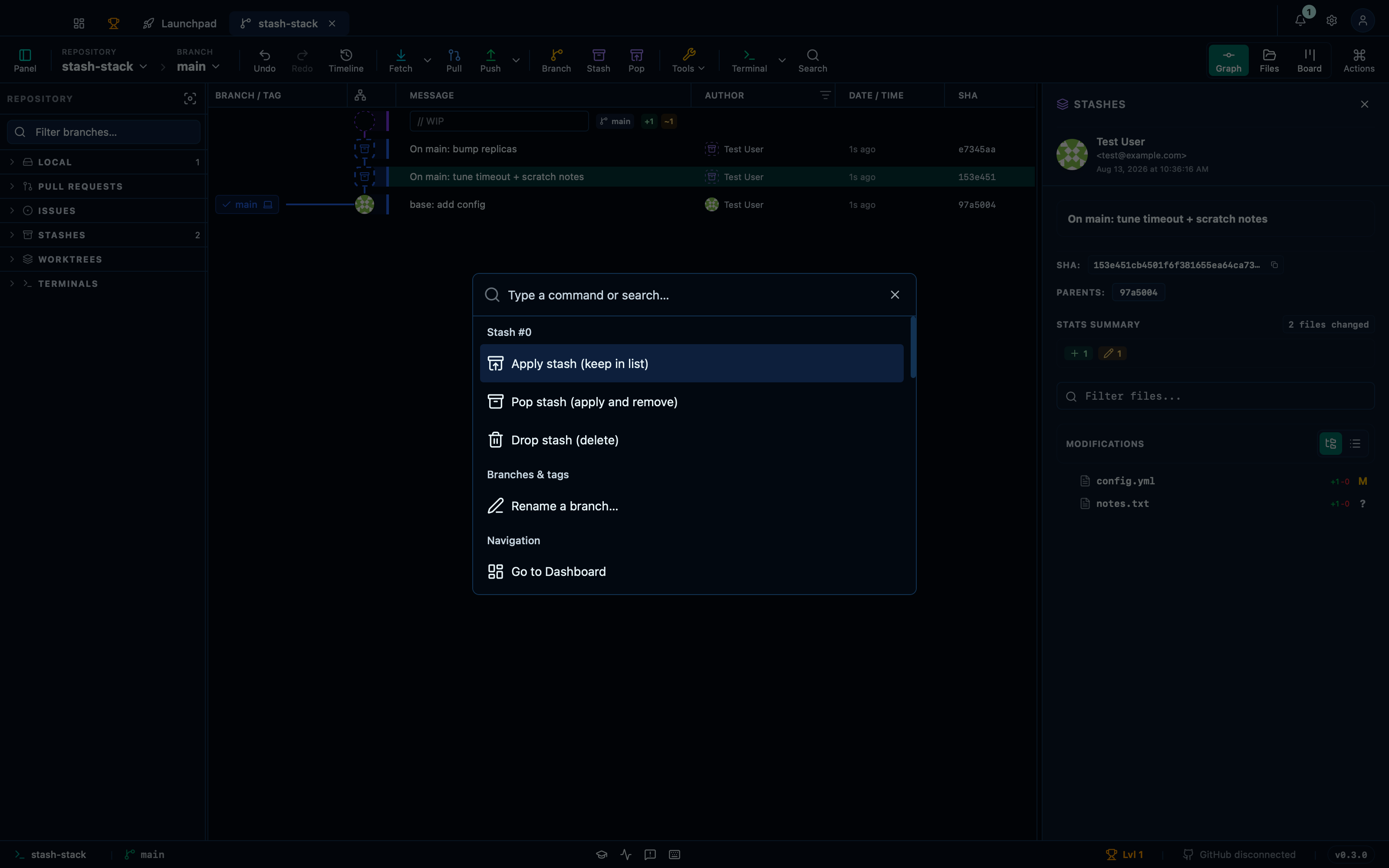
Captured from the running app by this scenario.
Do this
- Select the
stash@{0}commit in the graph - Open the command palette
- Pick
Apply stash (keep in list)from the palette
You should see
- The command palette is shown
- The repository has 2 stashes
- The file
notes.txtexists in the working tree
Popping a stash via the palette removes it and restores its changes
Pop is Apply and Drop in one step: it restores the stash's changes to the working tree and removes the stash itself in the same action, for the common case of reusing a stash exactly once and having no reason to keep it around afterward.
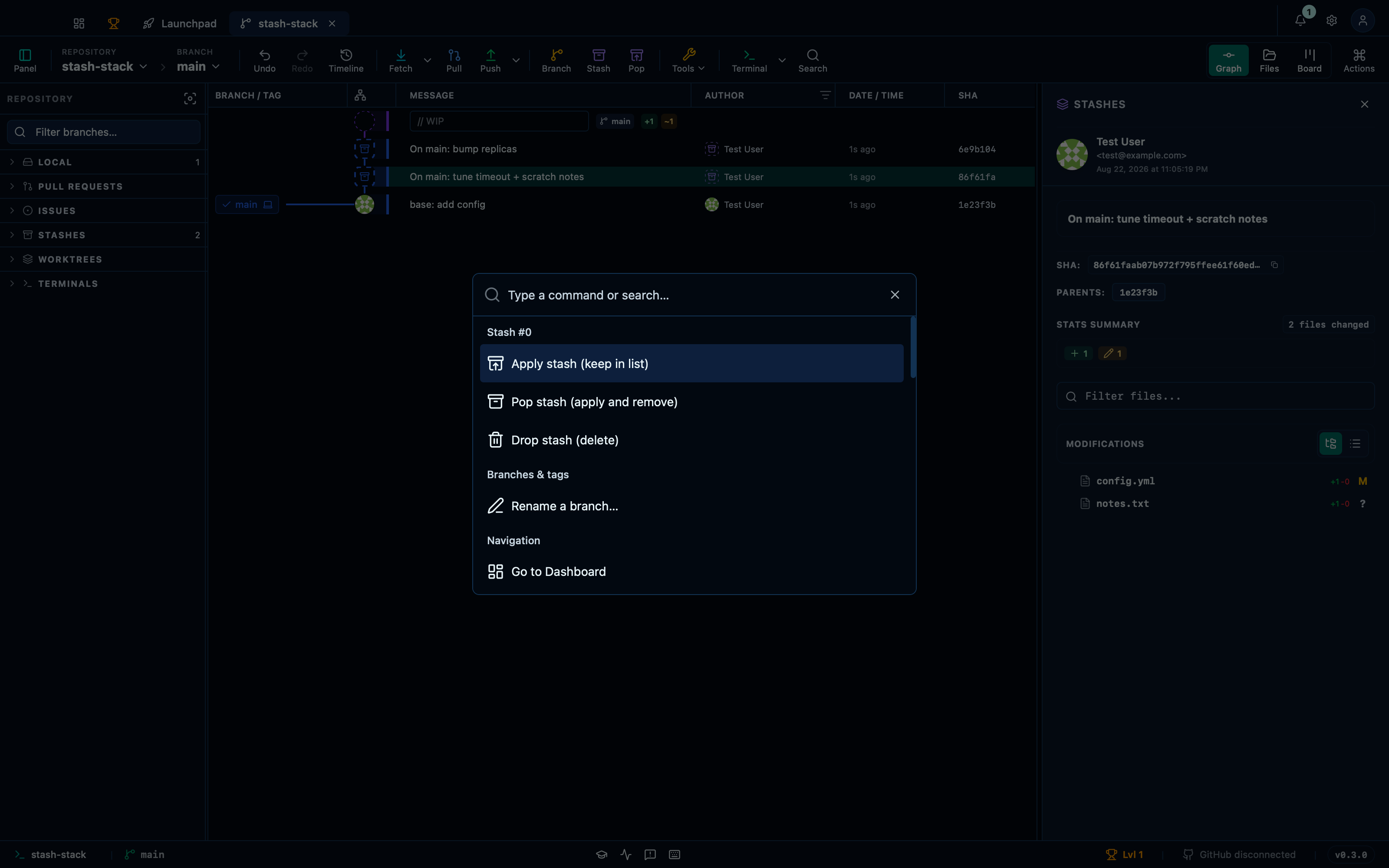
Captured from the running app by this scenario.
Do this
- Select the
stash@{0}commit in the graph - Open the command palette
- Run the command palette action
stash-pop
You should see
- The repository has 1 stash
- The file
notes.txtexists in the working tree - No error notification is displayed
Deleting a local branch from the palette, and undoing it
Every local branch offers Delete from the palette. It carries git's own safety: a branch whose commits aren't already in the branch you have checked out is refused rather than silently dropped, exactly like git branch -d. Because the deletion also goes through the app's undo history, ⌘Z brings the branch back at the commit it pointed to — deleting the wrong one is a two-keystroke mistake, not a reflog expedition.
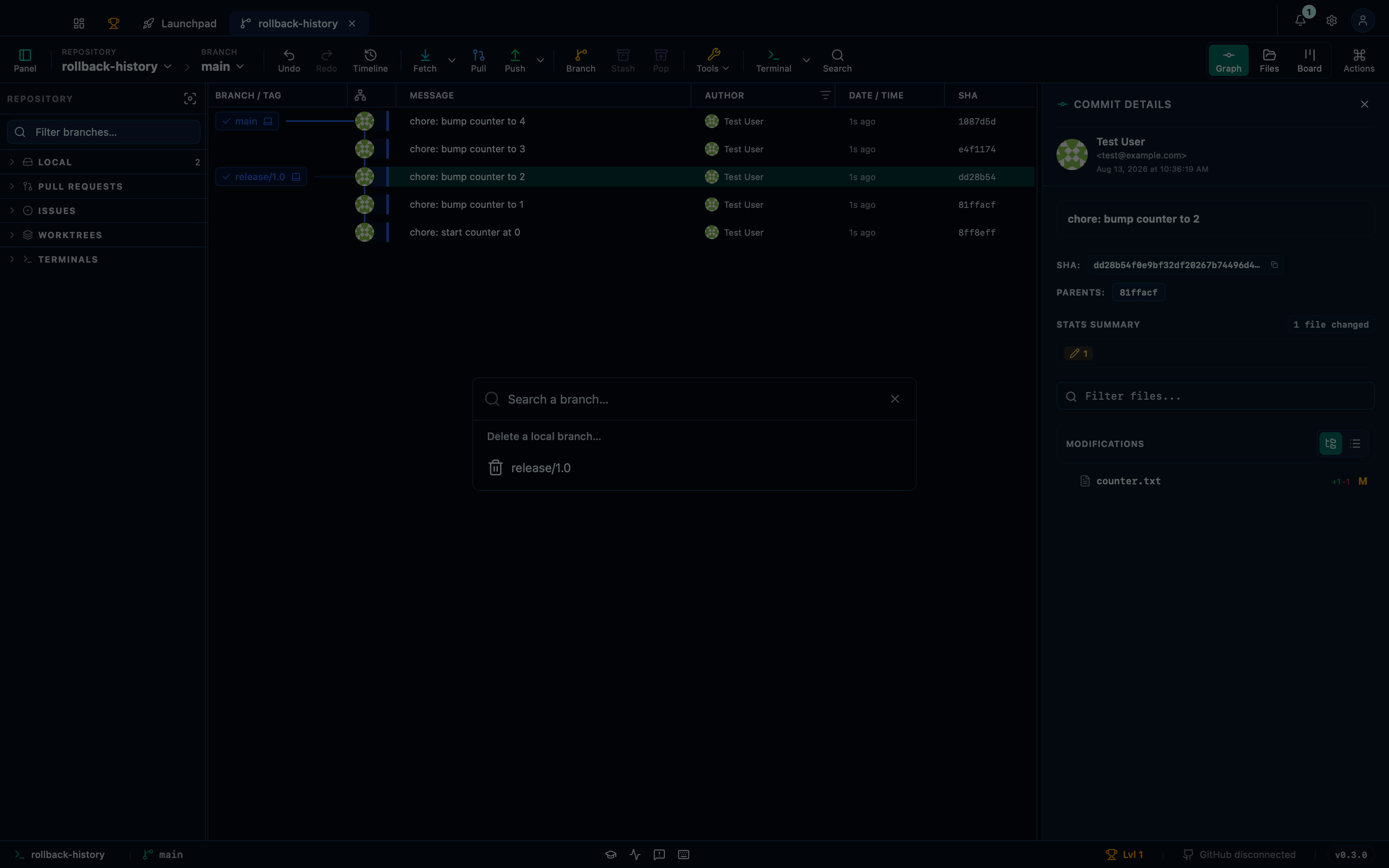
Captured from the running app by this scenario.
Do this
- Open the command palette
- Pick
Delete a local branch…from the palette - Pick
release/1.0from the palette - Undo the last action
- Redo the last undone action
You should see
- The branch
release/1.0no longer exists - No error notification is displayed
- The branch
release/1.0exists - The branch
release/1.0no longer exists
Exporting a commit as a patch file
"Create patch file from commit" writes the selected commit out as a plain .patch file — the same format git format-patch produces — for sharing a change with anyone, push access or not. Cmd-clicking a second commit first offers the same action worded for the whole selection instead, and the file it writes holds one patch per commit, in order.
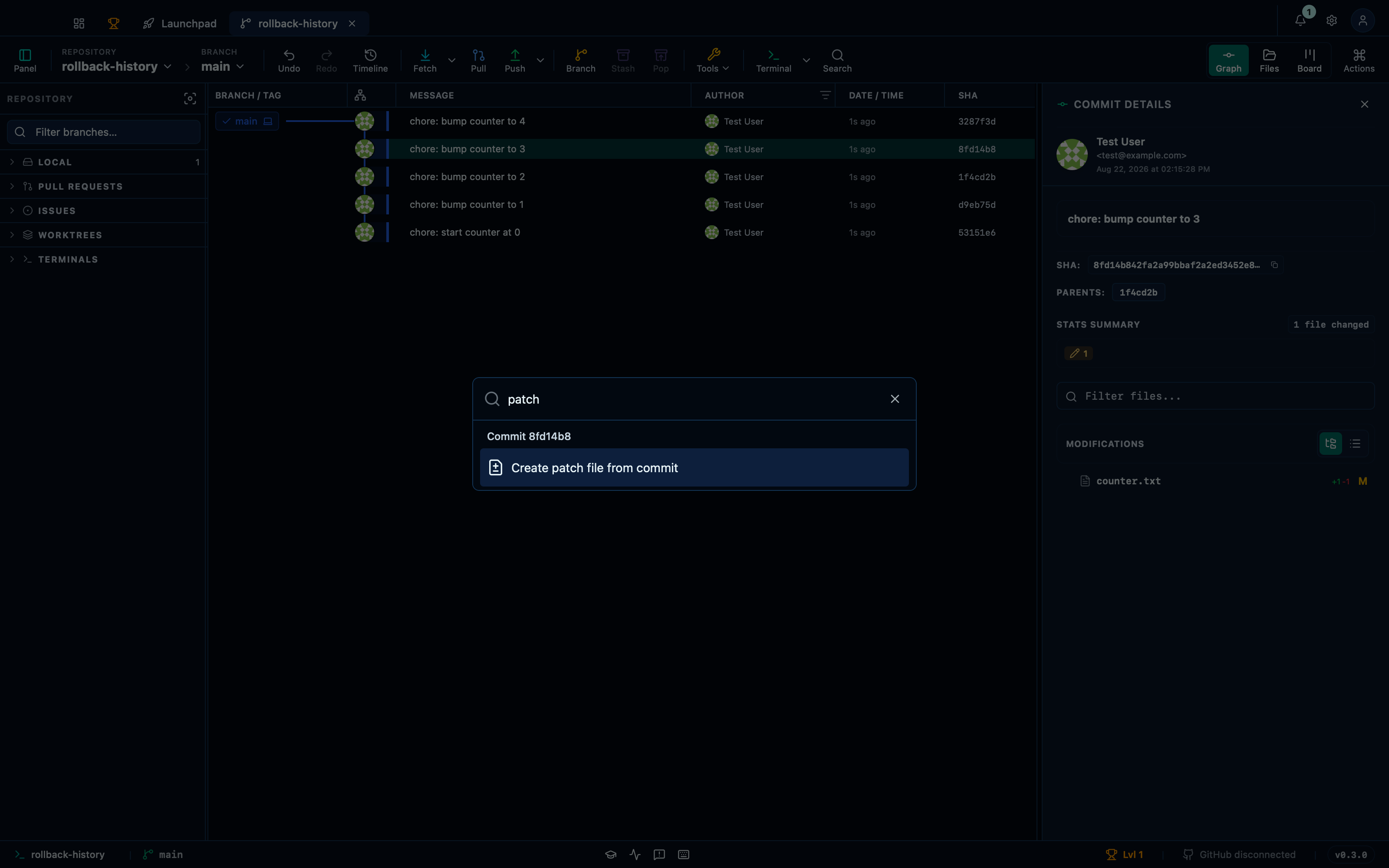
Captured from the running app by this scenario.
Do this
- Select the
HEAD~1commit in the graph - Open the command palette
- Type
patchinto the command palette - Pick
Create patch file from commitfrom the palette - Choose
doc-commit.patchin the save dialog
You should see
- The command palette shows commit actions for
HEAD~1 - The patch file
doc-commit.patchholds a diff - No error notification is displayed
Creating a patch file from a multi-commit selection
Cmd-clicking a second commit turns the same palette entry into the whole selection's own action — one file, one patch per commit in order, for sharing a short feature branch as a set of patches instead of one commit at a time.
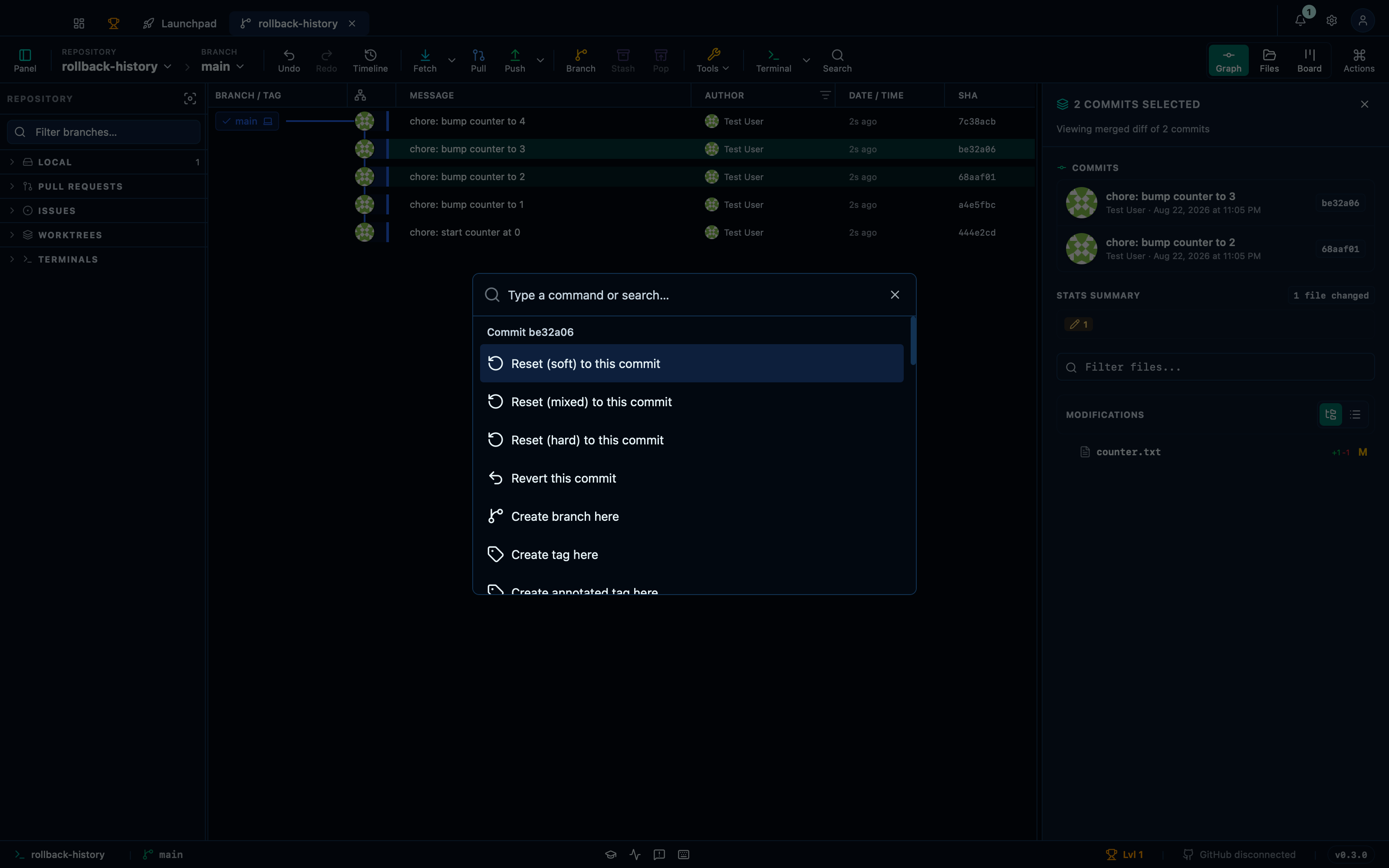
Captured from the running app by this scenario.
Do this
- Select the
HEAD~2commit in the graph - Add the
HEAD~1commit to the graph selection - Open the command palette
- Run the command palette action
commit-create-patch-selection - Choose
e2e-selection.patchin the save dialog
You should see
- The patch file
e2e-selection.patchholds patches for 2 commits - No error notification is displayed
This page is generated from apps/e2e/features/command-palette.feature, the end-to-end test that drives the feature it describes.