
The repository sidebar
Searching the sidebar filters and can solo a branch
The search box at the top of the sidebar filters the whole tree live — branches, tags, stashes, worktrees — as you type, with a running count of what matched. Solo mode (the focus icon next to it) is a second, independent way to narrow things down: once enabled, each branch gets its own toggle to show or hide it in the graph, so you can look at just the one or two lines of history you care about right now.
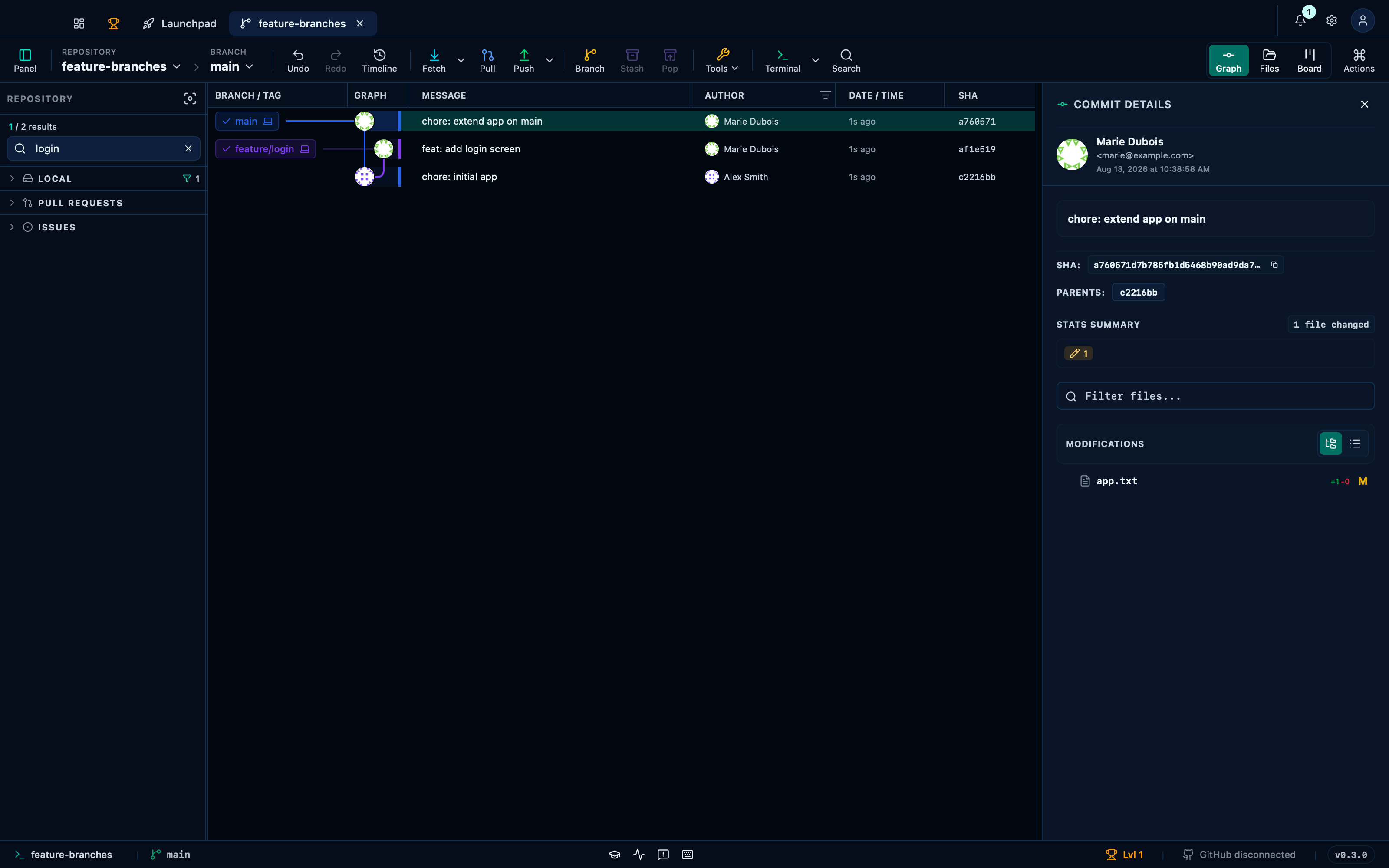
Captured from the running app by this scenario.
Do this
- Search the sidebar for
login - Clear the sidebar search
- Enable solo mode
- Clear solo mode
You should see
- The sidebar filter shows
1 / 2 results - The sidebar filter is hidden
- The solo strip shows
1 branch soloed - The solo strip is hidden
Pinning a branch keeps it pinned across a reload
Pinning a branch (the pin icon on hover, or always visible once pinned) moves it to its own group at the top of the Local section, ahead of everything else — handy once a repository has more branches than fit on screen. The pin is remembered per repository and survives closing and reopening the app.

Captured from the running app by this scenario.
Do this
- Expand the
localsidebar section - Pin the
feature/loginbranch - Reload the application
- Expand the
localsidebar section
You should see
- The
feature/loginbranch is pinned - The
feature/loginbranch is pinned
This page is generated from apps/e2e/features/sidebar-navigation.feature, the end-to-end test that drives the feature it describes.