
Kanban board
The Board is a Kanban view of one repository's work, opened from the toolbar next to the graph and the file explorer. A board is a sprint: cards in columns, each card carrying a description, a checklist, a type and an identifier of its own.
A local board is stored in the repository's own .git, on a hidden ref, one commit per change — so the board is versioned like everything else and never leaves the machine. A repository with a connected GitHub account can host a shared board instead, whose cards are real issues; everything below is the local one, which needs nothing set up.
Creating a board for a repository
A repository starts with no board, and the Board view offers to create the first one. A board needs a name — a sprint's name, usually — and can take a card prefix: give it GM and its cards are numbered GM-1, GM-2, the identifier you paste into a commit message or a pull request. It starts with the three columns every board starts with, To do, In progress and Done, which the Columns button changes afterwards.
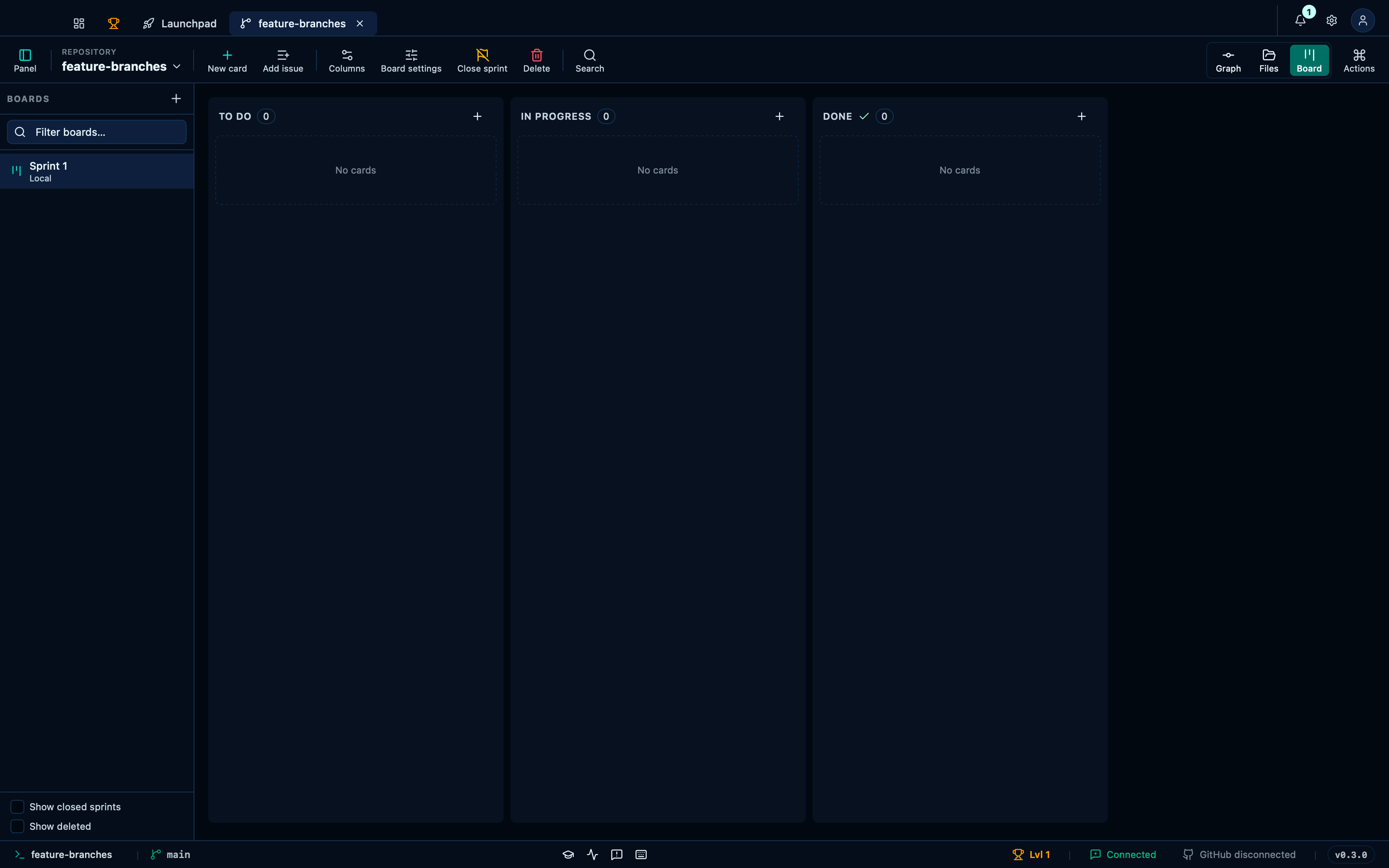
Captured from the running app by this scenario.
Do this
- Open the board
- Create a board named
Sprint 1with the card prefixGM
You should see
- The board
Sprint 1is shown - The board shows the columns
To do, In progress, Done - The repository stores 1 board in its own git history
- The board history records
git-manager: create board
Creating a standing board with no sprint to close
Not every board is a sprint. "This board is an iteration" is on by default, and turning it off makes a standing board instead — a backlog a ticket passes through before it ever reaches one, with no report to freeze and no successor to open when the work slows down. A standing board never offers to close, which is the one thing that tells the two apart on screen once it exists.
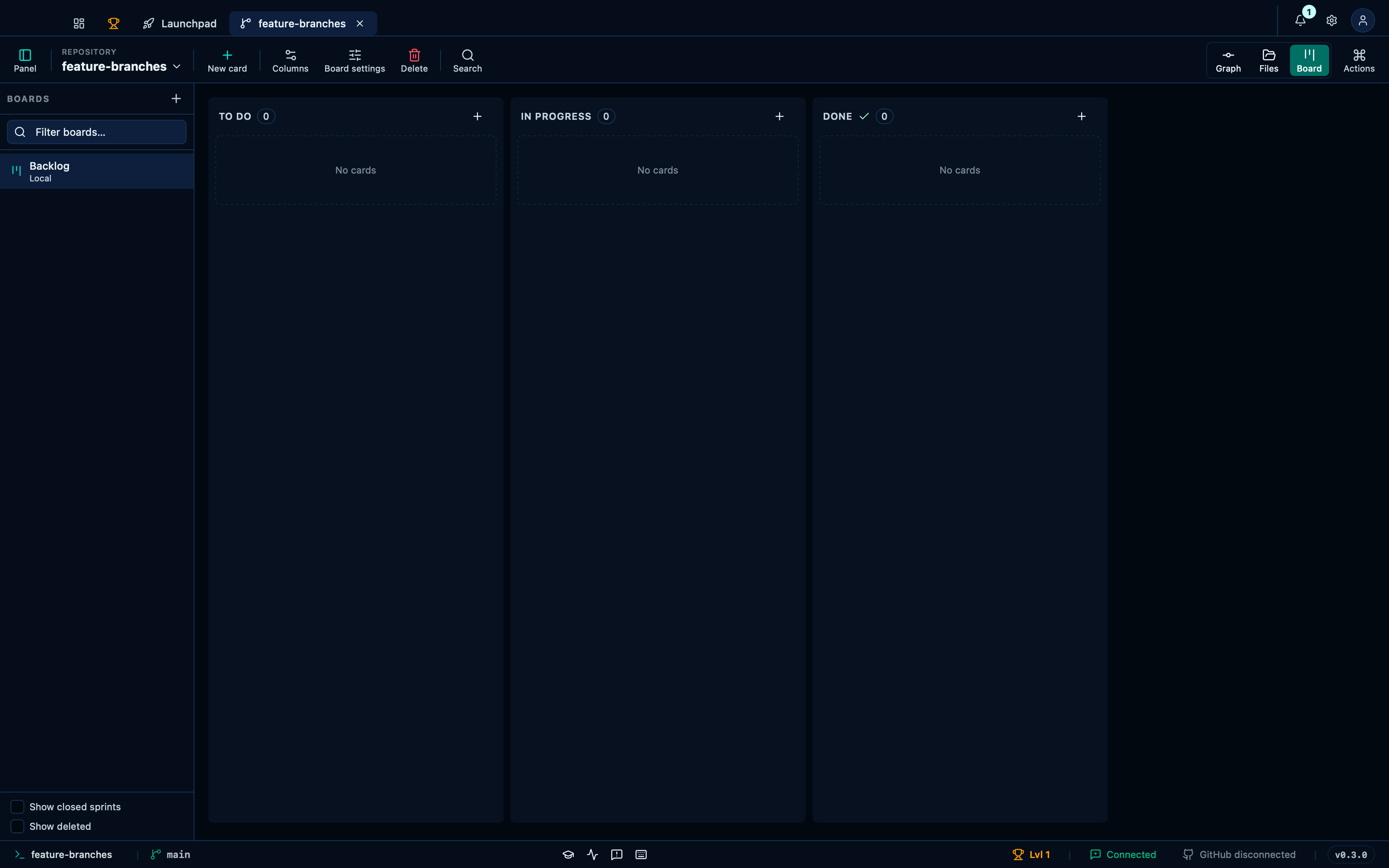
Captured from the running app by this scenario.
Do this
- Open the board
- Create a standing board named
Backlogwith the card prefixGM
You should see
- The board
Backlogis shown - The board offers no way to close it
Adding a card and moving it across the board
The + on a column header opens a new card in that column. Only what has to be decided before the card exists is asked for — its kind, its identifier and its title — and the card then opens as a full record where every other field saves on its own. A card is a Task, a Bug or an Epic: three coloured tiles the board reads at a glance, chosen once here and changeable afterwards from the card's own record.
Changing which column a card is in is a drag on the board, and, for the times the card is already open, the status button at the top of its right-hand panel. Both write the same thing, and both land in the repository as a commit on the board's ref.
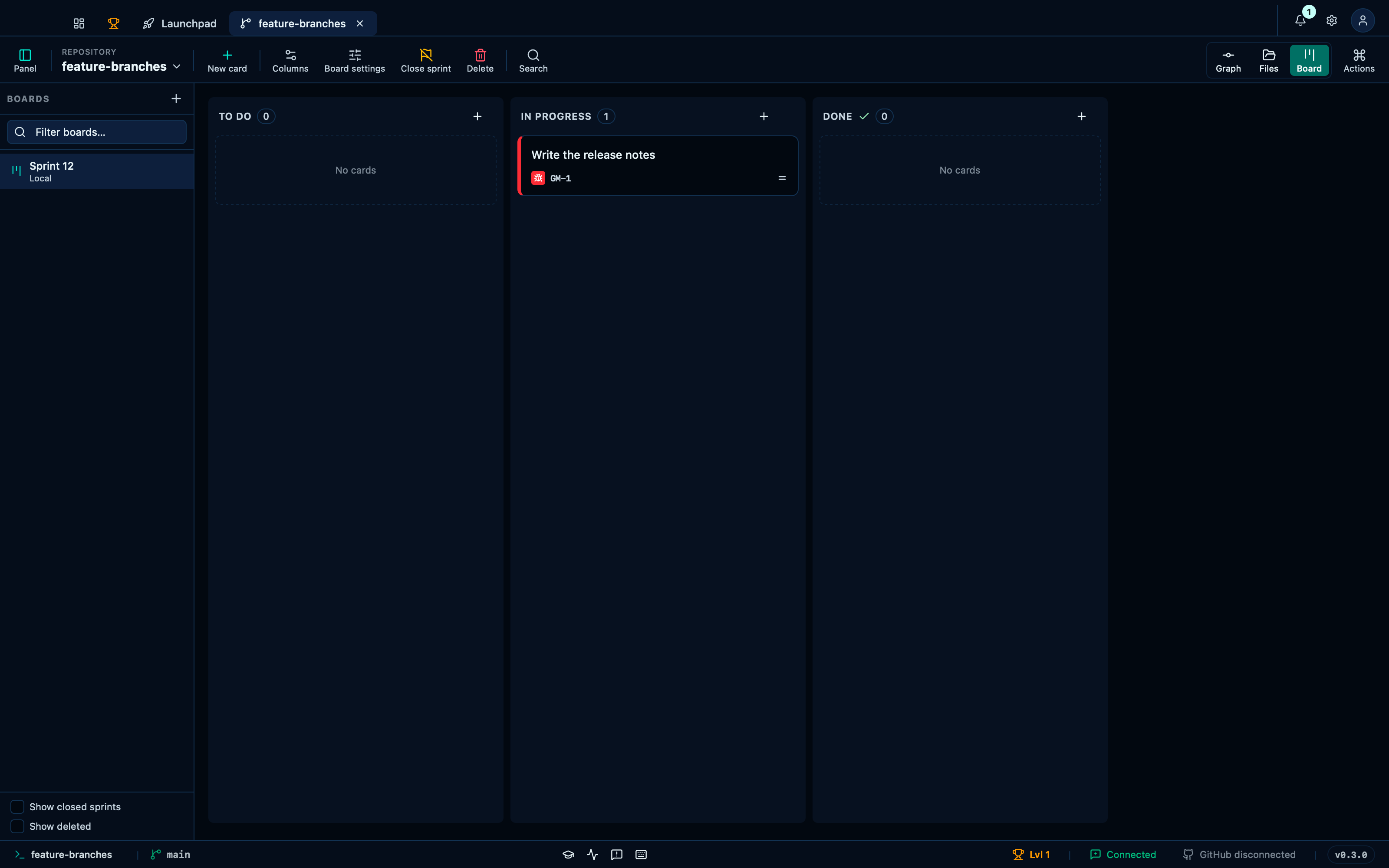
Captured from the running app by this scenario.
Do this
- Open the board
- Create a board named
Sprint 12with the card prefixGM - Add a
Bugcard titledWrite the release notesto theTo docolumn - Set the status of the card
Write the release notestoIn progress
You should see
- The card
Write the release notesis identified asGM-1 - The card
Write the release notesis shown as aBug - The
In progresscolumn holds 1 card - The
To docolumn holds 0 cards - The card
Write the release notesis stored in theIn progresscolumn - The board history records
git-manager: update board card - No error notification is displayed
Filling in a card's record
Opening a card gives the whole of it: the description and the Definition-of-Done checklist on the left with the discussion under them, and on the right the fields that say who has it and when it is due. There is no Save button anywhere on it — every field commits on its own, the moment you leave it, and each one lands in the repository as its own commit.
The checklist is ordinary Markdown, the same - [ ] GitHub renders, so what the card counts is what a reader of the raw text would count. Its progress follows the card back onto the board, which is where the number is actually read.
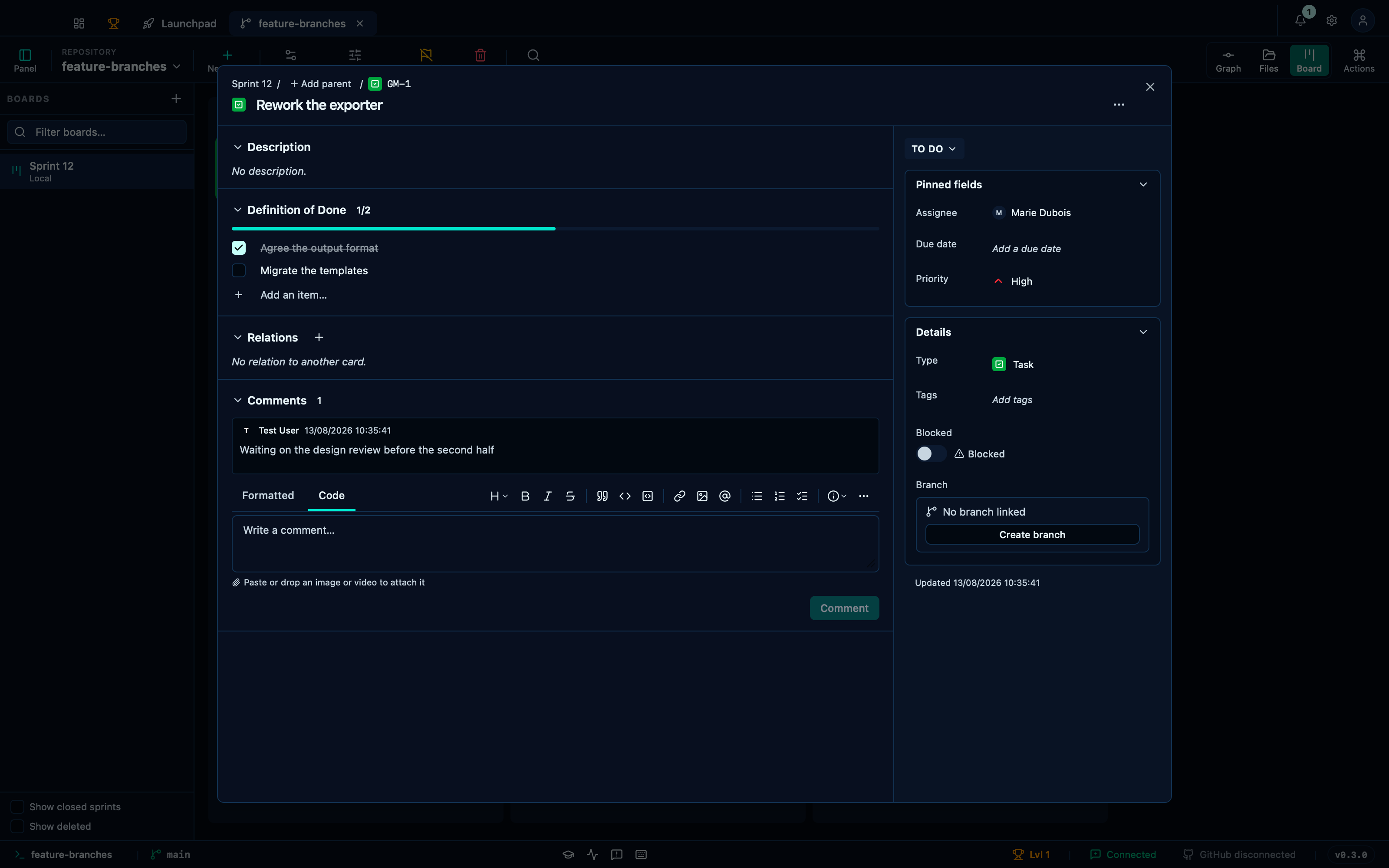
Captured from the running app by this scenario.
Do this
- Open the board
- Create a board named
Sprint 12with the card prefixGM - Add a card titled
Rework the exporterto theTo docolumn - Open the card
Rework the exporter - Add the checklist item
Agree the output format - Add the checklist item
Migrate the templates - Tick the checklist item
Agree the output format - Assign the card to
Marie Dubois - Set the card priority to
High - Write the comment
Waiting on the design review before the second half
You should see
- The card record's checklist reads
1/2 - The card record shows the comment
Waiting on the design review before the second half - The board history records
git-manager: comment on board card - No error notification is displayed
Closing a sprint and carrying the unfinished work over
Closing a sprint freezes what it achieved and, unless you say otherwise, opens its successor and moves the unfinished cards into it — they keep their identifiers, their checklists and their discussion. A card in a column flagged as "done" counts as finished and stays behind.
The closed sprint does not disappear: it becomes read-only, keeps its report, and is reachable again by ticking "Show closed sprints" in the board picker.
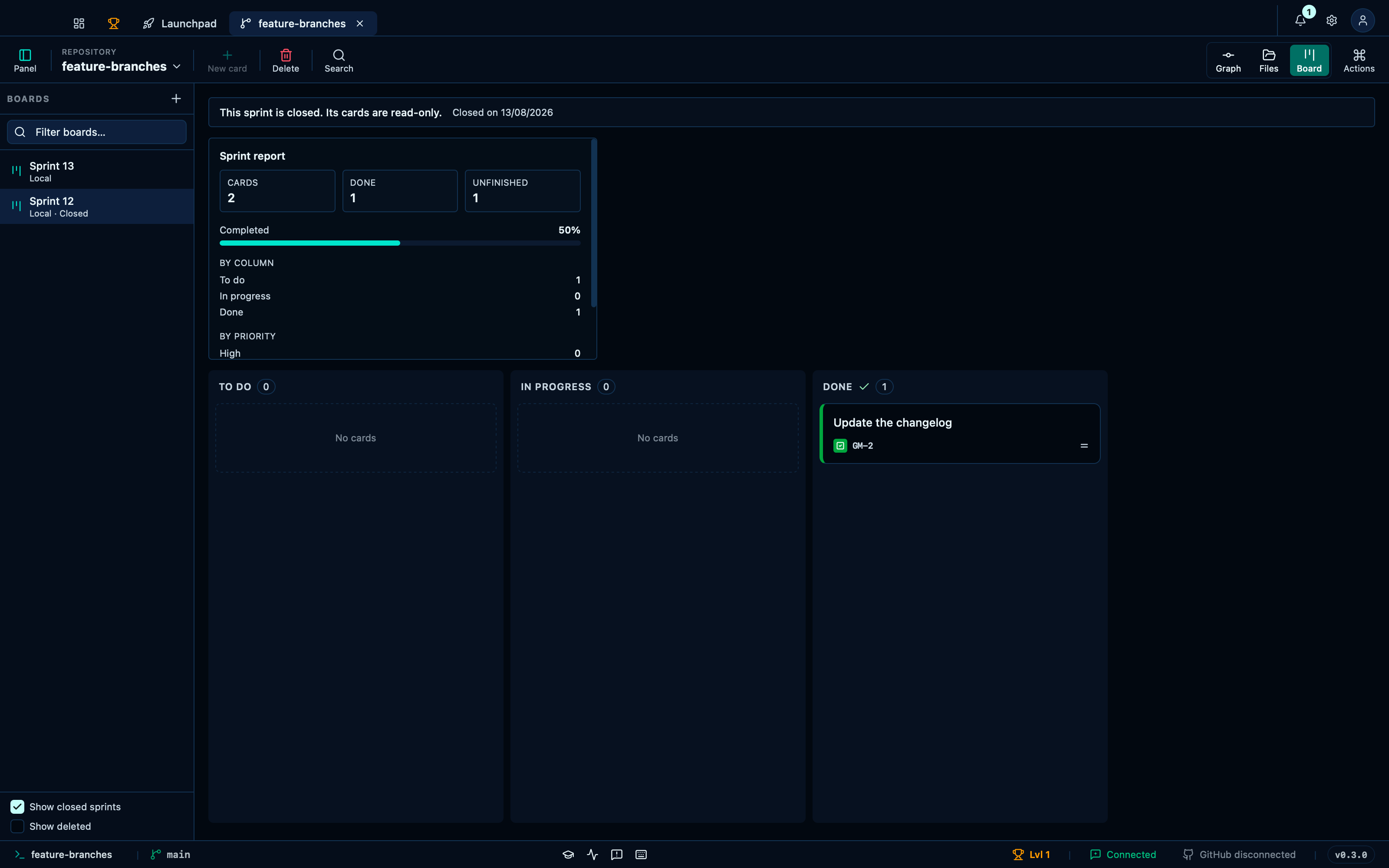
Captured from the running app by this scenario.
Do this
- Open the board
- Create a board named
Sprint 12with the card prefixGM - Add a card titled
Ship the installerto theTo docolumn - Add a card titled
Update the changelogto theTo docolumn - Set the status of the card
Update the changelogtoDone - Close the sprint, carrying the unfinished cards into
Sprint 13 - Show closed sprints
- Select the
Sprint 12sprint
You should see
- The board
Sprint 13is shown - The card
Ship the installeris shown on the board - The repository stores 2 boards in its own git history
- The sprint is read-only
- The card
Update the changelogis shown on the board - The sprint report is shown
An archived card leaves the board but stays findable
Archiving takes a card off the board without losing a word of it — the reversible neighbour of deleting, for a card that is done being tracked but not done being real. It comes back into whichever column it left, exactly as it was, the moment it is restored.
The global search (⌘F) reaches every card of every board in one field, archived cards included — found by its identifier, title, assignee or board name, so "where is GM-7" never has to start by naming which board GM-7 is on. Picking a result switches to its board and opens it there.
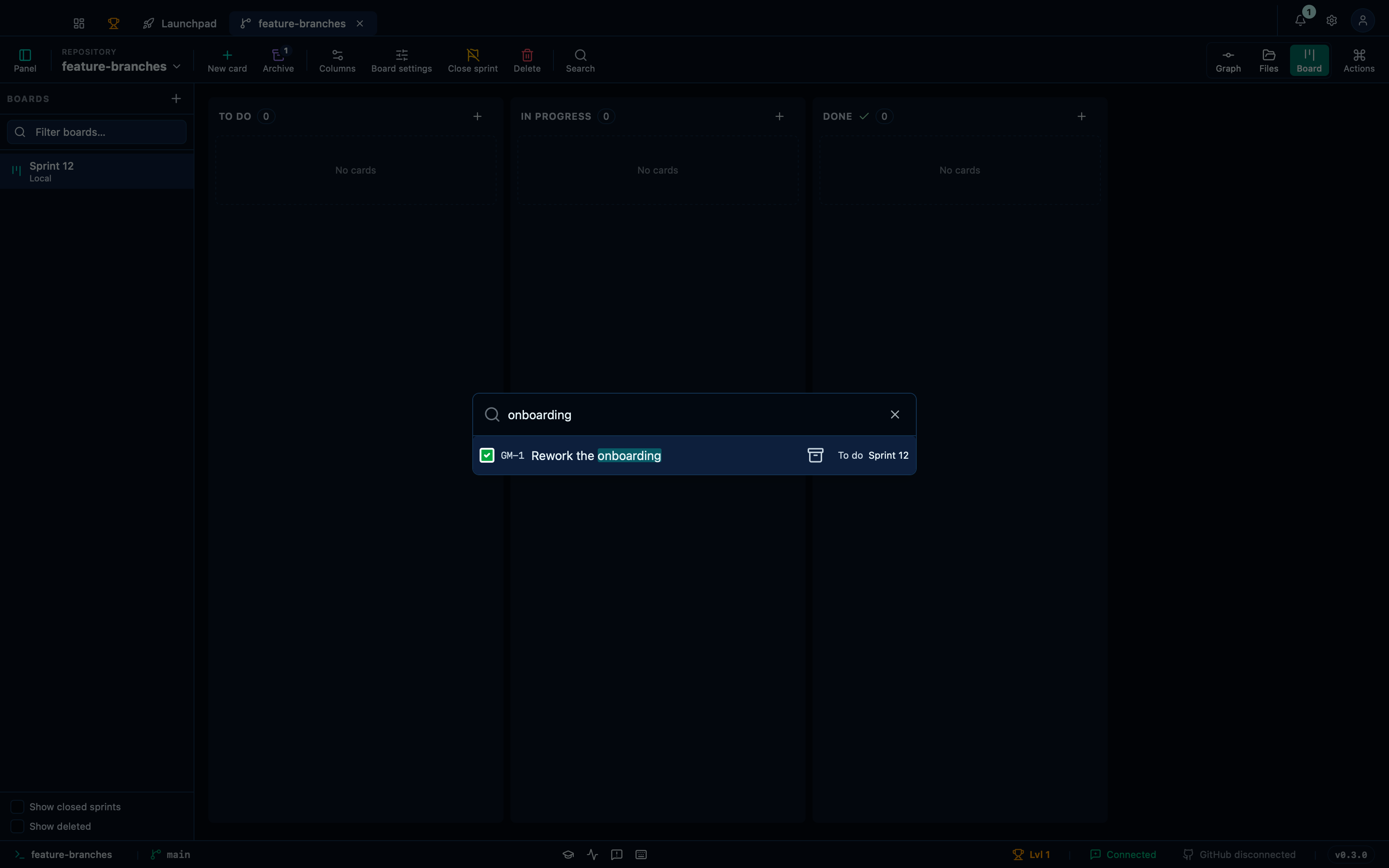
Captured from the running app by this scenario.
Do this
- Open the board
- Create a board named
Sprint 12with the card prefixGM - Add a card titled
Rework the onboardingto theTo docolumn - Archive the card
Rework the onboarding - Search every board for
onboarding - Close the ticket search
- Restore the card
Rework the onboardingfrom the archive
You should see
- The
To docolumn holds 0 cards - The ticket
Rework the onboardingis offered by the search - The
To docolumn holds 1 card - No error notification is displayed
Deleting a board while keeping its cards
Deleting a board is not locally undoable, and its tickets can't be left without one — so the dialog asks which happens to them. Archiving them instead of deleting keeps the board itself around too, tombstoned rather than removed: it drops out of the list but stays reachable, read only, once "Show deleted" is switched on.
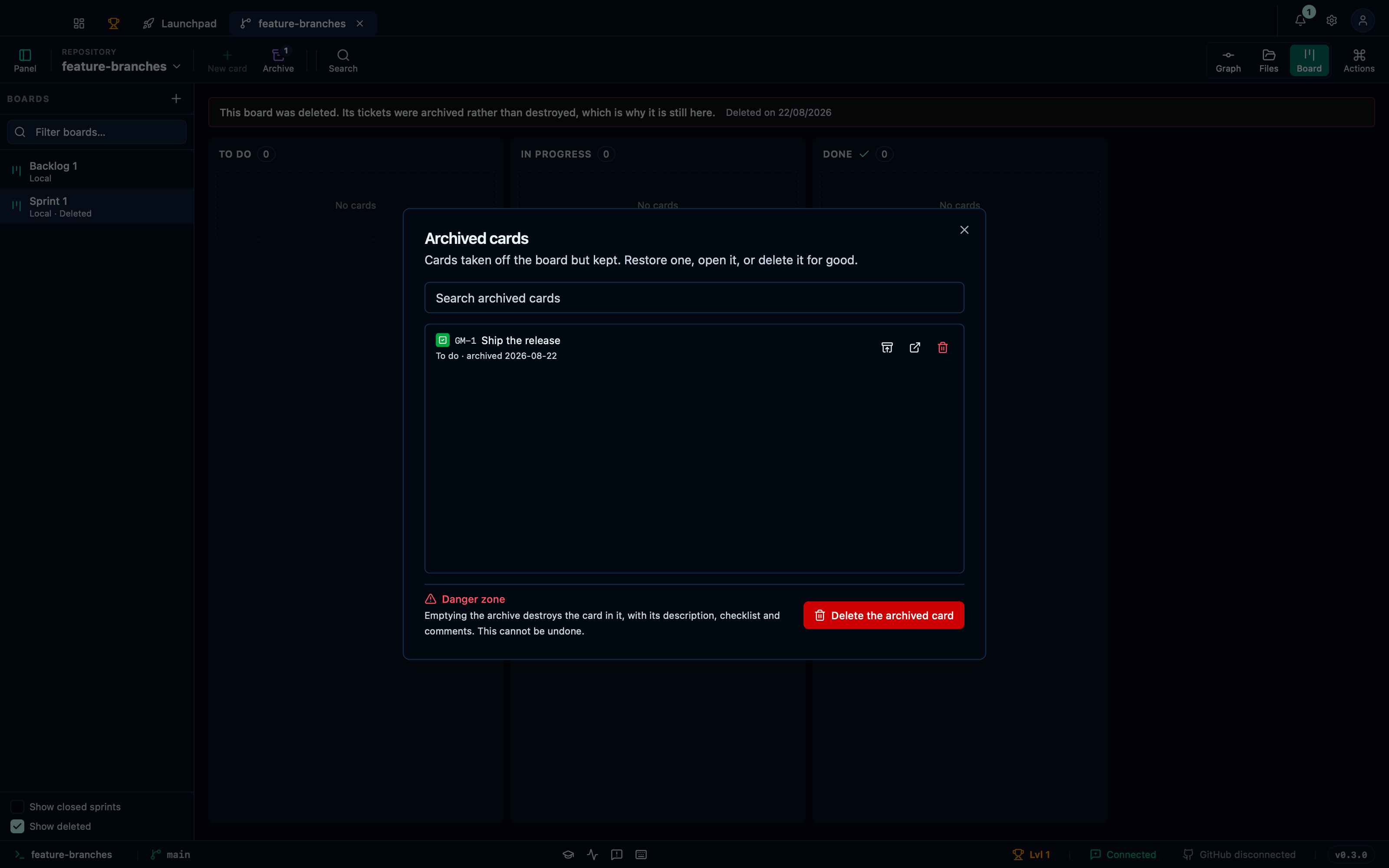
Captured from the running app by this scenario.
Do this
- Open the board
- Create a board named
Sprint 1with the card prefixGM - Add a card titled
Ship the releaseto theTo docolumn - Delete the board
- Keep the board's cards instead of deleting them
- Confirm deleting the board
- Create a board named
Backlogwith the card prefixBL - Show deleted boards
- Select the
Sprint 1board
You should see
- The board shows it was deleted
- The board
Sprint 1is no longer listed - The board shows it was deleted
- The
To docolumn holds 0 cards - The archived card
Ship the releaseis listed
This page is generated from apps/e2e/features/board.feature, the end-to-end test that drives the feature it describes.