
Appearance
The appearance tab is where the app's look lives: which built-in theme is active, the application icon macOS shows for it, and any custom theme dropped in by hand.
Selecting a built-in theme applies it and persists across a reload
Every built-in theme lives in the appearance tab as a card you can preview and pick. Selecting one applies immediately — no confirm step — and it is still the active theme the next time the app opens, reload or restart included.
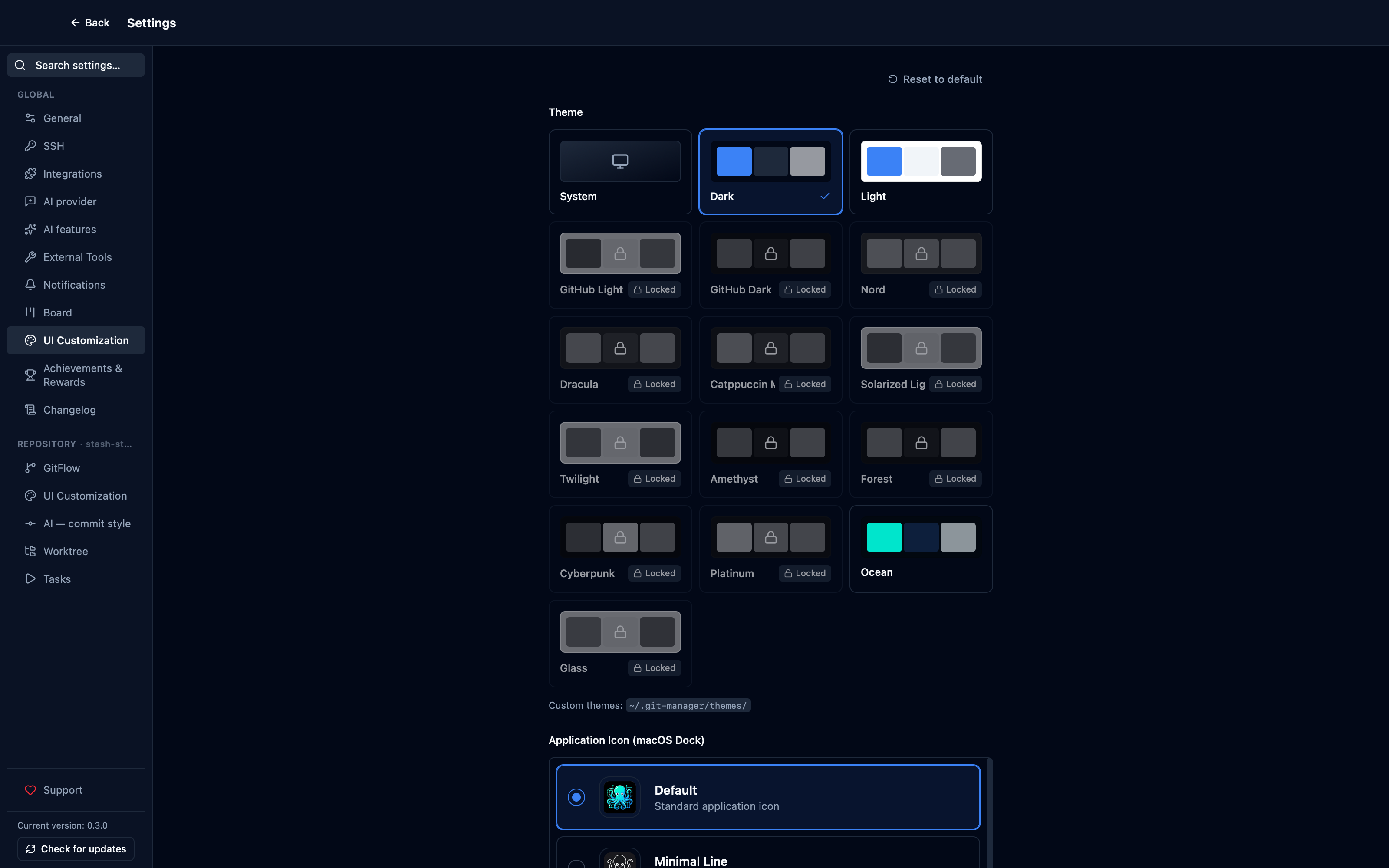
Captured from the running app by this scenario.
Do this
- Open the settings
- Open the
ui_customizationsettings tab - Select the
lighttheme - Reload the application
- Open the settings
- Open the
ui_customizationsettings tab - Select the
darktheme
You should see
- The active theme is
light - The active theme is
light - The active theme is
dark
Choosing another application icon keeps it across a reload
Eight icon styles are available for the Dock, picked from the same list this screenshot shows — the choice is a setting like any other, so it is still applied the next time the app opens, reload or restart included. WebDriver only ever sees the webview, never the Dock itself, so this page shows the picker rather than the Dock icon it controls.
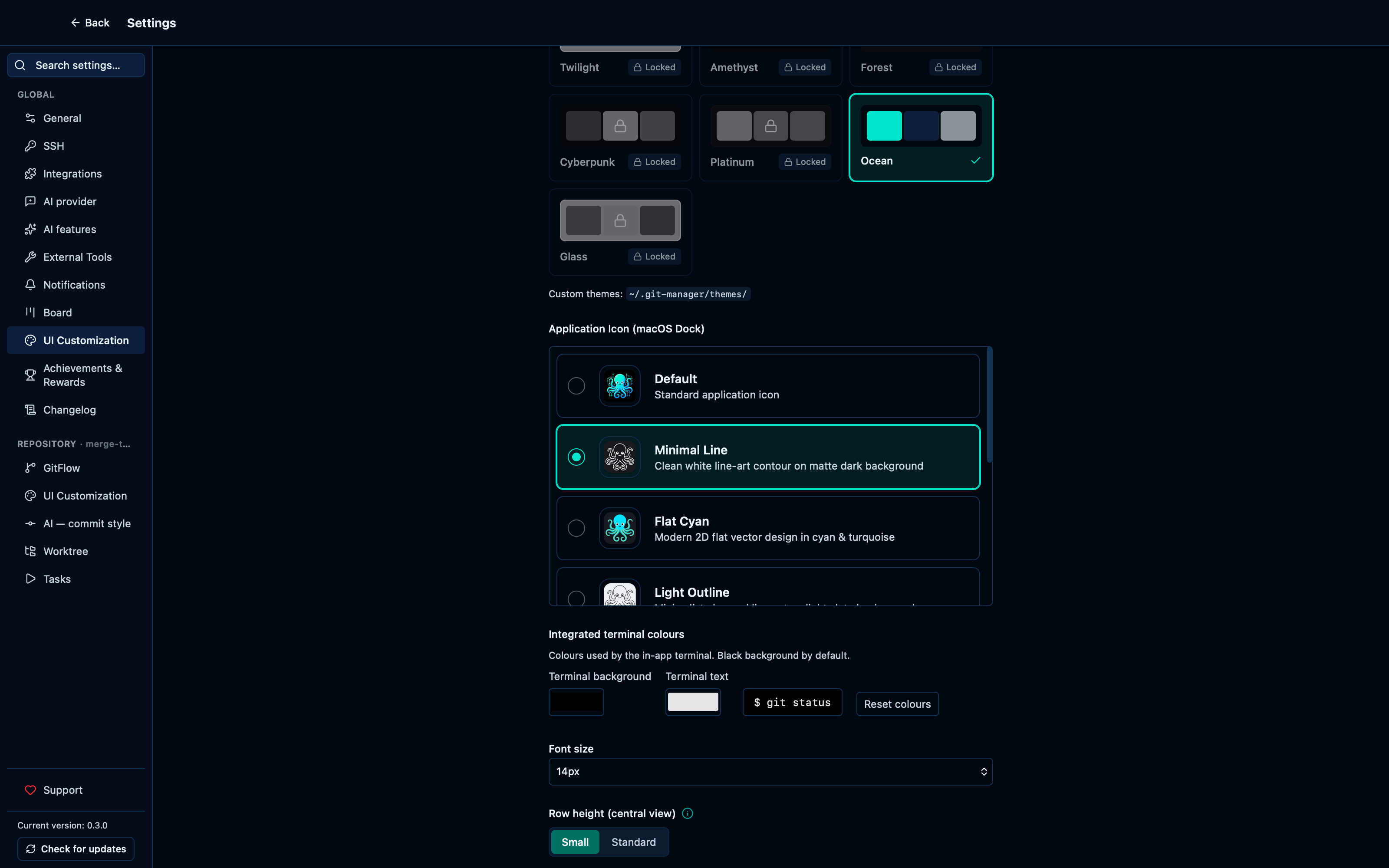
Captured from the running app by this scenario.
Do this
- Open the settings
- Open the
ui_customizationsettings tab - Select the
lineapplication icon - Reload the application
- Open the settings
- Open the
ui_customizationsettings tab - Select the
defaultapplication icon
You should see
- The
lineapplication icon is selected - The
lineapplication icon is selected - The
defaultapplication icon is selected - No error notification is displayed
Customizing the integrated terminal's background and text colors
The terminal's background and text are their own pair of colour pickers, independent of whichever theme is active — a live preview updates as soon as either changes, and Reset puts both back to the app's own defaults in one click.
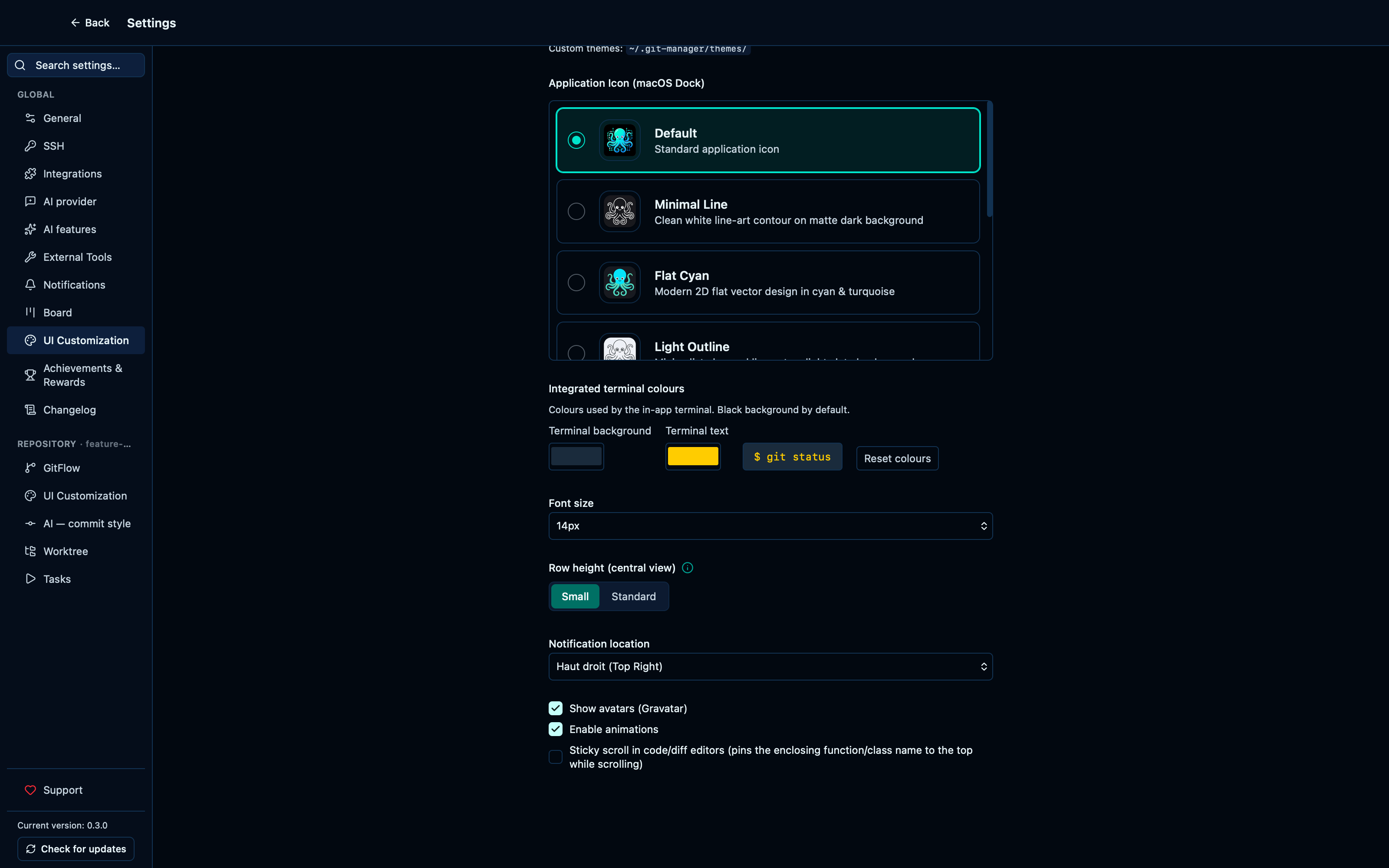
Captured from the running app by this scenario.
Do this
- Open the settings
- Open the
ui_customizationsettings tab - Set the terminal background color to
#1a2b3c - Set the terminal foreground color to
#ffcc00 - Reset the terminal colors
You should see
- The terminal background color is
#1a2b3c - The terminal foreground color is
#ffcc00 - The terminal background color is
#000000 - The terminal foreground color is
#e4e4e7
A theme dropped into the themes folder shows up alongside the built-in ones
Themes are not limited to the ones that ship with the app: any .css file placed in ~/.git-manager/themes becomes a theme of its own, named after the file, listed with the built-in ones and applied the same way. The file holds plain CSS variables — the app wraps them in the right selector — so a palette you like is a few lines and a restart-free reload away.
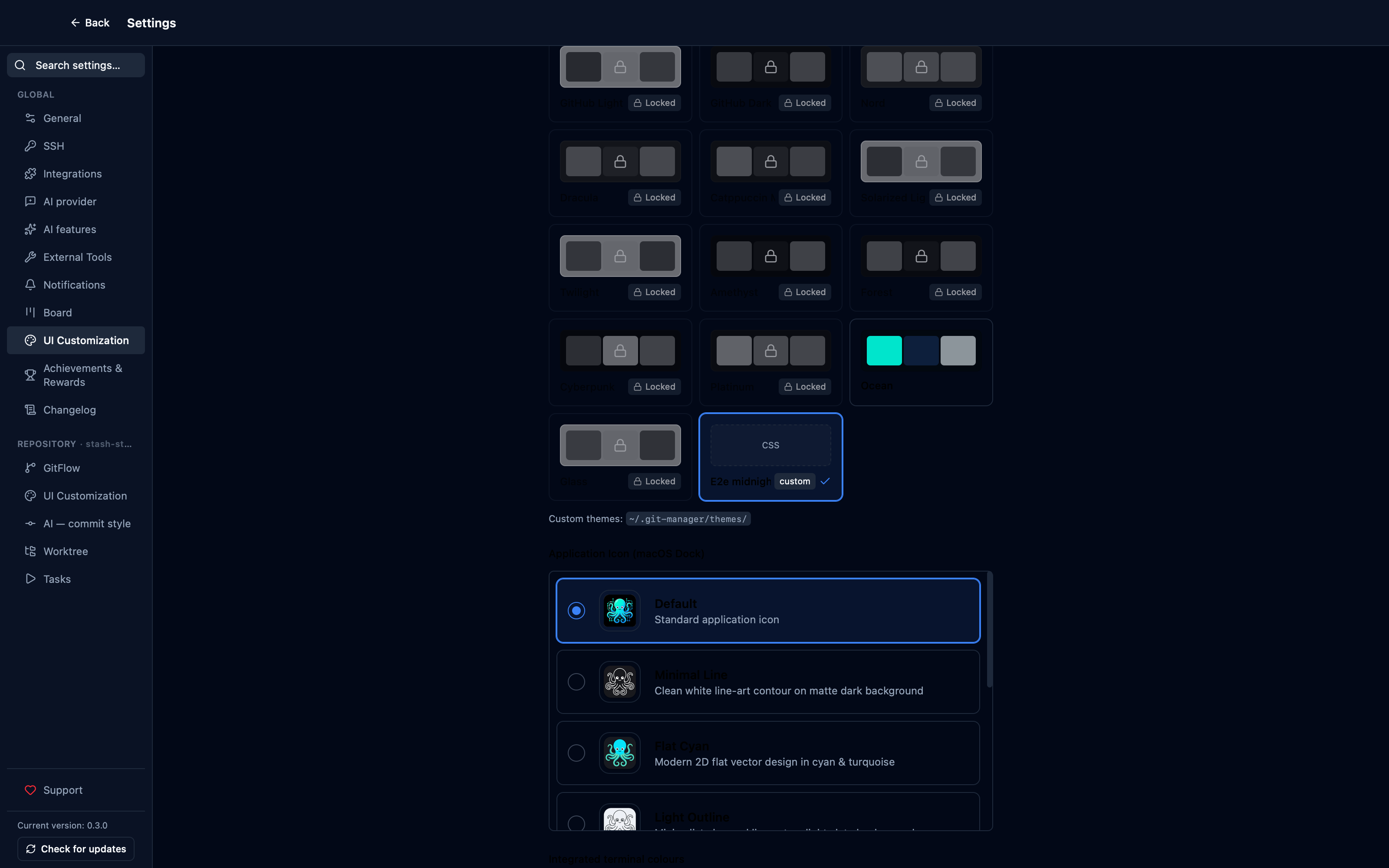
Captured from the running app by this scenario.
Do this
- Reload the application
- Open the settings
- Open the
ui_customizationsettings tab - Select the
e2e-midnighttheme
You should see
- The theme
e2e-midnightis offered - The active theme is
e2e-midnight
This page is generated from apps/e2e/features/settings-appearance.feature, the end-to-end test that drives the feature it describes.