
Repository-specific settings
Opening a repository adds a Repository group to the settings side panel, labelled with that repo's own name. GitFlow, worktree defaults, and runnable tasks live only there — there's no global counterpart. Appearance and commit style mirror a matching global page instead, so the same field can be set globally and then overridden for just this repository.
Setting a repository's protected branches
Protected branches, the default branch name, and PR target branches are inherently project-specific — there's no sensible app-wide default, so GitFlow only ever lives in the Repository scope.
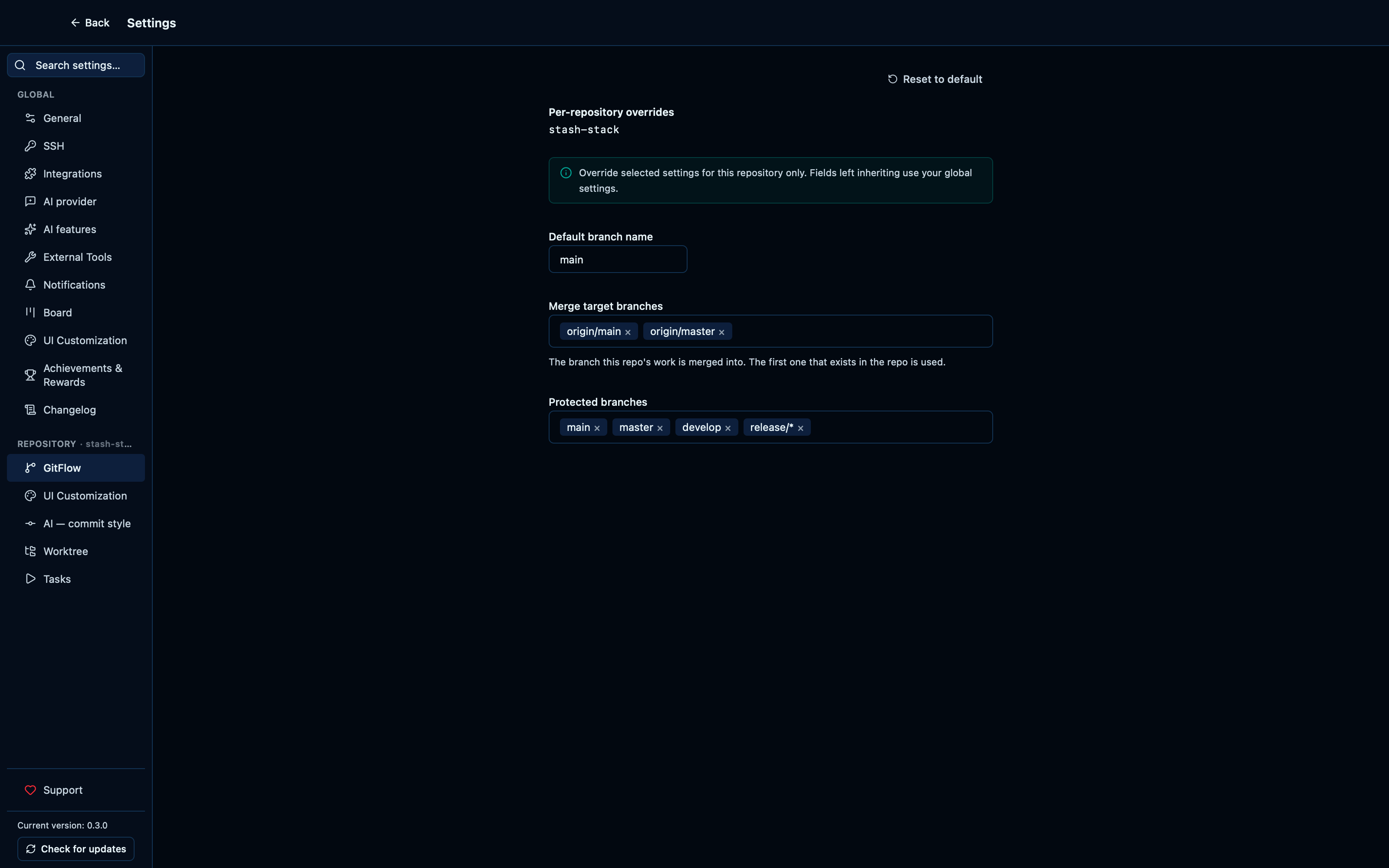
Captured from the running app by this scenario.
Do this
- Open the settings
- Open the
gitflowrepository settings tab - Add
release/*to the repository's protected branches
You should see
- The repository's protected branches include
release/*
Overriding the per-repo theme shows as overridden on the global Appearance page
Switching a mirrored field to Override seeds it from the current effective value, ready to edit — and the global page for that same field then shows an "(overridden)" badge, so editing it there doesn't look like it silently did nothing.
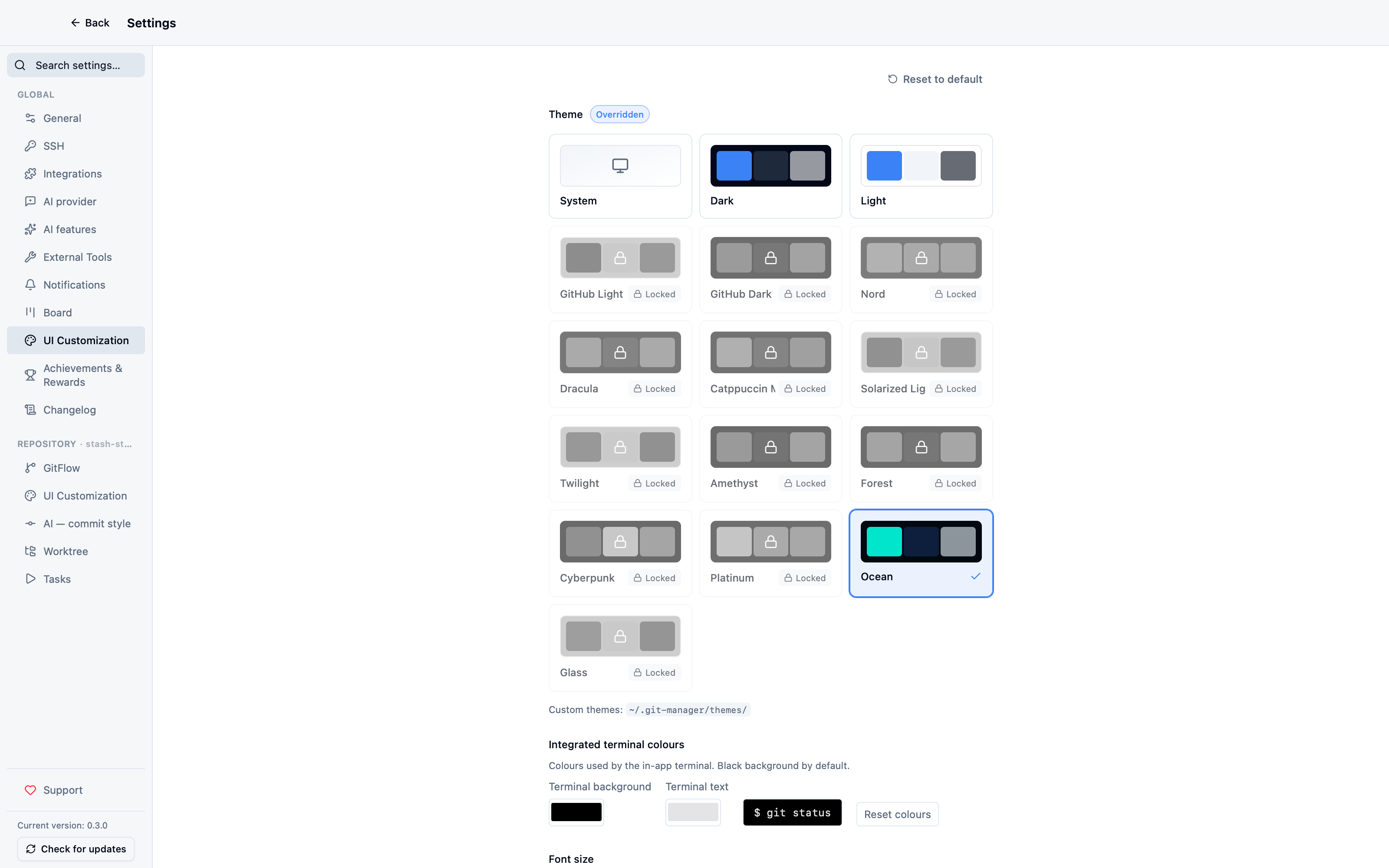
Captured from the running app by this scenario.
Do this
- Open the settings
- Open the
appearancerepository settings tab - Override the repository's theme
- Select the repository theme
light - Open the
ui_customizationsettings tab
You should see
- The repository theme override is
light - The global theme setting shows as overridden
Overriding the per-repo commit instructions shows as overridden on the global AI Features page
Commit style mirrors theme the same way: switching it to Override seeds the textarea from the current effective value, and the global AI Features page then shows an "(overridden)" badge next to that same field, so it's clear the repository isn't reading it any more.
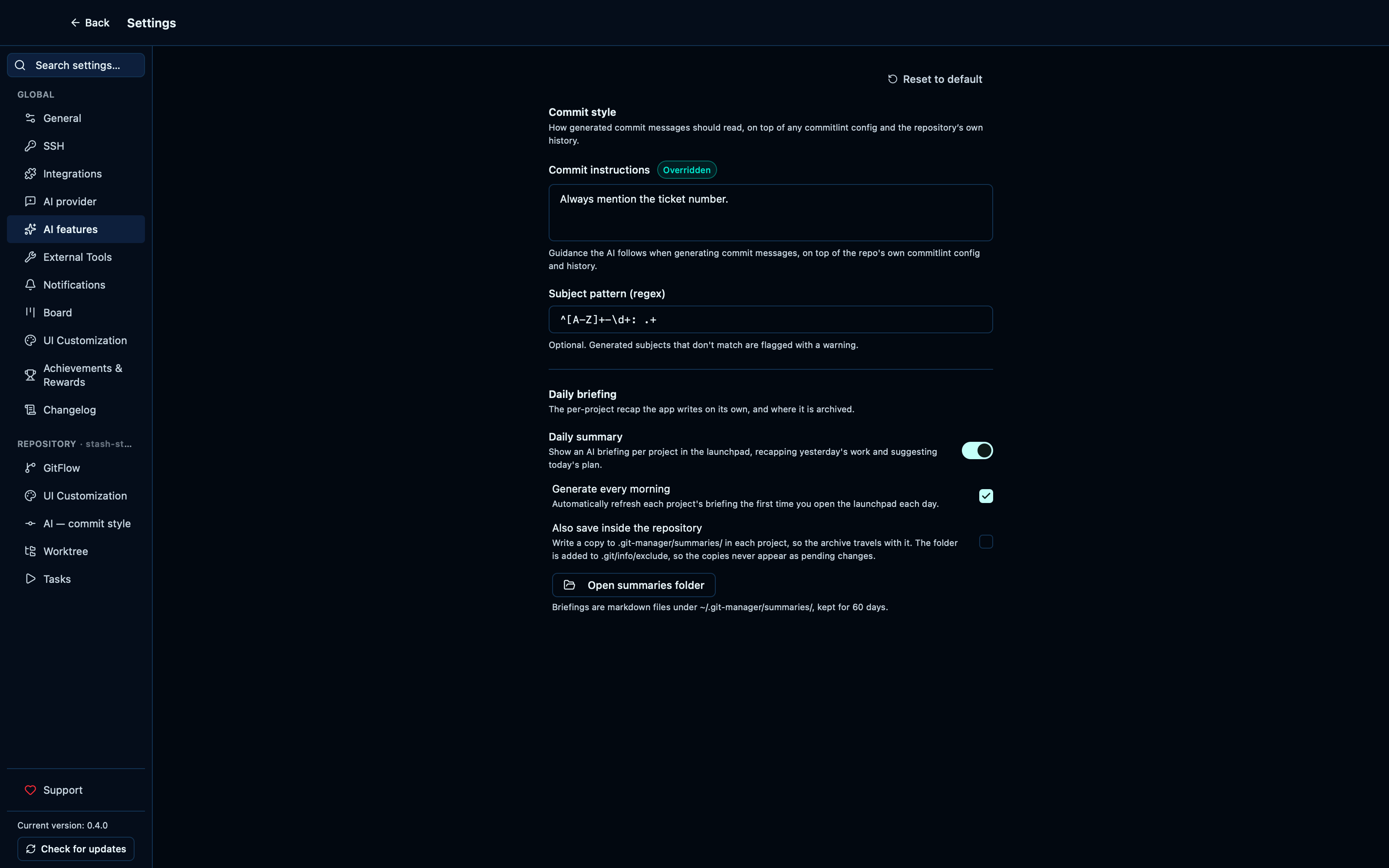
Captured from the running app by this scenario.
Do this
- Open the settings
- Open the
ai_commitrepository settings tab - Override the repository's commit instructions
- Set the repository commit instructions to
Reference the Jira ticket. - Open the
ai_featuressettings tab
You should see
- The repository commit instructions override is
Reference the Jira ticket. - The global commit instructions setting shows as overridden
Choosing which files new worktrees start with
A worktree created from this repository starts as a fresh checkout — untracked files like a local .env don't exist in it. A pattern added here copies any matching file from the main worktree into every worktree created afterwards, so a second checkout isn't missing what the first one has.
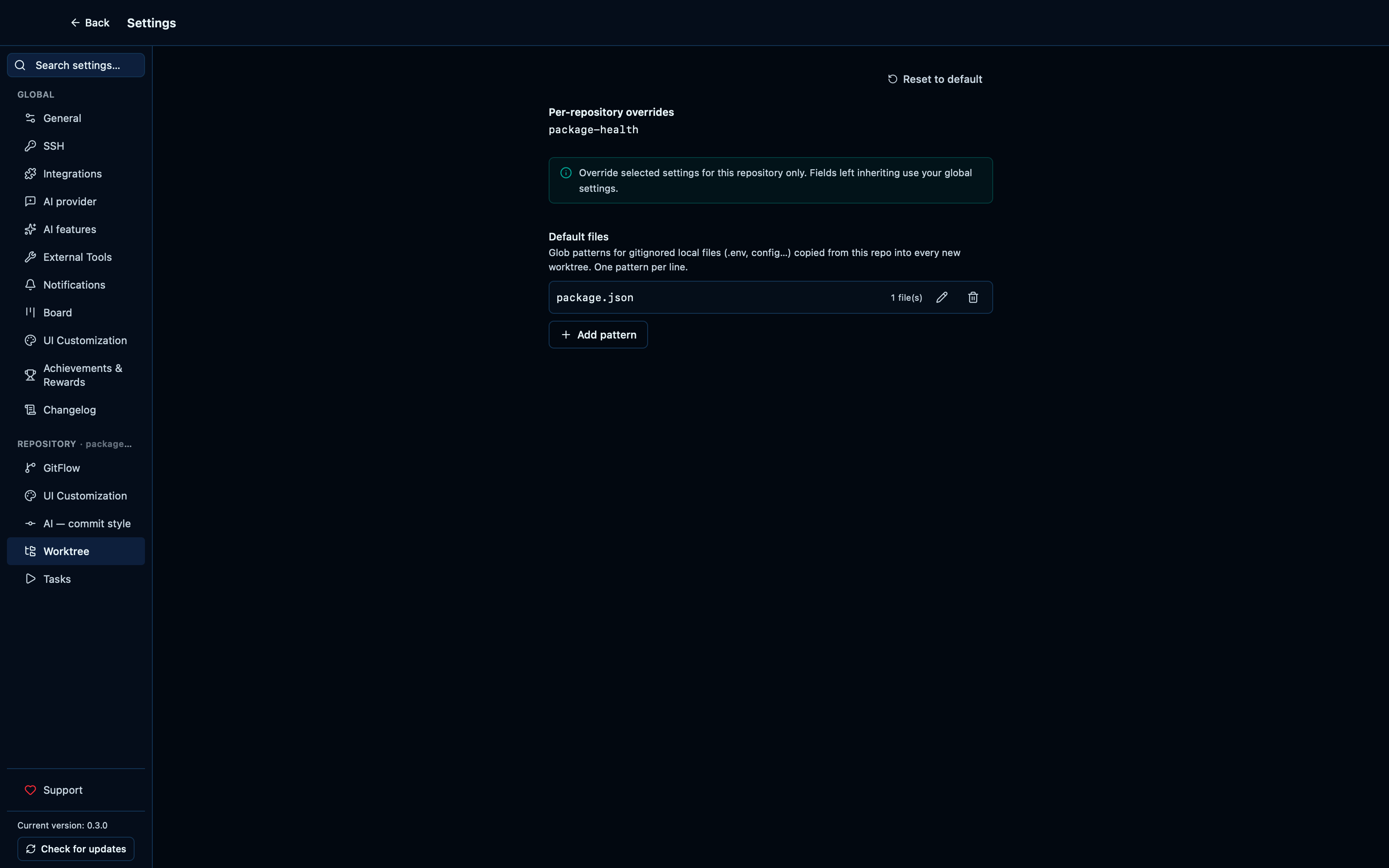
Captured from the running app by this scenario.
Do this
- Open the settings
- Open the
worktreerepository settings tab - Start adding a worktree default file
- Set the default file pattern to
package.json - Save the worktree default file
- Edit the worktree default file
- Set the default file pattern to
pnpm-lock.yaml - Save the worktree default file
- Delete the worktree default file
pnpm-lock.yaml
You should see
- The worktree default files list includes
package.json - The worktree default files list includes
pnpm-lock.yaml - The worktree default files list is empty
The repository's own scripts are suggested when adding a task
Tasks are the commands you start from the app rather than retyping in a terminal — a build, a test run, a dev server. You name them yourself, and the command field suggests the scripts your repository's package.json already declares, so the common ones are one click rather than one recall.
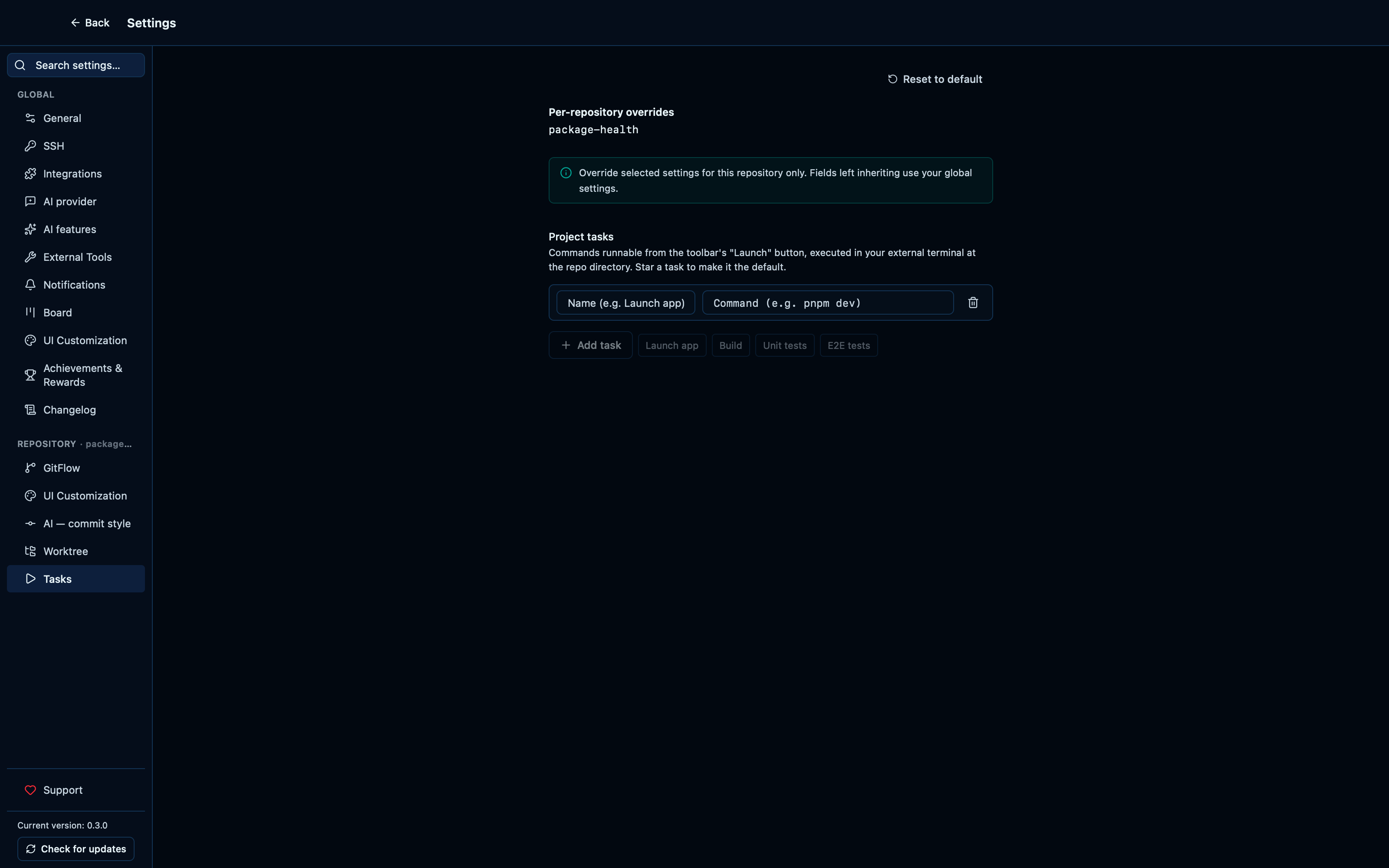
Captured from the running app by this scenario.
Do this
- Open the settings
- Open the
runrepository settings tab - Start adding a repository task
You should see
- The task command suggestions include
build - The task command suggestions include
test
A saved task becomes the toolbar's Launch button
Once a task is saved, it leaves Settings for good: the toolbar grows a Launch button. Its main click starts the repository's default task, and the arrow beside it lists every task you've defined. Tasks launch in your external terminal (the one configured under External tools), in the folder of the tab you're on — so in a worktree, the dev server starts in that worktree, not in the main checkout.
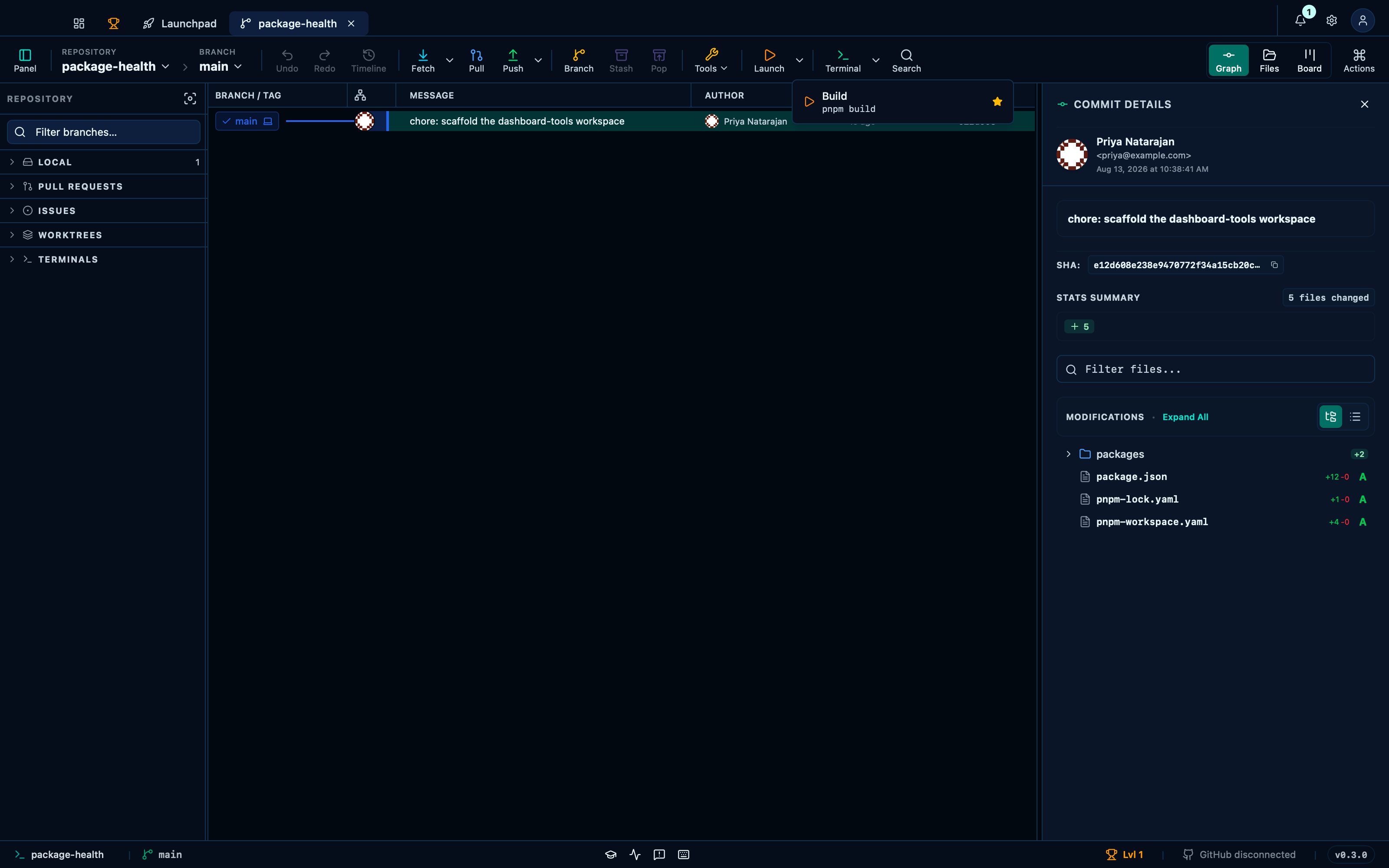
Captured from the running app by this scenario.
Do this
- Open the settings
- Open the
runrepository settings tab - Start adding a repository task
- Name the repository task
Build - Pick the task command suggestion
build - Save the repository task
- Go back from the settings
- Open the toolbar Launch menu
You should see
- The toolbar shows the Launch button
- The toolbar Launch menu lists the task
Build
Editing or removing a saved task
Nothing about a saved task is fixed: reopening it for editing turns it back into the same two fields it was created from, prefilled with what's already saved — and removing it needs no confirmation, since nothing beyond the toolbar's Launch button depends on it.
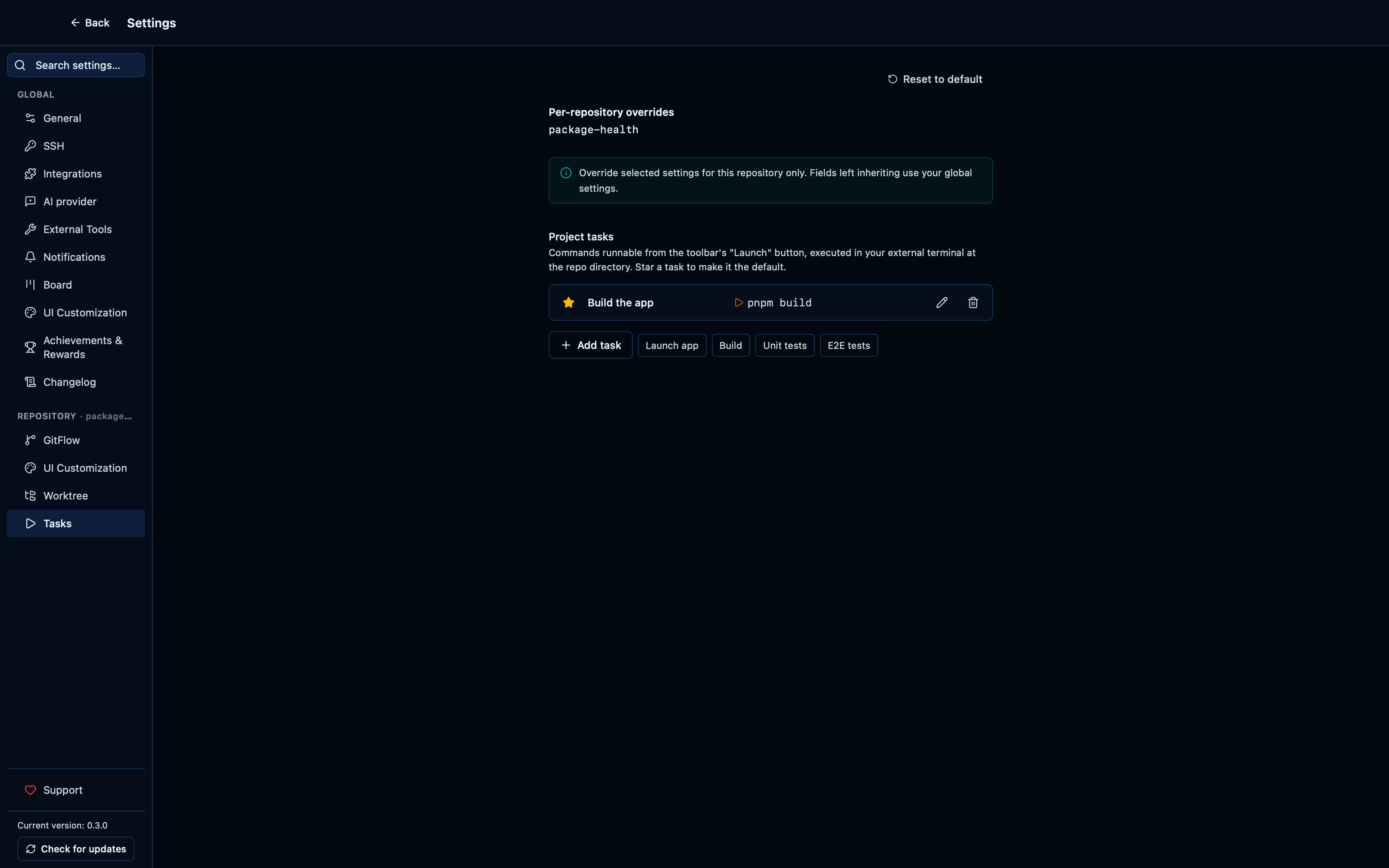
Captured from the running app by this scenario.
Do this
- Open the settings
- Open the
runrepository settings tab - Start adding a repository task
- Name the repository task
Build - Pick the task command suggestion
build - Save the repository task
- Edit the repository task
- Name the repository task
Build the app - Save the repository task
- Delete the repository task
You should see
- The repository task
Build the appis saved - The repository has no saved tasks
Choosing which task the Launch button's primary click runs
With more than one task saved, the first one saved is the default until you say otherwise — starring a different task moves the primary click to it, and the arrow menu keeps every task reachable either way.
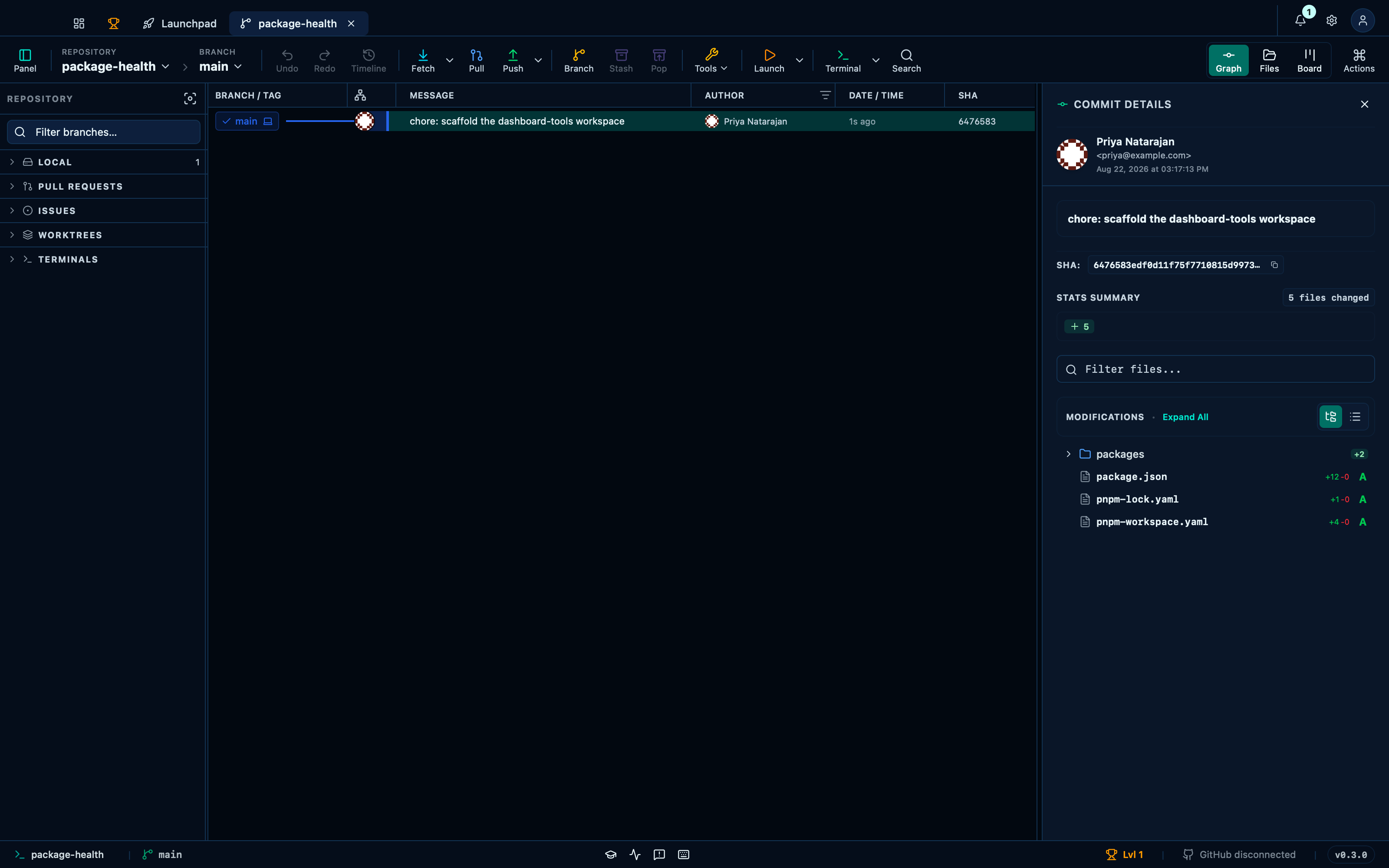
Captured from the running app by this scenario.
Do this
- Open the settings
- Open the
runrepository settings tab - Start adding a repository task
- Name the repository task
Build - Pick the task command suggestion
build - Save the repository task
- Start adding a repository task
- Name the repository task
Test - Pick the task command suggestion
test - Save the repository task
- Go back from the settings
- Open the settings
- Open the
runrepository settings tab - Set the repository task
Testas the default - Go back from the settings
You should see
- The toolbar Launch button's primary action runs the task
Build - The repository task
Testis the default - The toolbar Launch button's primary action runs the task
Test
This page is generated from apps/e2e/features/settings-repository.feature, the end-to-end test that drives the feature it describes.