
Notifications
Git Manager tells you about things twice, and the two are not the same. What happens while you watch — a fetch finishing, a hook refusing a commit, a clone counting up — arrives as a card that slides down from the top of the screen and leaves on its own. What happened to your pull requests while you were elsewhere is collected in the bell in the toolbar, and stays there until you deal with it.
The bell collects what happened while you were away
The bell in the toolbar carries an unread count, and opening it lists what came in — a review request, a merge, whatever the connected GitHub account has seen. Marking everything read clears the count without removing the notifications; clearing empties the tray outright.
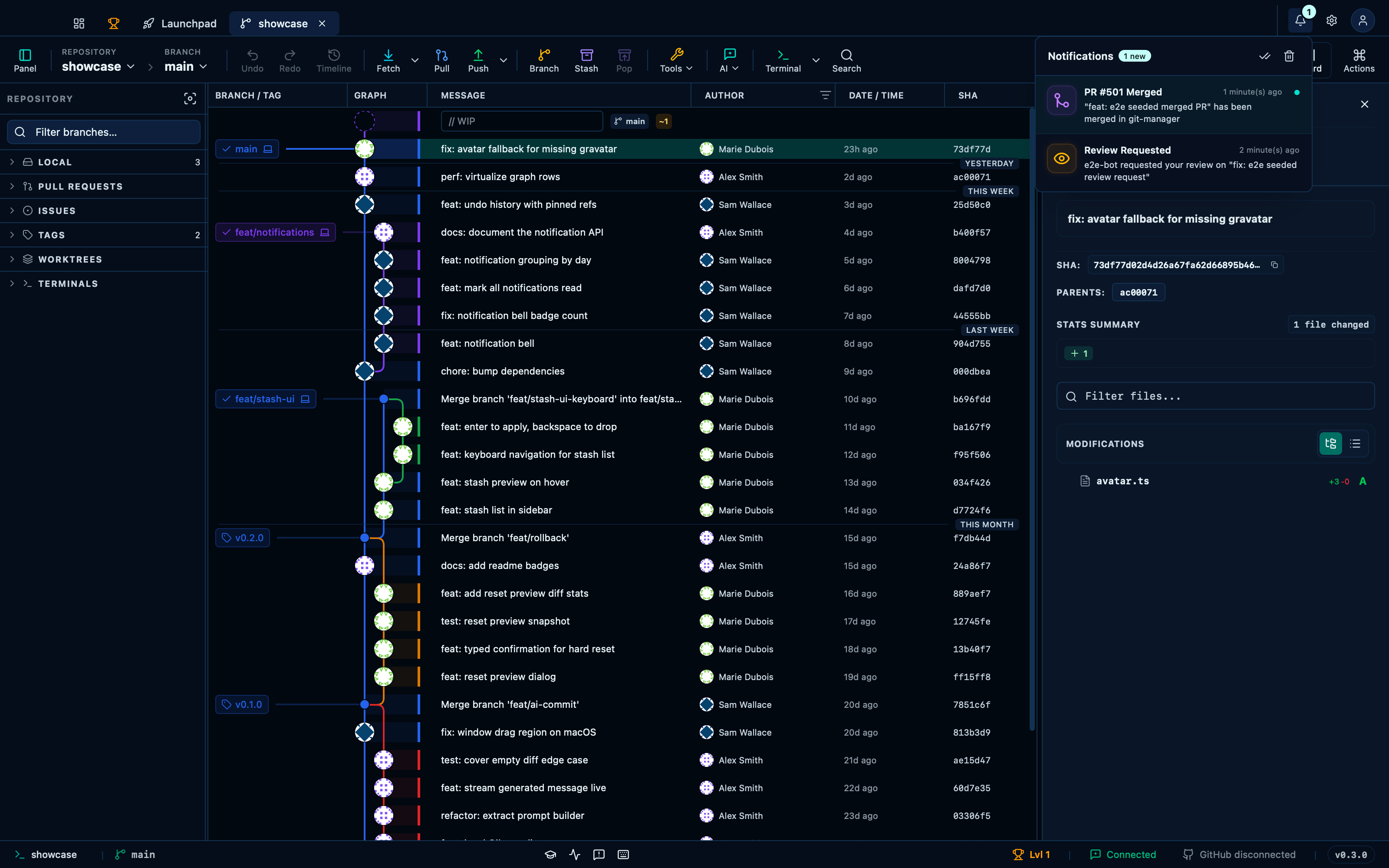
Captured from the running app by this scenario.
Do this
- Open the notification tray
You should see
- The notification tray shows 2 notifications
- The notification unread badge reads
1
Marking all as read clears the unread badge
"Mark all as read" clears the count without touching the list itself — the notifications you haven't dealt with are still there to scroll back through, just no longer flagged as new.
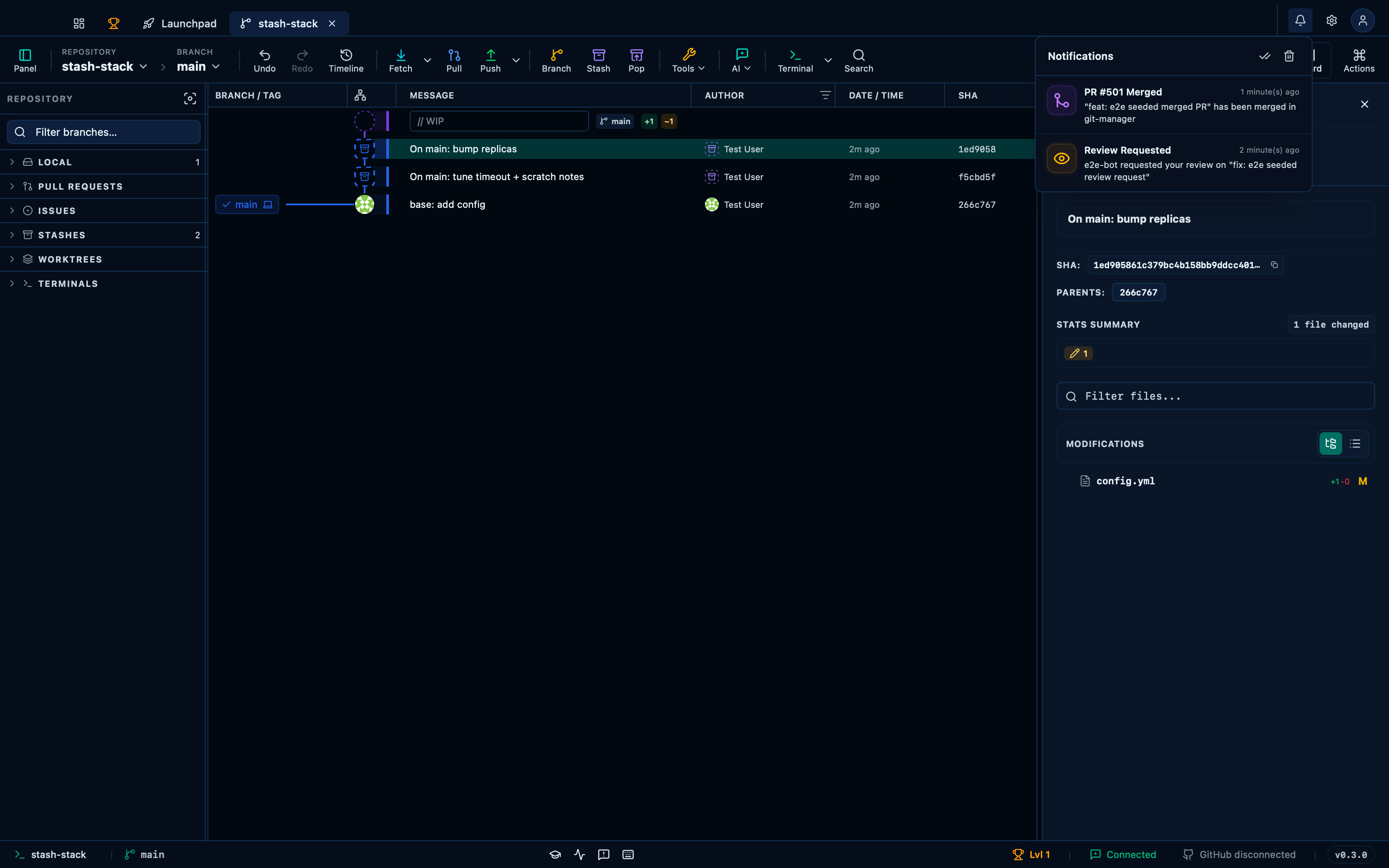
Captured from the running app by this scenario.
Do this
- Open the notification tray
- Mark all notifications as read
You should see
- The notification unread badge is not shown
Clearing all notifications empties the tray
"Clear all" is the other one: it empties the tray outright, for once everything in it has genuinely been dealt with and there's nothing left worth scrolling back to.
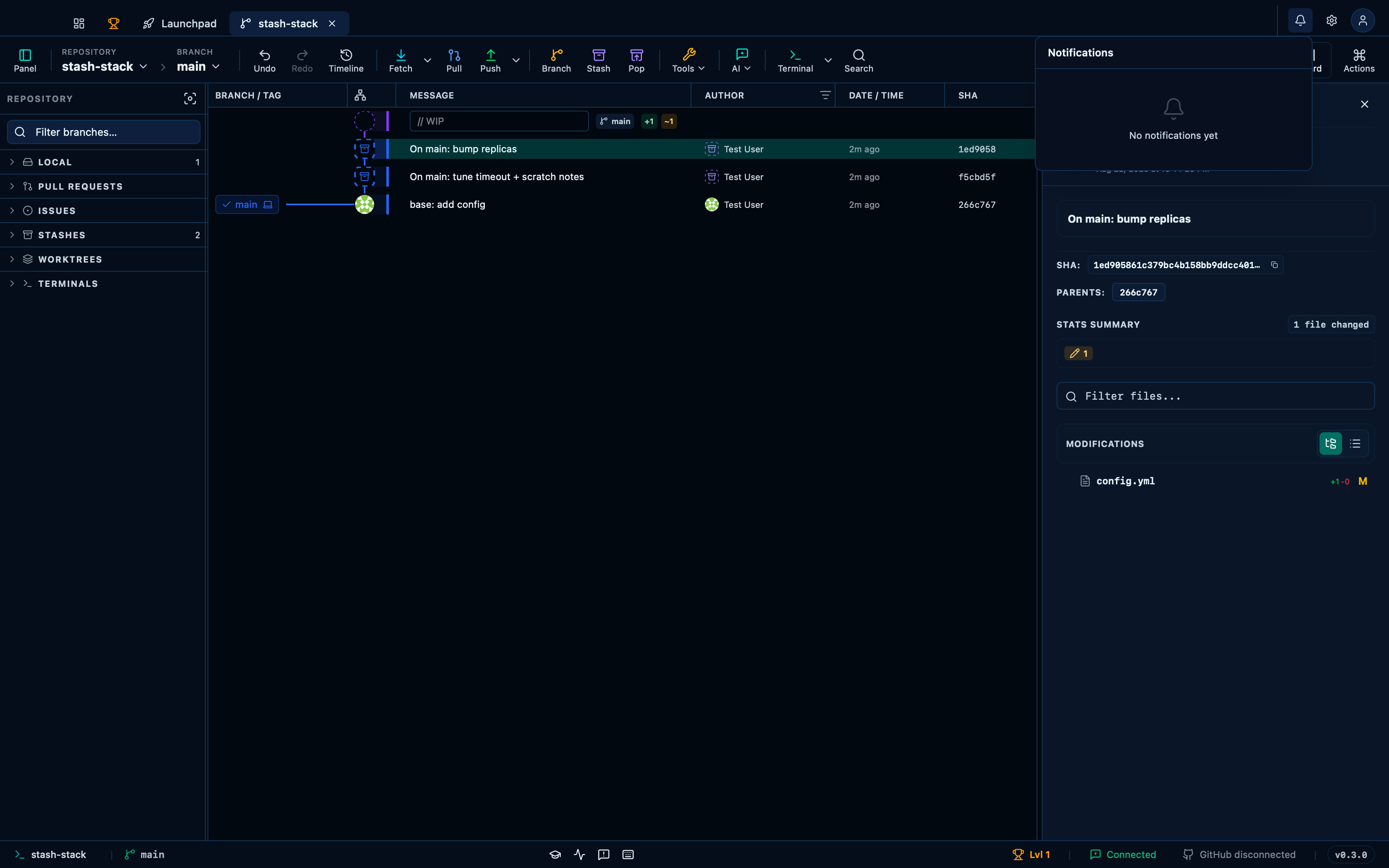
Captured from the running app by this scenario.
Do this
- Open the notification tray
- Clear all notifications
You should see
- The notification tray is empty
Choosing where notifications appear
Settings → Notifications decides where the app talks to you. Its own card is the default: it slides down from the notch at the top of the screen, sits over the menu bar, and goes away by itself after however long you pick here — or stays until you close it, if that is what you choose. Hovering it holds it open, clicking it brings the app forward on whatever it was about.
macOS banners are the alternative, and the choice is not only cosmetic — which is why each option carries a line explaining itself. A banner is a single line, written once, that ends up in Notification Centre and stays there. Anything that keeps changing while it runs has nowhere to go in one: pick banners and progress cards, background-task cards and the running-hook card are not raised at all, rather than being flattened into forty banners for one operation. The card is the surface that can carry them.
Because the card is the app's own surface, it can hold more than a line. A pre-commit hook that refuses a commit comes back with the tail of what the hook itself printed — "a hook refused" tells you nothing you can act on, the lines it wrote name the file and the rule. When several things happen at once the cards queue rather than pile up, and one that is still working — a clone counting towards 100 % — is updated in place rather than torn down and redrawn.
Under the picker, one switch per event decides what is worth interrupting you for in the first place — fetch, pull and push on the local side, then the pull request lifecycle from opened through review and CI to merged. One switch at the bottom plays a sound with whichever of them survive that list; it is off until you ask for it.
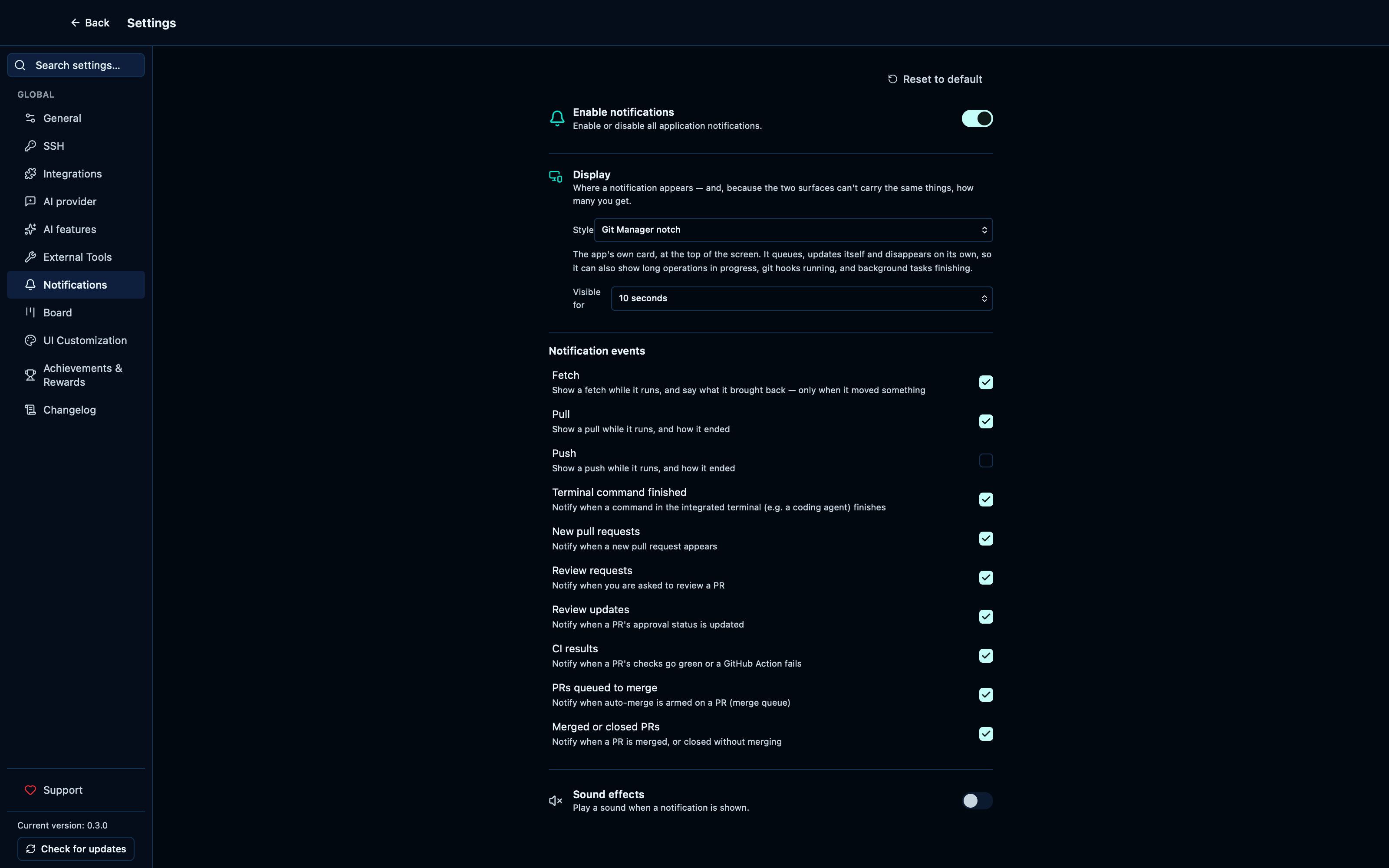
Captured from the running app by this scenario.
Do this
- Open the settings
- Open the
notificationssettings tab - Turn off the
pushnotification event
You should see
- The notification display options offer the notch card and the macOS banner
- The notification settings offer a switch per event
- The
pushnotification event is off
This page is generated from apps/e2e/features/notifications.feature, the end-to-end test that drives the feature it describes.