
Working tree staging
Your uncommitted work is not hidden away in a separate screen: it is the top row of the commit graph, sitting exactly where the commit you are about to write will land. Selecting it swaps the commit details panel for the staging panel, which is where you decide what goes into the next commit and what waits for the one after.
Decide what goes into the next commit
The staging panel splits your changes in two: staged files, which are what the next commit will contain, and unstaged files, which are everything else you have touched. Each file can be moved across on its own, or you can move the whole group at once when the change really is one unit of work. Nothing is committed until you write a message and confirm, so staging is a reversible sorting step — unstage a file and it simply drops back into the lower group, with your edits untouched on disk.
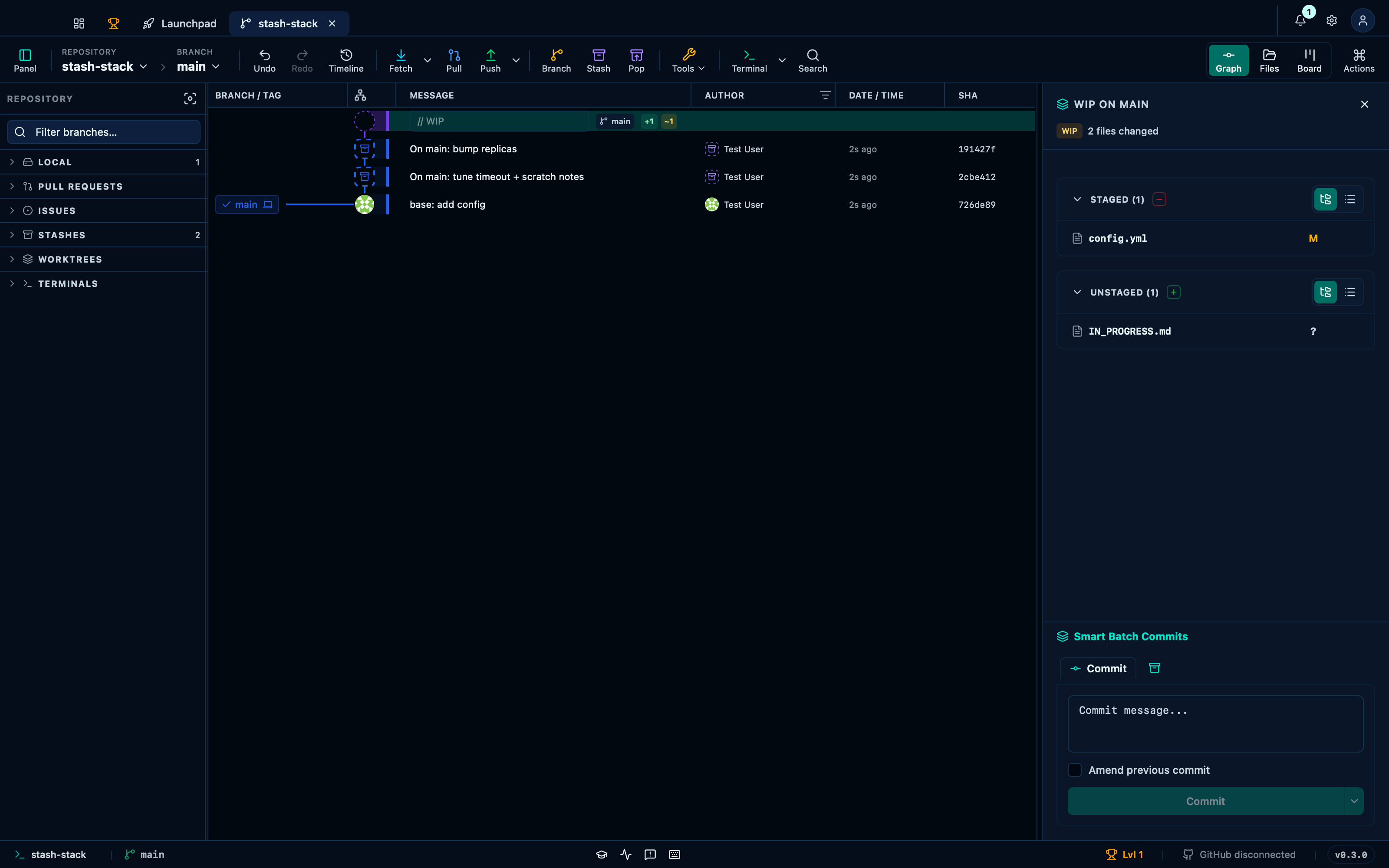
Captured from the running app by this scenario.
Do this
- Select the working-tree changes in the graph
You should see
- The staging panel is shown
Read a file's diff before you stage it
Clicking a file in either group opens its diff, so you can check what you are about to commit line by line rather than trusting the filename. This is where stray debug statements and half-finished edits get caught: review the file, then stage it if it belongs in this commit, or leave it unstaged and keep working.
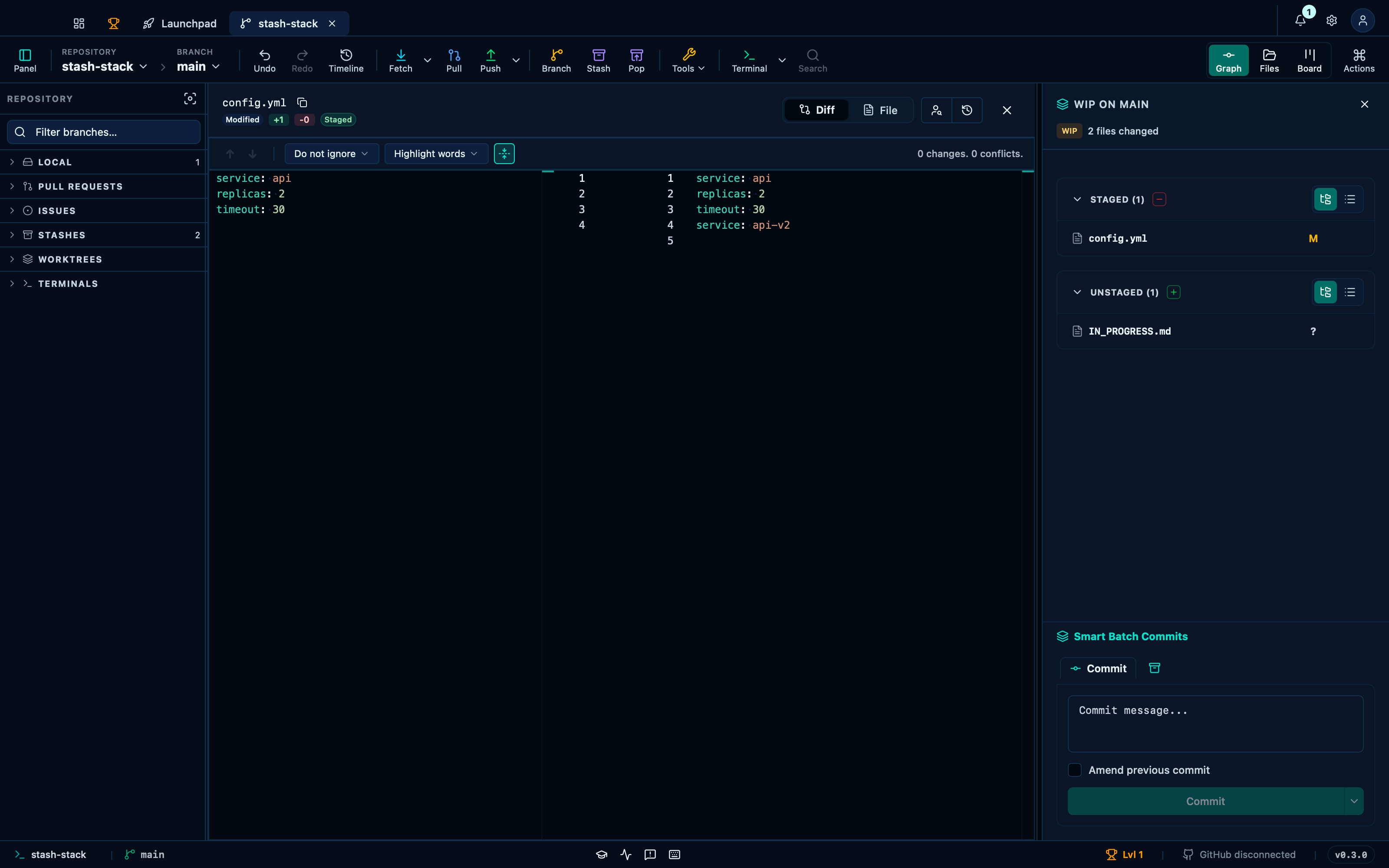
Captured from the running app by this scenario.
Do this
- Select the working-tree changes in the graph
- Open the diff for
config.yml
Bulk-staging all unstaged files
Each zone's header carries its own "stage all"/"unstage all" button, for when the change really is one unit of work and sorting file by file would just be busywork — one click moves every unstaged file into the next commit at once.
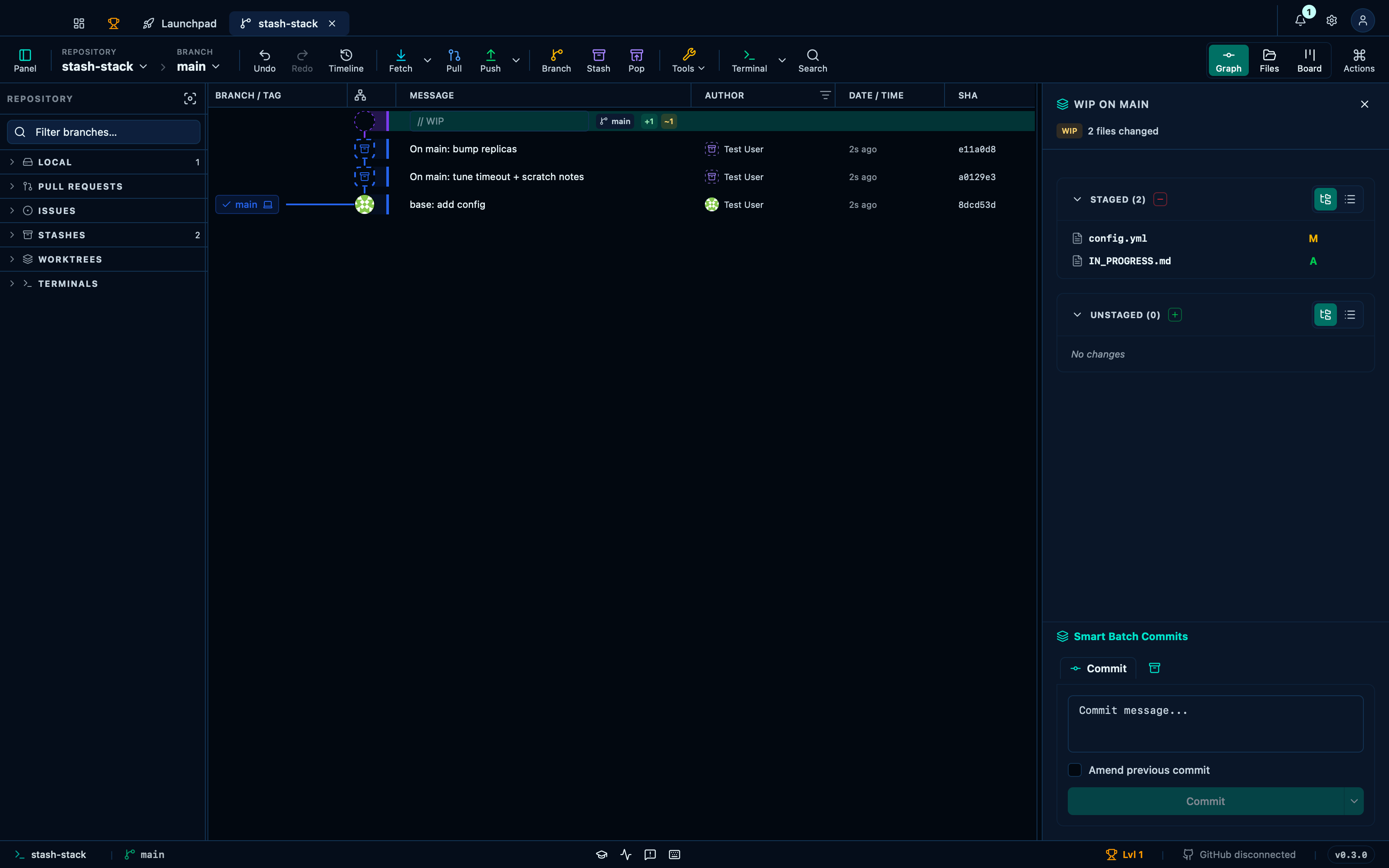
Captured from the running app by this scenario.
Do this
- Select the working-tree changes in the graph
- Stage all unstaged files
You should see
- The file
IN_PROGRESS.mdis staged
Discarding a file's changes throws them away
Next to each changed file, the discard button undoes your edits to that one file and puts it back to what the last commit says — the working tree's equivalent of closing a document without saving. It asks for confirmation first, because unlike everything else here there is no undo: the changes were never committed, so Git has no copy to restore.
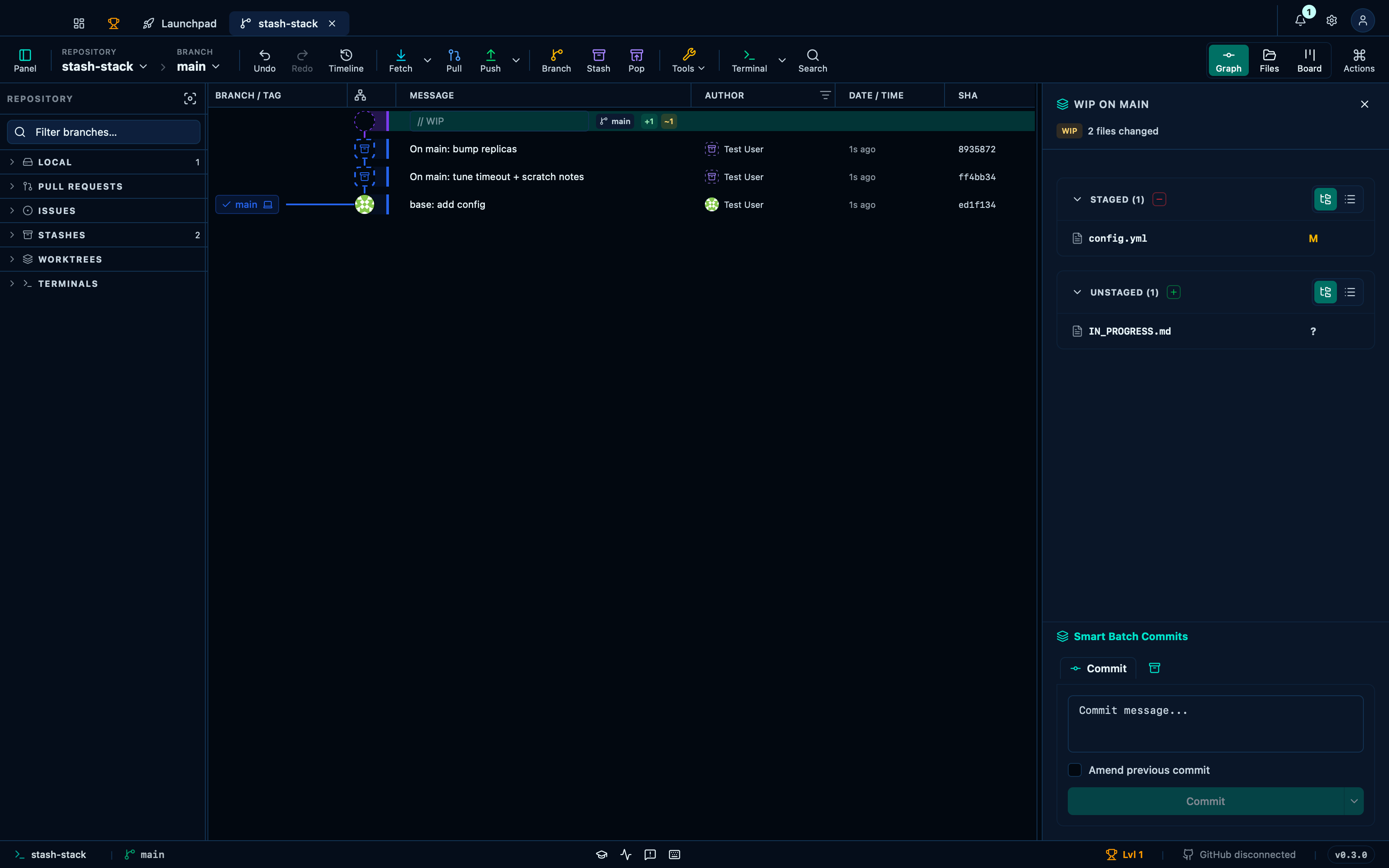
Captured from the running app by this scenario.
Do this
- Select the working-tree changes in the graph
- Discard the changes to
config.yml
You should see
- The file
config.ymlhas no working-tree changes - No error notification is displayed
Bulk-unstaging all staged files
The staged zone carries the same button in reverse: unstage everything at once to start the sorting over, rather than clicking each file back down one at a time.
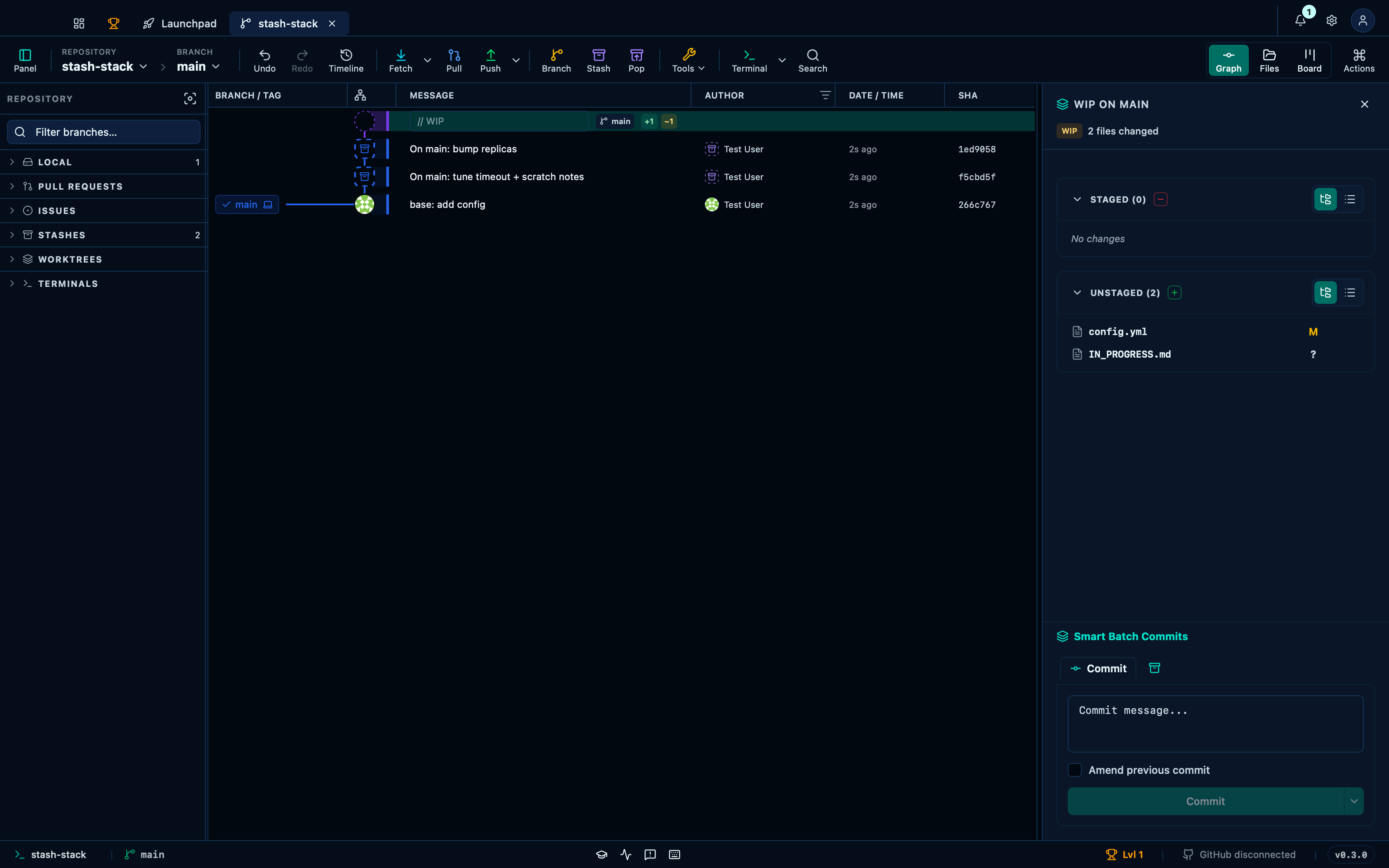
Captured from the running app by this scenario.
Do this
- Select the working-tree changes in the graph
- Unstage all staged files
You should see
- The file
config.ymlis not staged
This page is generated from apps/e2e/features/working-tree.feature, the end-to-end test that drives the feature it describes.